
Set Up the OpenAI API for Photo Supreme
Instructions
To create your own API key.
- Visit the APIs page. https://platform.openai.com/api-keys
- Click the button “Create new secret key” in the upper right side of the page.
- On the “You” tab, enter the name for your secret key (e.g. Photo Supreme Key)
- Click the button “Create secret key” in the dialog box. This generates your secret key, which you should store somewhere safe. This is important because you will not be able to view it again.
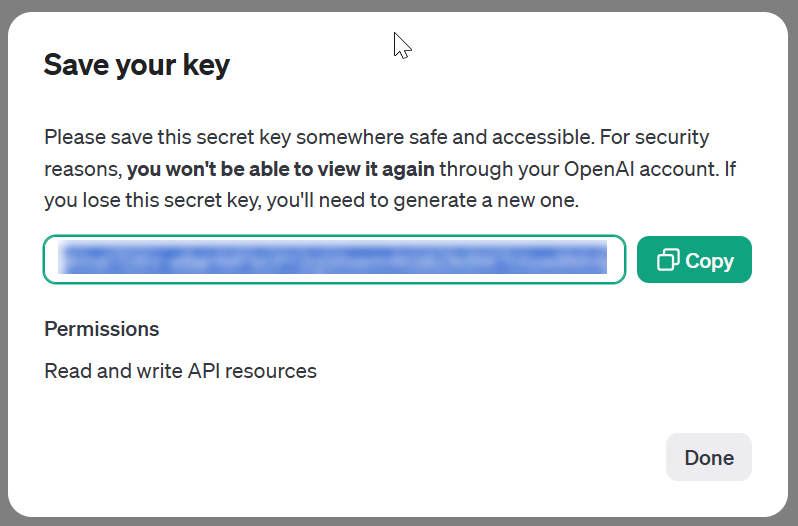
- Click the “Copy” button
- IMPORTANT: Save the secret key somewhere in your personal archives because it is not possible to view the complete key again. Once you close this dialog you will not be able to access your key again.
- Start Photo Supreme
- Open the Preferences and then Other Settings
- In the API Settings section, paste the Secret key in the OpenAI API Key field.
- Click OK to store the changed preferences.
NOTE If you are using the Photo Supreme Server edition then only a user with Administrator rights can configure the OpenAI API key in Photo Supreme.
You are now ready to use the AI Panel in Photo Supreme which interacts with OpenAI.
NOTE If you are using different catalogs in Photo Supreme then you can use the same OpenAI API key in each catalog. If needed, you can create multiple OpenAI API keys for each catalog, following the same steps again.