
Transfer and Share with Photo Supreme
Using a Share Profile
Any Share profile can be used to send a selection of images. Additionally, Flickr profiles can be utilized for complete synchronization of a Portfolio with the profile
Sharing individual images
To share individual images, follow these steps:
- Select the images you want to share.
- Click the Share button in the Action Bar.
- Choose the appropriate Share profile.
The sharing process will not affect your original files. Photo Supreme will create temporary copies of your images as needed, so you don't have to prepare them in advance.
If your profile is set up with Authentication and a Target Location (such as a folder or an album), the images will be transferred immediately. If the profile lacks authentication or requires you to choose a Target Location, you'll be prompted to authenticate and/or select the desired location at this stage.
Synchronizing a Portfolio
In the previous section, you learned how to transfer individual images to a target location. Photo Supreme also allows you to fully synchronize a Portfolio with either a folder or the Flickr service. A Portfolio is made up of collections, where each collection can include images and/or sub-collections, making them great for organizing your photos. For instance, you could create a Portfolio for your modeling photos, with different collections for each model featuring only their best shots. Alternatively, you might have a Vacations Portfolio with collections showcasing the top photos from each trip.
The benefit of synchronization is that Photo Supreme handles all updates for you. Changes you make are either synchronized to the folder or uploaded to Flickr, while images you haven't altered remain untouched. With Flickr profiles, only essential data is uploaded, such as new collections, updated collections, newly added images, and images removed from a collection.
However, there are a few important points to keep in mind when synchronizing with Flickr. First, although Photo Supreme supports an unlimited number of hierarchical collection levels, Flickr only permits up to five nested levels, so only the first five levels will be displayed on their platform. Second, in Photo Supreme, collections can contain images and sub-collections, but on Flickr, a collection that has sub-collections cannot also contain images.
To get started, I suggest creating a dedicated Portfolio that will include collections of all the images you want to sync with either a folder or Flickr. To do this, open the Portfolios section from the Catalog Bar and create a new portfolio by clicking on the “New portfolio” link.
Next, create your first Collection by selecting the portfolio and clicking the + button again. Then, choose the option to add a new Collection and ensure you give it a meaningful name.
With the hierarchical structure for your content now established, you can start adding images to the collections. You can find images anywhere in the catalog and press Ctrl+Shift+B (or Cmd+Shift+B on a Mac) to add selected images to a portfolio collection.
Typically, you wouldn’t upload every photo to Flickr; instead, you'd select a curated set to share. However, since Flickr offers ample storage space (even for free accounts), you could opt to upload everything if you prefer. Generally, it’s advisable to share only the standout shots, as most people prefer not to wade through thousands of images.
After populating your portfolio with images, you're ready to begin the synchronization process. As noted earlier, only changes made since the last sync will be uploaded. If this is your first synchronization, all existing images will be uploaded, so it’s best to start with a clean Flickr account.
To initiate the synchronization, you’ll need a Flickr or Folder Share profile. If you haven't set one up yet, click the Share button located below the thumbnails. Once you have at least one Flickr or Folder Share profile, a cloud icon will appear next to each portfolio, indicating that synchronization is available.
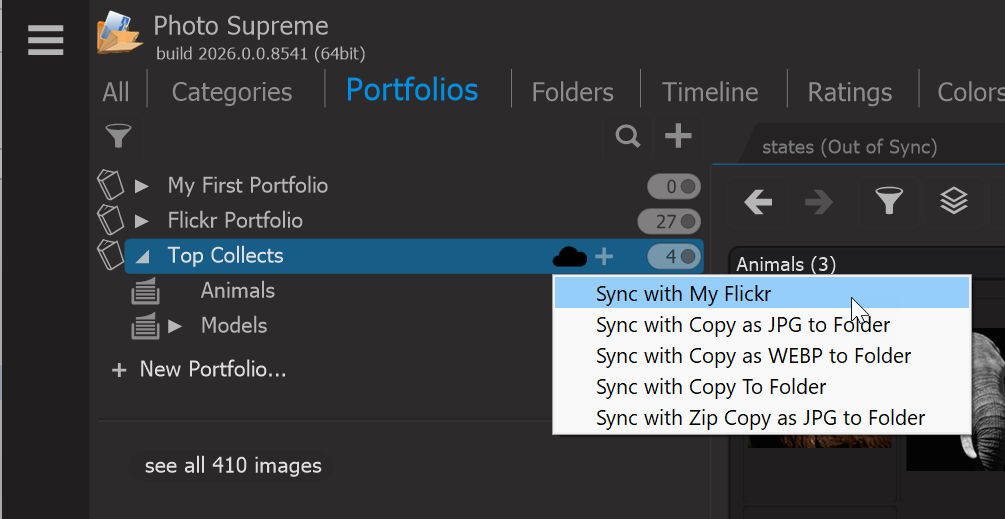
Click on that icon to access the Sync menu. This menu will display the available Flickr and Folder profiles for full synchronization.
Summary: This synchronization process is applicable to both Flickr and Folder profiles, allowing you to easily manage and upload your selected images to either service, ensuring that only the necessary updates are made while keeping your original files intact.