
Advanced Filtering with Photo Supreme
Filtering with Favorites
Favorites are one of the most powerful features offered by Photo Supreme. You can turn virtually anything you see on-screen into a “favorite,” including catalog labels, categories, catalog states, ratings, color labels, file paths, metadata occurrences, and more. Even better, you can create various combinations of these elements and save them as Favorites. Favorites can also encompass free text search strings and active filter conditions.
In the context of this document, it’s important to note that anything you designate as a Favorite can also be used in filters, regardless of how complex your favorites may be. Understanding this capability opens a whole new range of possibilities for finding your images.
While there are several ways to create favorites, this manual will not cover the full details of the process. Here are a few methods for creating a favorite:
- Click the “star” icon that appears when you hover over any entry in the Catalog Explorer. This can include a Category, Catalog Label, Portfolio, Collection, Rating, Catalog State, Timeline item, Version Placeholder, and more.

- Create a Dynamic Search and save it as a Favorite. The advantage of Dynamic Search is that you can build your search operation easily by dragging items from the Catalog Explorer to the Dynamic Search section.
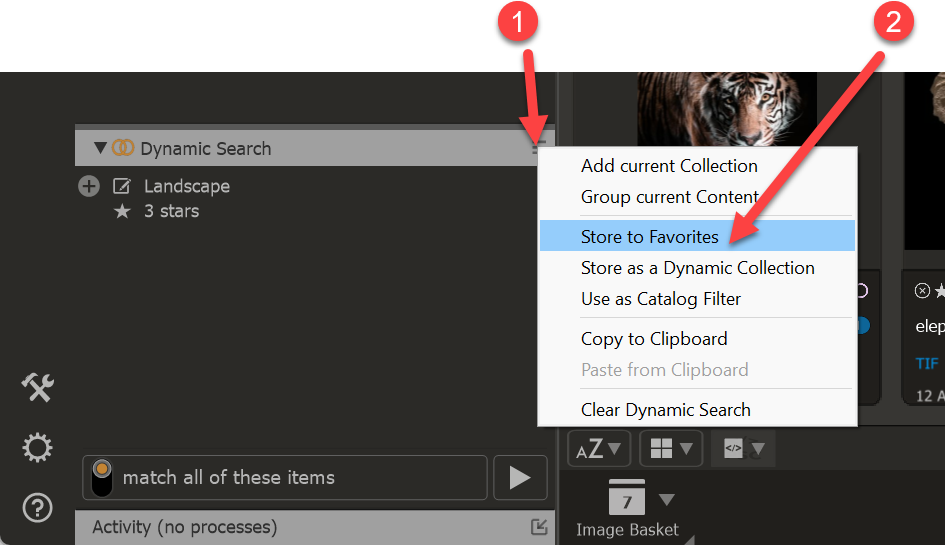
- Use the “Favorites” button to save your selections. You can perform any search operation, such as using Dynamic Search, the Search Bar, or by selecting items in the Catalog Explorer while holding down the Ctrl/Cmd key. Anything shown in the Collection Viewer can be instantly marked as a favorite—just click the Favorize button at the top of the Catalog Explorer.
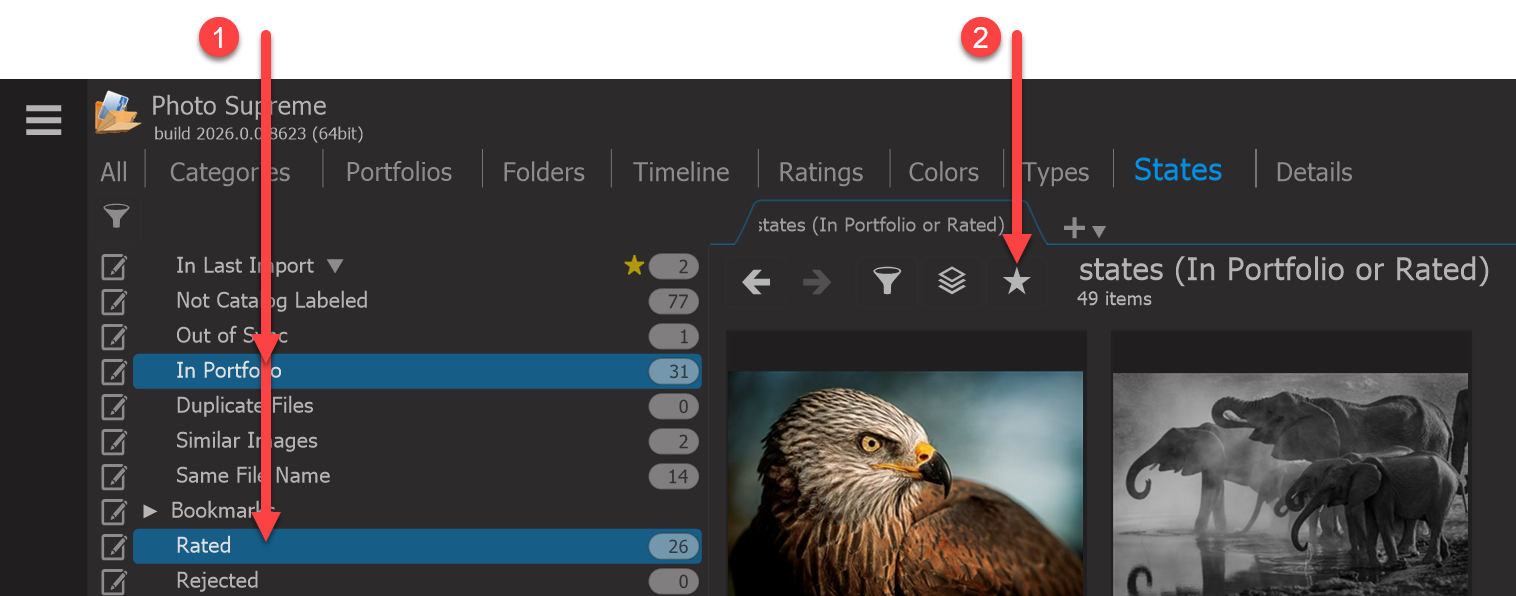
Once you have defined one or more favorites, they will automatically appear in the FILTER dropdown of the Filter Bar. This means that regardless of how complex your Favorite is, you can easily use it as a filter condition.