
Set Up Google APIs for Photo Supreme
Instructions
Important for Gemini users: You can create multiple API keys in your Google Cloud Console. Google requires a separate API key for Gemini, so you should create one key for Google Maps/Vision and, if you plan to use Gemini, create a second key with the Gemini API enabled.
To create your own API key.
- Visit your Dashboard; https://console.developers.google.com/apis/dashboard
- Click Library from the left side panel
- Add Maps Javascript API
Needed for GEO tagging - Add Maps Elevation API
Needed for GEO tagging - Add Geocoding API
Needed for GEO tagging - Add Generative Language API
Needed to be able to analyze images with AI - Add Cloud Vision API
Needed to be able to do object and/or landmark detection - Add Cloud Translation API
Needed in combination with Cloud Vision while not using the English user interface in Photo Supreme. The Translation service is then used to translate the results from Google Vision
If Photo Supreme is started in another language than English, or if you have configured Photo Supreme to use the Google API with a non-English language, then Photo Supreme uses the Translation API. Google Vision always returns results in English and Photo Supreme uses Google Cloud Translation API to translate the results to your configured language. Translation results are cached to prevent unnecessary API calls/costs.
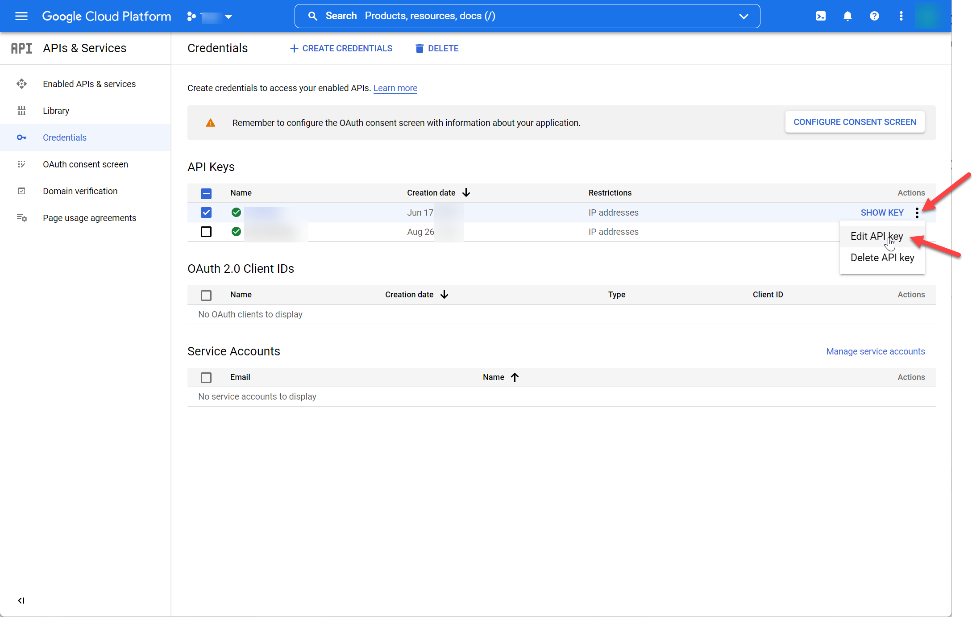
- Google offers ways to restrict your API key usage. It is recommended to restrict your API key to prevent misuse. To configure your key, click “Credential” from the left side panel.
- Click the “more” icon and select “Edit API key”
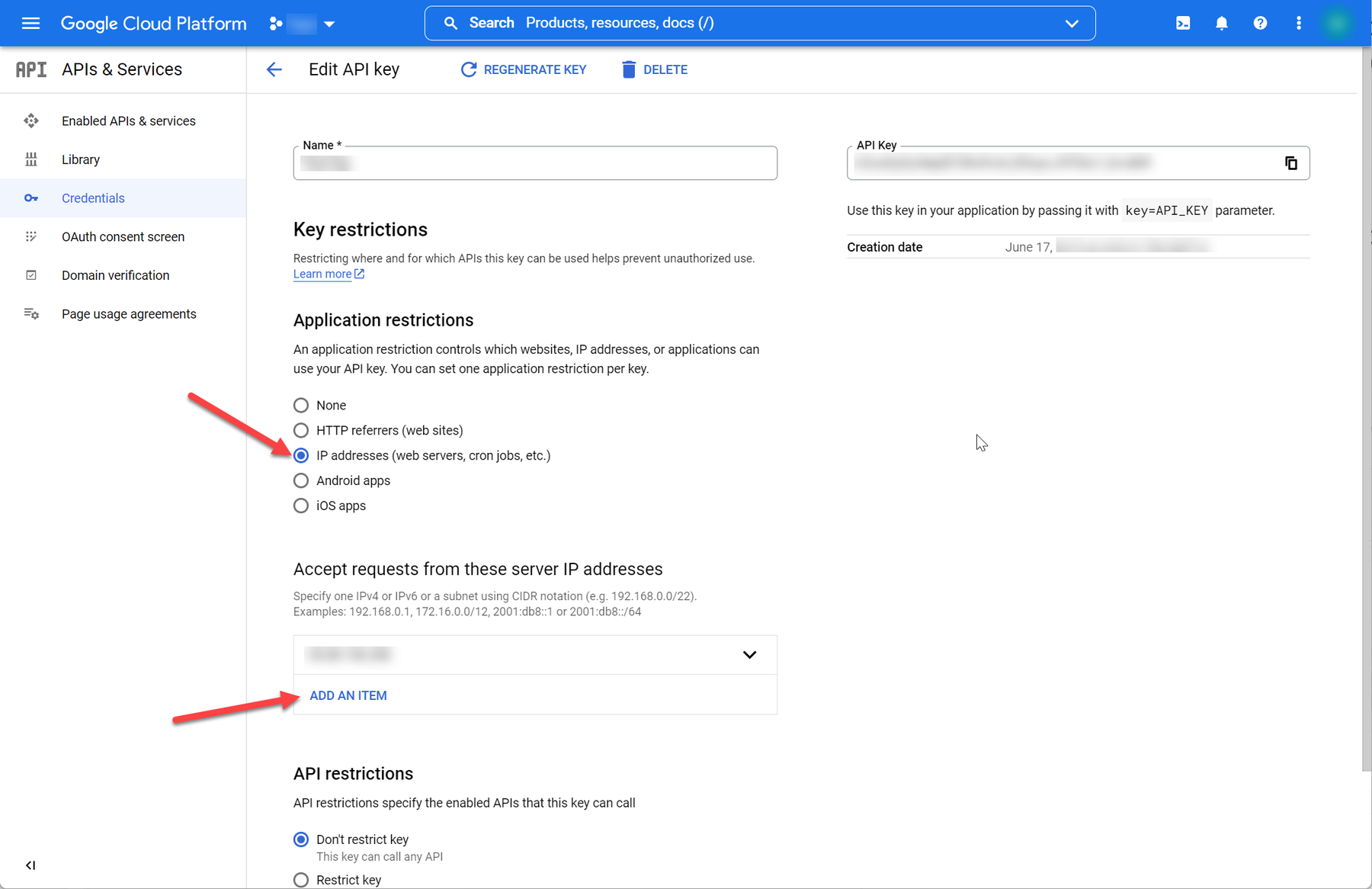
- If you know your public IP address and you plan to use the API key only from your home or office location, then you can restrict the key by IP address. Tip: if you don’t know your public IP address then Google can help: https://www.google.com/search?q=what%27s+my+ip
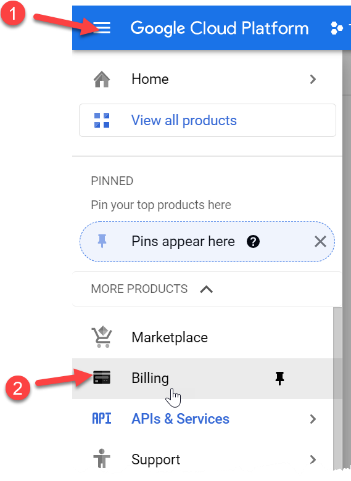
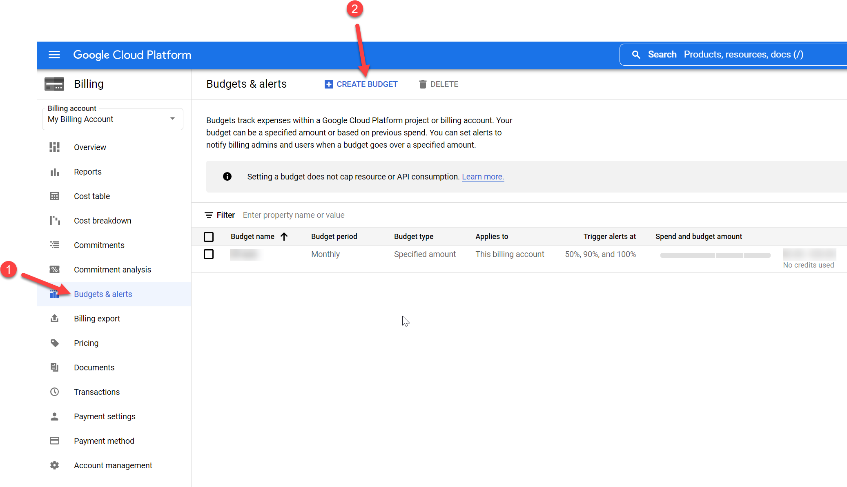
- You can set a billing budget to stay in control of possible expenses. You can get notified when your billing exceeds your defined budget
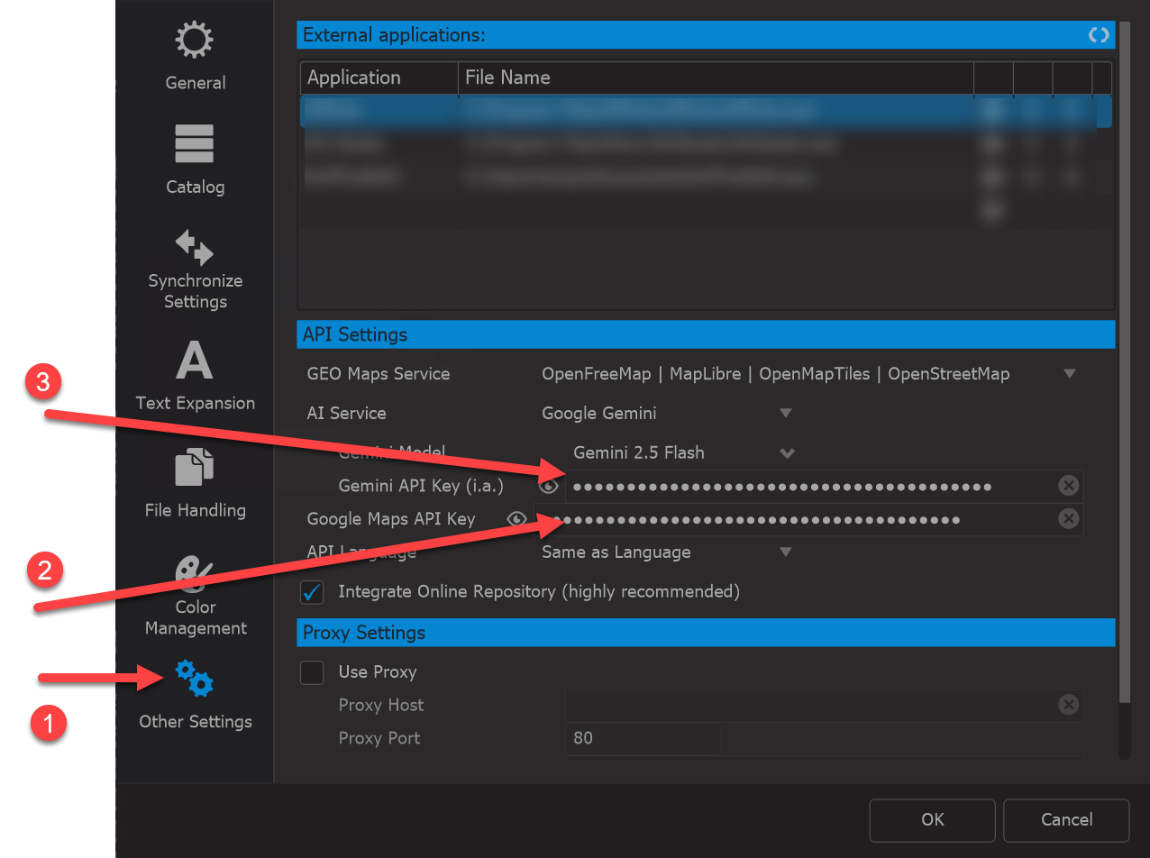
Once you have applied and configured your Google API key, you are ready to copy/paste it to Photo Supreme’s Preferences.
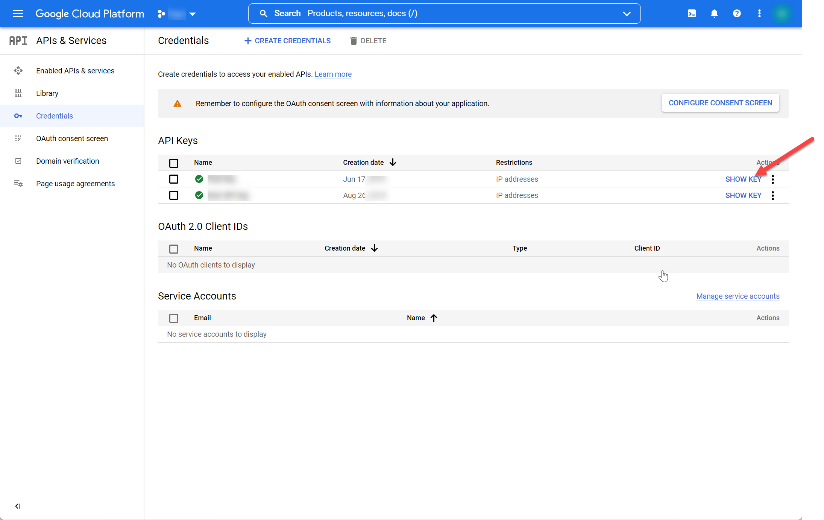
- https://console.cloud.google.com/apis/dashboard
- Click “SHOW KEY”
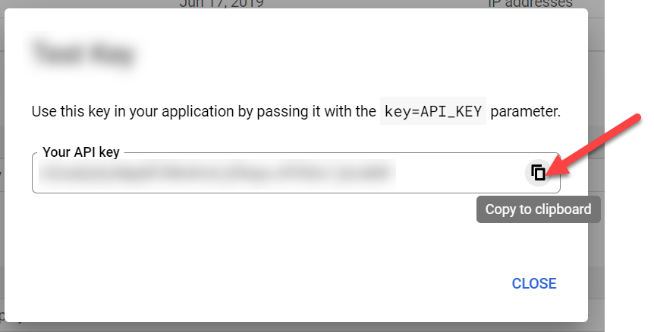
- Click the copy button
- Paste the key to Photo Supreme’s Preferences
NOTE If you are using the Photo Supreme Server edition then only a user with Administrator rights can configure the Google API key in Photo Supreme.
You are now ready to use Google Cloud services in Photo Supreme, like Maps, Gemini, and/or Vision.
NOTE If you are using different catalogs in Photo Supreme then you can use the same Google API key in each catalog. If needed, you can create different Google API keys for each catalog by starting new projects in the Google API console.