
Stacking with Photo Supreme
Version Sets
Note up front: Versioning is a feature available for legacy purposes. It is recommended to use Stacking instead of versioning.
Similar to stacking, version sets can be created both manually and automatically. For manual versioning, you can build your own version set by adding images to it individually. In contrast, with automatic version detection, you can establish a set of rules that Photo Supreme will use to identify the versions.
Version Placeholders
In Photo Supreme, a Version Placeholder is a designated storage area within a version set that helps organize and identify specific sub-versions of an image for particular purposes. Each version set can have multiple placeholders, each serving a unique function based on how you intend to use the images.
Key Features of Version Placeholders:
Purpose-Specific Storage: Placeholders allow you to categorize sub-versions according to their intended use, such as print versions, web versions, or email versions. This organization helps streamline your workflow by making it easier to find the right version for specific tasks.
Automated Version Assignment: When you set up automatic version detection rules, you can define criteria for which images should be assigned to each placeholder. This automation simplifies the process of managing multiple versions of an image.
Examples of Placeholders: Common placeholders include:
Print Version: For images optimized for printing.
Web Version: For images resized and optimized for online use.
Email Version: For images formatted for sharing via email.
Flexible Configuration: You can create and customize placeholders according to your specific needs, allowing for a tailored workflow that fits your image management style.
Overall, version placeholders enhance the organization and accessibility of image versions in Photo Supreme, making it easier for users to manage and utilize their digital assets effectively.
Automatic version Detection
As you develop a workflow for organizing your images, it's common to adopt a consistent file naming convention. For example, you might name a file from your camera in a specific way and store it in a designated folder on your hard drive. Any edited or derivative versions of that file (like RAW exports or JPG edits) would follow their own naming structure and be saved in a separate folder. It’s important to have this naming convention established before defining version detection rules in Photo Supreme.
Example Workflow:
- A file from your camera is named \DCIM\IMG1234.CR3.
- When copied to your hard drive, it’s renamed as \2019\10\2019-10-28\Canon_IMG1234.CR3.
- After editing, the RAW export is saved as \2019\10\2019-10-28\Exports\Canon_IMG1234.JPG.
- A black-and-white version, used for printing, is saved as \2019\10\2019-10-28\Edits\Canon_IMG1234_BW.JPG.
In this scenario, three files make up the version cycle for IMG1234.CR3:
- Canon_IMG1234.CR3
- \Exports\Canon_IMG1234.JPG
- \Edits\Canon_IMG1234_BW.JPG
When your naming convention follows a pattern like this, you can create an automatic version detection rule. The common element in this case is Canon_IMG1234, allowing you to use a file mask such as %FileName*.* to identify all versions of the original file. Both Canon_IMG1234.JPG and Canon_IMG1234_BW.JPG would match this rule.
Additionally, you may want to assign specific files to placeholders based on their role. For example, the black-and-white version could be designated for printing, so you'd want it to go into the "Printing" placeholder. You can define a rule for this, such as %FileName_BW.*, ensuring that the correct version is identified automatically.
Once your naming conventions and versioning rules are in place, you can configure these in the preferences.
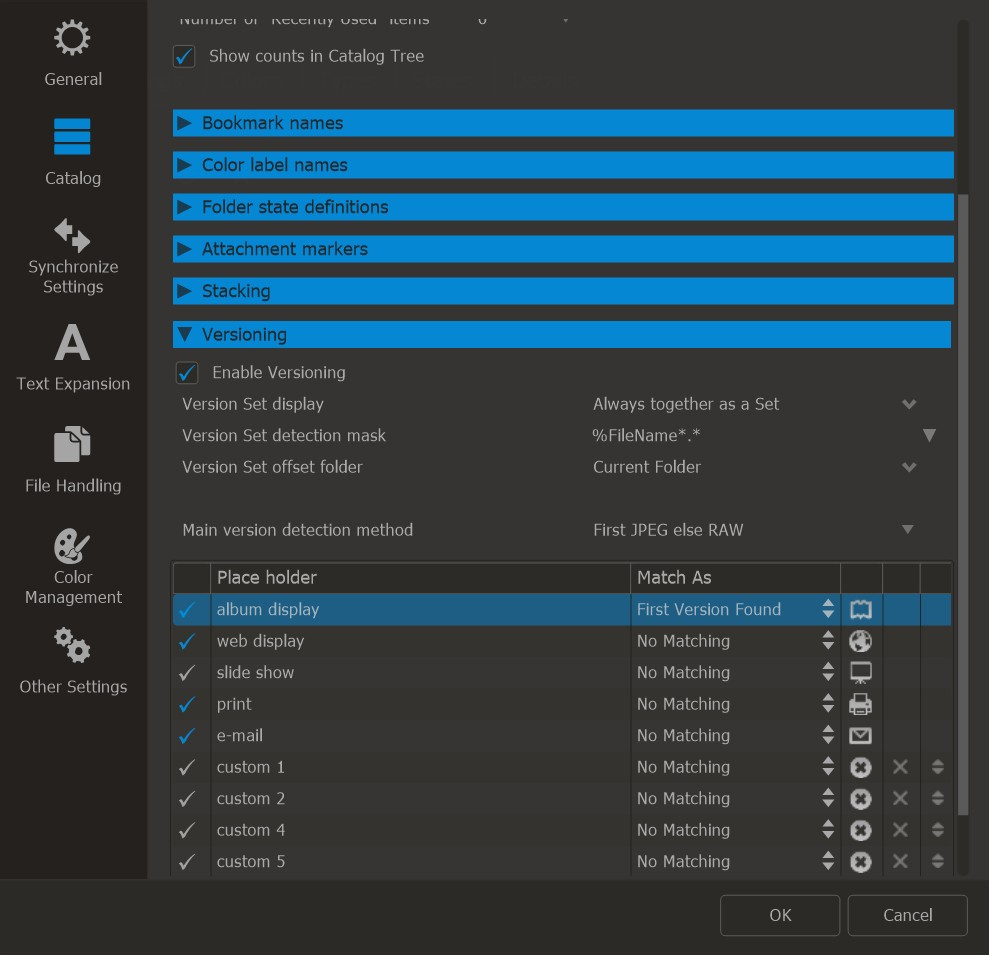
- Set the version set detection mask: Define the file mask that will identify all related files as part of the same version set. Any files that match this mask will be grouped together as versions of the same image. For example, using %FileName*.* would capture all files sharing the same base name, like Canon_IMG1234.CR3, Canon_IMG1234.JPG, and Canon_IMG1234_BW.JPG.
- Select the main version: Choose which file will act as the primary or main version in the version set. In this example, the RAW file (Canon_IMG1234.CR3) will be designated as the main version. This file typically represents the highest quality or the original image.
- Set a custom rule for the print placeholder: Define a specific rule to identify the file version intended for printing. In this example, you could use a mask such as %FileName_BW.* to identify and assign the black-and-white version (Canon_IMG1234_BW.JPG) to the print placeholder within the version set.
Let it roll
With your naming strategy set and version detection rules configured, you're ready to proceed.
Select a thumbnail from the version set (e.g., the RAW file), right-click, and choose Versions → Version Detection, or use the shortcut. This will apply the detection rules and create a version set if matches are found.
Manual version set creation
In addition to automatic version detection, you can manually create version sets by simply dragging one thumbnail onto another.
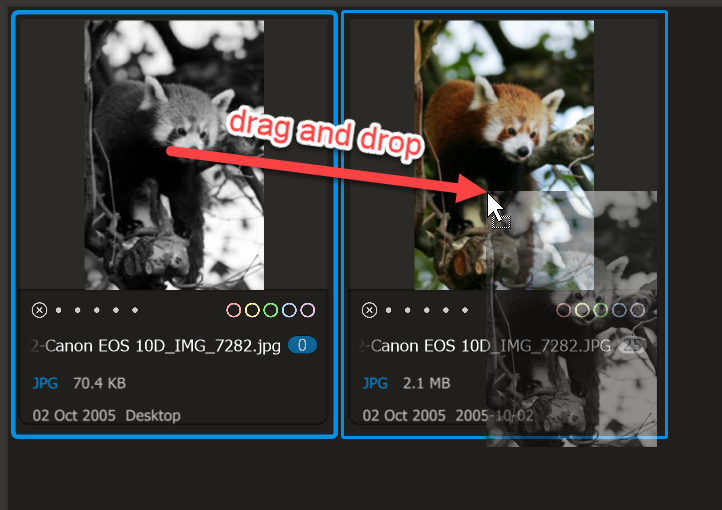
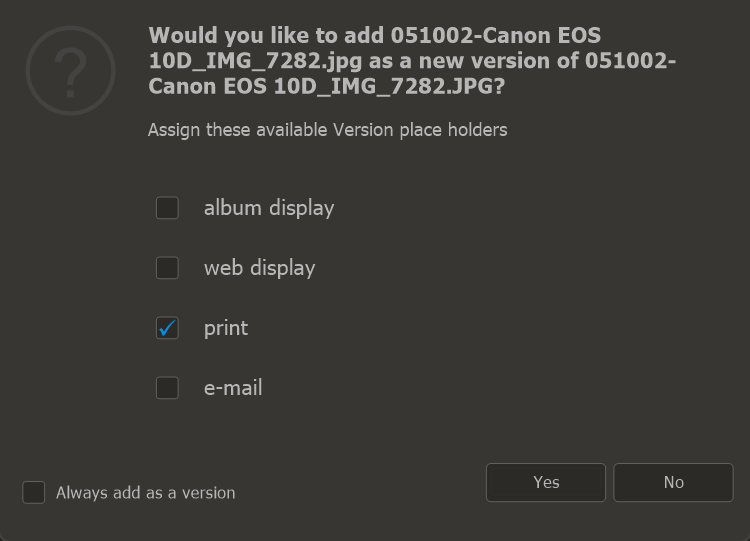
Drop the thumbnail onto the other thumbnail, making the dragged file a version of the dropped file. You can then choose which Version Placeholder to assign to this version.
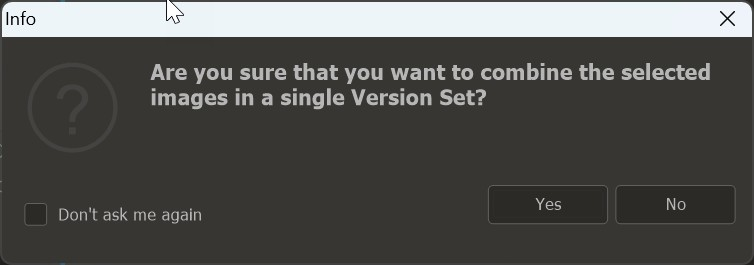
Another way to manually create a version set is by selecting multiple thumbnails and then right-click on a selected thumbnail and choose Versions → Version Selected Files.
The version thumbnail
Version sets are displayed as thumbnails with a tab on the side.
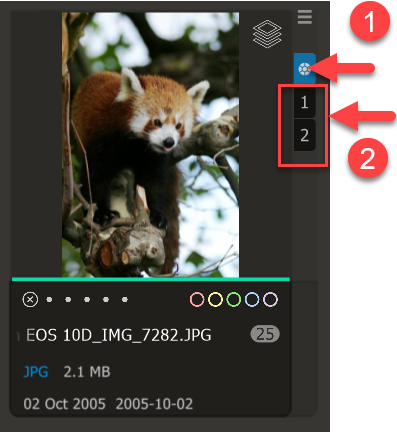
- The gear tab represents the main version for this set.
- Each sub-version of the main version gets its own tab on the thumbnail.
There is no limit to the number of sub-versions you can define for a main version. If necessary, a scroll option on the thumbnail allows you to navigate through them.
Each version thumbnail has a mini-hamburger menu in the upper right corner. Click it to access the version menu drop-down.
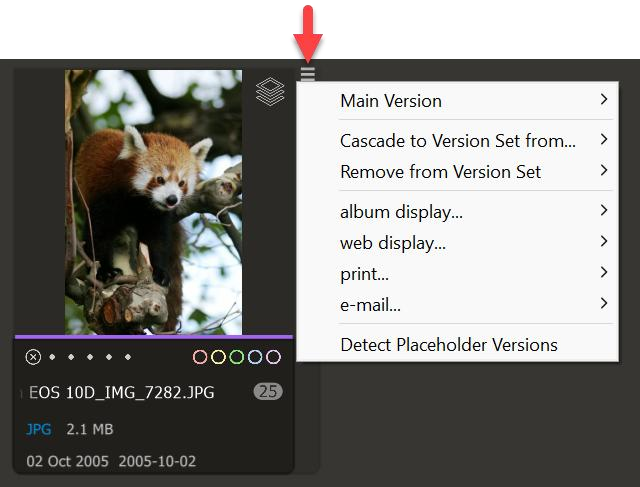
- Main Version
Use this option to choose a file from the version set to be the Main Version.
Tip: You can also drag a version's tab over the main version tab to designate it as the main version. - Cascade to Version Set
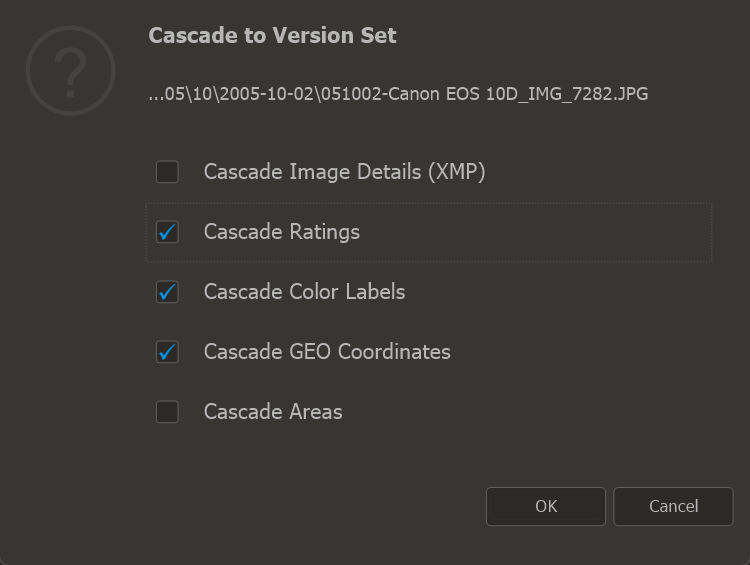
Use this option to (re)distribute metadata from a selected version to the other versions in the set. You can specify which metadata to distribute, including:
a. Cascade Image Details: This copies all non-technical and descriptive metadata from XMP to all images in the set.
b. Cascade Ratings: This transfers the rating of the selected version to all images in the version set.
c. Cascade Color Labels: This assigns the color label of the selected version to all images in the version set.
d. Cascade GEO Coordinates: This copies the GEO details to the other images in the version set.
- Remove from Version Set
Use this option to remove a file from this version set.
- The Placeholders
These menu items correspond to the Placeholders. For each placeholder defined in the preferences (Catalog → Versions), you can choose which version from the Version Set should be associated with that placeholder.
Tip: If a placeholder is selected for the version set, it will be indicated by its icon in front of the placeholder. In the example above, an email version has been assigned.