
Artificial Intelligence with Photo Supreme
Analyzing with Artificial Intelligence
Photo Supreme lets you use artificial intelligence (AI) to analyze the content of your images. When you use this feature, Photo Supreme sends the image to an AI service, which then examines it and provides a description of what’s in the photo. The AI will also suggest a Headline, Description, and even Catalog Labels that best match the image.
You can choose to accept these suggestions, or you can edit them to fit your needs. This helps make organizing and describing your photos much easier and faster.
Photo Supreme can use either OpenAI, the online service that powers ChatGPT, Google Gemini, or Ollama, an AI solution that runs directly on your computer.
OpenAI, Google Gemini, or Ollama
OpenAI, the same technology behind ChatGPT, can analyze the content of your image. When you use this feature in Photo Supreme, the software sends a small 480-pixel preview of your image to OpenAI. OpenAI then provides a description of the photo and suggests a Headline, Description, and even Catalog Labels that fit the image.
Like OpenAI, Google Gemini can analyze the content of your image. When you use this feature in Photo Supreme, the software sends a small 480-pixel preview of your image to the Google Gemini server. The service then provides a description of the photo and suggests a Headline, Description, and even Catalog Labels that fit the image.
Ollama, a locally installed AI solution, can also analyze the content of your image. When you use this feature in Photo Supreme, the software sends a small 480-pixel preview of your image to the locally installed Ollama. Ollama then provides a description of the photo and suggests a Headline, Description, and Catalog Labels that match the image. Since Ollama runs directly on your computer, all processing is done locally, without needing an internet connection. Ollama benefits from a GPU because GPUs (Graphics Processing Units) are designed for parallel processing, which is particularly well-suited for machine learning tasks, including the execution of language models like those supported by Ollama.
OpenAI, Google Gemini, and Ollama offer powerful AI tools in Photo Supreme, but they serve different purposes based on your needs and setup. Here’s a guide to help you choose which AI service to use:
Use Cases for OpenAI in Photo Supreme:
- Cloud-based Processing: OpenAI is an online service, which means the AI processing happens in the cloud. This is ideal if you need access to cutting-edge AI models, like the ones behind ChatGPT, for tasks such as generating detailed descriptions, headlines, and labels for your images.
- Advanced AI Features: OpenAI provides more sophisticated language models that can analyze complex image content and generate more precise, nuanced metadata, like descriptions and catalog labels.
- Internet Connectivity: OpenAI requires an internet connection to process the images, so it’s best suited for users with reliable internet access who prefer to use the most advanced AI models available.
Use Cases for Google Gemini in Photo Supreme:
- Cloud-based Processing: Google Gemini is an online service, which means the AI processing happens in the cloud. This is ideal if you need access to cutting-edge AI models, for tasks such as generating detailed descriptions, headlines, and labels for your images.
- Advanced AI Features: Google Gemini provides more sophisticated language models that can analyze complex image content and generate more precise, nuanced metadata, like descriptions and catalog labels.
- Internet Connectivity: Google Gemini requires an internet connection to process the images, so it’s best suited for users with reliable internet access who prefer to use the most advanced AI models available.
Use Cases for Ollama in Photo Supreme:
- Local Processing: Ollama is a locally installed AI solution, which means the processing happens directly on your computer. This is ideal if you prefer not to rely on an internet connection for AI tasks.
- Privacy and Security: Since Ollama processes everything on your device, it can be a more secure and private option for users who are concerned about sending their images to the cloud. No data leaves your computer.
- Offline Use: If you often work without an internet connection or in environments where internet access is limited, Ollama is a great choice as it doesn’t require online connectivity to function.
Which Should You Choose?
- Choose OpenAI or Google Gemini if you need cutting-edge AI models, detailed image descriptions, and are comfortable with an online service. It's ideal for users with a stable internet connection who require scalable solutions for processing numerous images. Keep in mind that OpenAI and Google Gemini are paid services, requiring an API key signup. OpenAI uses a credit deposit based system, while Google requires that you register a Credit Card in the billing section of your Google account. OpenAI is cost-effective, charging about $1 for approximately 8,000 images.
- Since OpenAI and Google Gemini are very similar, the chapter below could help you decide which meets your use-case better.
- Choose Ollama if you prefer to keep everything on your computer for reasons of privacy, or when working offline. It’s a great option if you want fast, local processing without needing an internet connection.
In summary, each service has its own advantages based on your needs, such as how you prefer to process your images, your privacy concerns, and whether you have a reliable internet connection. Generally, OpenAI and Google Gemini provides higher-quality results, making it a great choice for more detailed and accurate image analysis.
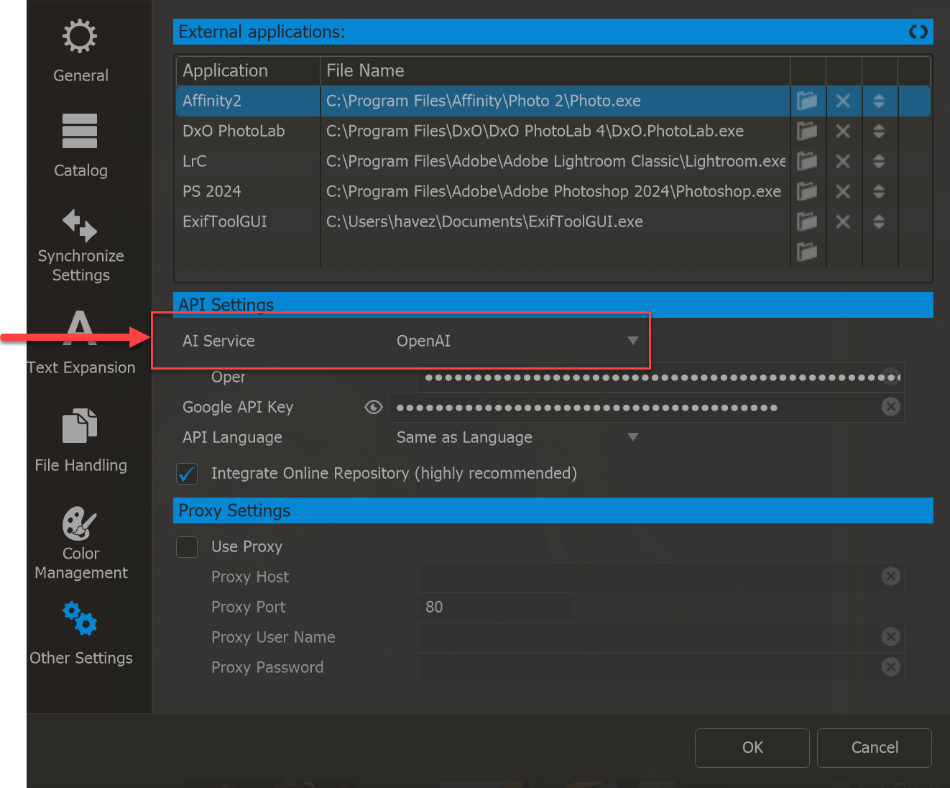
You can set your preferred AI service in Preferences > Other Settings. In the API Settings section, you can choose your AI service and enter the necessary details for the selected service.
OpenAI or Google Gemini?
As written, the two services are effectively identical, so it’s hard to understand why they would choose one over the other. Below are clear, practical scenarios where one platform would prevail over the other, followed by suggested differentiating use-case text.
When OpenAI Would Prevail
A user would benefit more from OpenAI when:
1. Rich, Editorial-Quality Descriptions Matter
Best for: photographers, archivists, journalists, and stock image creators
OpenAI tends to excel at natural, fluent, and context-aware language generation, making it a strong choice when image descriptions need to read well to humans, not just machines.
Example use case:
A stock photographer wants expressive captions and keyword-rich descriptions that improve discoverability and appeal to buyers.
2. Custom Metadata Style or Prompt Control Is Needed
Best for: advanced users and power catalogers
OpenAI is well-suited when users want fine-grained control over how metadata is written, such as tone, verbosity, or specific labeling conventions.
Example use case:
A museum archive wants descriptions written in a consistent curatorial style across thousands of images.
3. AI Is Used Beyond Image Metadata
Best for: users already leveraging AI workflows
If users also rely on AI for text generation, summaries, translations, or other language-heavy tasks, OpenAI provides a more versatile ecosystem.
Example use case:
A user generates image metadata and then uses the same AI engine to write blog posts, captions, or documentation.
When Google Gemini Would Prevail
A user would benefit more from Google Gemini when:
1. Strong Visual Understanding Is the Priority
Best for: large, diverse photo collections
Gemini is optimized for multimodal analysis, making it effective at recognizing objects, scenes, and relationships in images.
Example use case:
A user manages a large personal photo library and wants reliable object and scene recognition across everyday photos.
2. Google Ecosystem Alignment Matters
Best for: users already invested in Google services
Gemini fits naturally into workflows connected to Google Photos, Drive, or other Google technologies, offering consistency across platforms.
Example use case:
A user already relies on Google Photos’ AI features and wants similar behavior in Photo Supreme.
3. Broad, Scalable Metadata Generation
Best for: high-volume processing
Gemini is well-suited for efficient, large-scale metadata generation where speed and consistency matter more than stylistic nuance.
Example use case:
A user bulk-processes tens of thousands of images and wants dependable, automated tagging.
Differentiated Summary
OpenAI is ideal for users who prioritize rich, expressive, and highly customizable image descriptions, while Google Gemini is well suited for users who value strong visual understanding, scalable processing, and integration with Google’s ecosystem.
Prepare OpenAI
To use OpenAI, you'll need to sign up for an OpenAI API key. For detailed instructions on setting up the OpenAI API in Photo Supreme, refer to the QuickStart guide.
Set up the OpenAI API for Photo Supreme
Prepare Google Gemini
To use Google Gemini, you'll need to sign up for a Google API key. For detailed instructions on setting up the Google API in Photo Supreme, refer to the QuickStart guide.
Set up Google APIs for Photo Supreme
Prepare Ollama
To get started with Ollama, first download and install the software on your computer. Once installed, you'll need to add either the Llava or Gemma3 model, both of which are supported by Photo Supreme. For step-by-step guidance, visit the Ollama website.
Since Gemma3 is the newer model, it generally delivers better results than Llava, making it the recommended choice.
How to Install and Use Ollama
Step 1: Download and Install Ollama
- Go to the official website: https://ollama.com/download/
- Download the installer for your operating system and follow the instructions to install it.
Step 2: Open the Command Prompt
- On Windows, press the Win key on your keyboard, type "command prompt," and press Enter to open it. If your user account lacks administrator rights, be sure to select the option to run the Command Prompt as an administrator.
- On macOS, press Cmd+Spacebar and type “terminal” and hit Enter to open the Terminal Prompt.
Using the Ministral-3 Model
Step 3: Download the Ministral-3 Model
- In the Command Prompt, type the following command and press Enter:
ollama pull ministral-3
- This downloads the model (about 6GB). Wait for it to finish.
Step 4: Run the Ministral-3 Model
- Once the download is complete, type this command and press Enter:
ollama run ministral-3
- This will start Ollama with the Ministral-3 model loaded.
You can now ask it questions, similar to ChatGPT, but it runs locally on your computer.
Using the Gemma3 Model
Step 3: Download the Gemma3 Model
- In the Command Prompt, type the following command and press Enter:
ollama pull gemma3
- This downloads the model (about 3.3GB). Wait for it to finish.
Step 4: Run the Gemma3 Model
- Once the download is complete, type this command and press Enter:
ollama run gemma3
- This will start Ollama with the Gemma3 model loaded.
You can now ask it questions, similar to ChatGPT, but it runs locally on your computer.
Set Up Photo Supreme to Use Ollama
Step 5: Set Up Photo Supreme to Use Ollama
- Open Photo Supreme.
- Go to Preferences → Other Settings.
- Choose Ollama as your AI service.
If you have installed Ollama with default settings, you don’t need to change the URL or enter an API key. - By default, the Gemma3 model is pre-selected. Change that if needed.
- Click Apply to save your settings.
Using the AI Service
AI isn't replacing catalog labeling, nor is that its current purpose. Depending on how AI technology/services improve, this may change in the future, but for now, AI technology is not there yet. The AI tool is offers suggestions, not intended to take over the labeling process. Using all the suggested catalog labels without review might be appropriate if your goal is to tag a large number of photos quickly. This could apply to stock photographers or those working in fast-paced environments like product or sports photography.
The main goal of AI here is to enhance the searchability of your images. The AI-generated descriptions become instantly searchable, even if you don’t process or apply them. For example, one of your images might generate a line like, “A paraglider is shown in flight against a cloudy sky.” All those words are now searchable without any extra work. You only need to use the AI results for headlines, descriptions, or labels if that suits your workflow: again, something that might benefit stock or high-volume photographers.
Using OpenAI/Google Gemini/Ollama in Photo Supreme is a matter of selecting a thumbnail and then requesting the AI service to describe the photo. To do so:
- Select one thumbnail
- Open the AI Panel by clicking the Ai button from the command bar below the thumbnails
- Tick or untick the “process the results automatically” checkbox. By processing automatically, Photo Supreme will write the Headline and Description to the appropriate metadata fields and create Catalog Labels for every suggested keyword. Keywords that already exist as Catalog Labels in the Catalog Structure will be assigned automatically. All other Catalog Labels end up in the AI category. See further down for more info about the AI Category.
- Click the Analyze with AI button
You can now choose to add extra information about the image. This extra context will also be sent to the AI to help it describe the image more clearly. Giving AI more details helps it give more accurate results. For example, if the photo is of a cat, you might add information like "The cat's name is Luna" to help the AI understand the image better.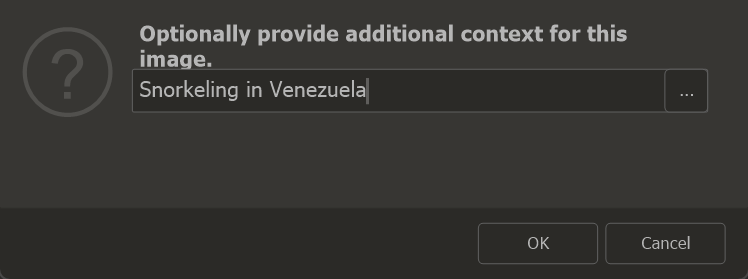
It is possible to use the […] button to automatically generate a context. In that case, the Event (if available) and the Place (if available) will be combines to for a context prompt.
- After clicking OK, the image is sent to the AI service for analysis. The results may differ depending on whether you're using OpenAI or Ollama. Generally, OpenAI provides more detailed results.
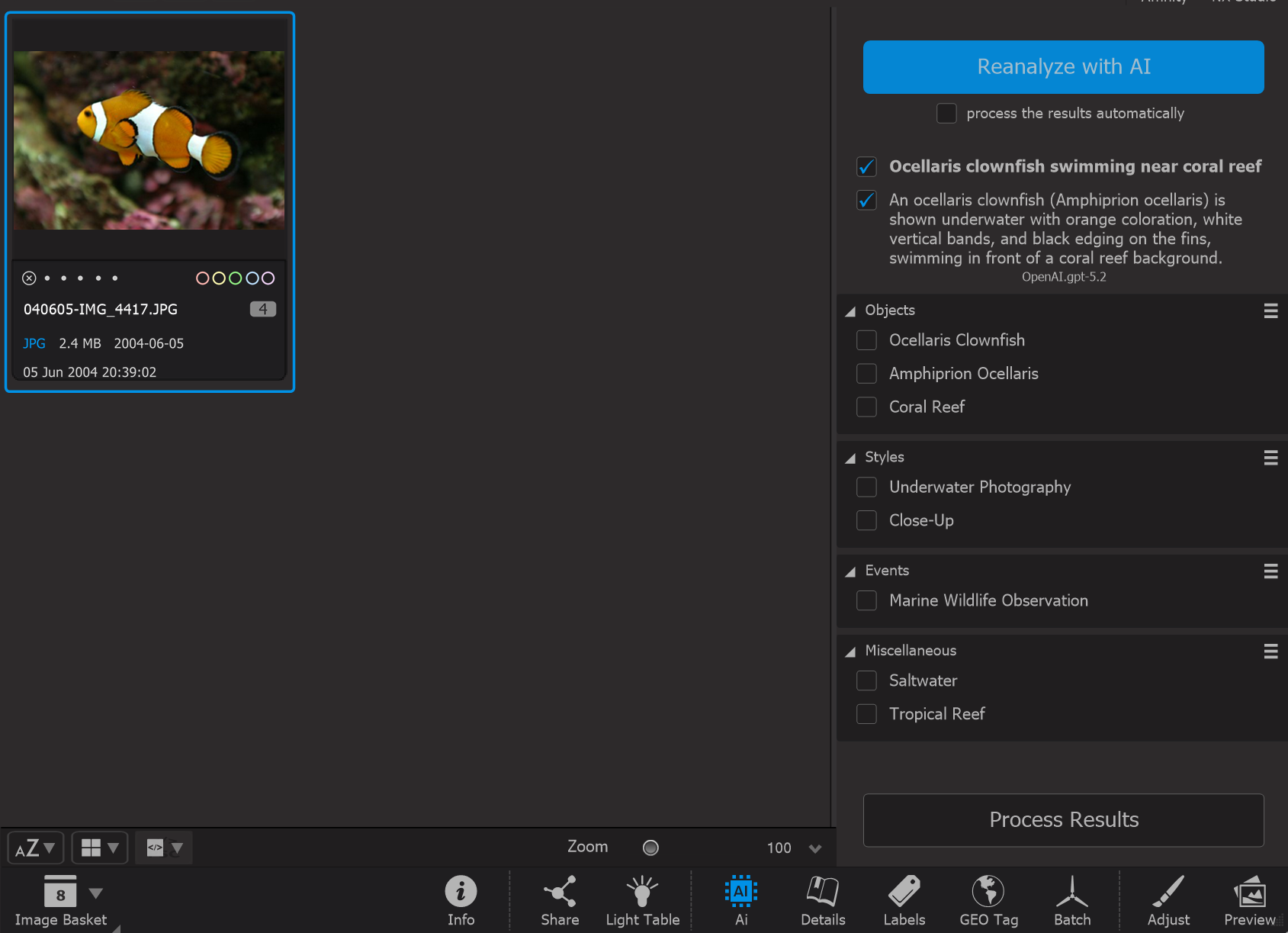
By default, the AI service will respond in the same language as the application. If you'd like, you can change the language for the AI in Preferences > AI Settings > API Language. This also controls the language used when the AI processes your requests, so non-English speakers can use the app in English but get responses in their native language.
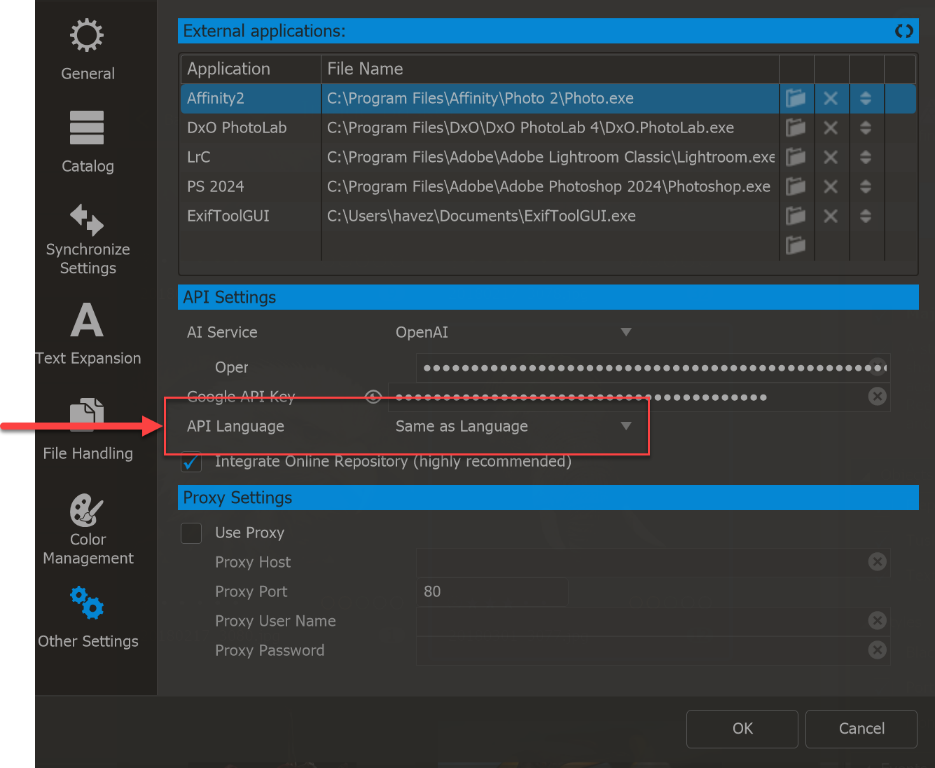
By default, result processing is turned off. When Photo Supreme analyzes an image, it saves the AI-generated results in the Catalog. This means you can still search for those results, even if you haven’t processed them. If you do process the results, the AI data gets permanently added to the image’s metadata.
When processing the results, here's what happens:
- If you've chosen to include it, the headline will be saved in the image's details.
- Similarly, if you've chosen to include the description, it will also be saved in the image's details.
- Keywords detected during processing are unselected by default.
- For selected keywords, the system checks whether they match an existing catalog label in the determined category (for example, Objects). If a match is found, that label is assigned to the image. If no match exists, a new catalog label is created in that category.
- For unselected keywords, a new catalog label is created in the private “AI Labels” category. Labels in this private category are not included in the image’s metadata, but they are stored in your catalog for potential future use. You can move these labels to another category at any time by dragging them.
You can also delete individual catalog labels in the AI Labels category, or remove the entire AI Labels category if you no longer need it.
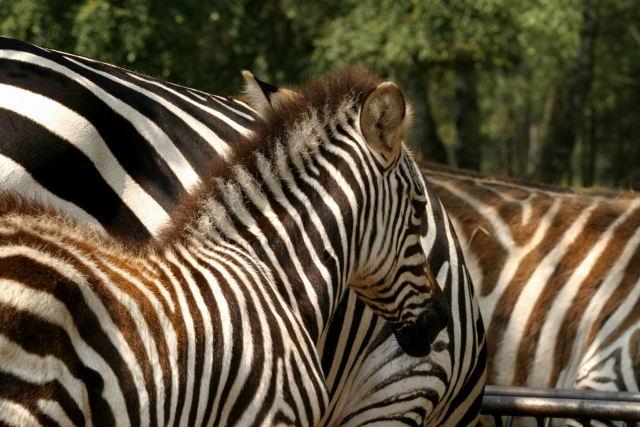
To show how the models differ, here’s an example image along with the analysis each model provides. Keep in mind that these results don’t fully reflect each model’s overall performance. They simply give an idea of how complete the analysis is for this particular random image. Results may vary depending on the image used.
Model
Description
Keywords
OpenAI
GPT5 Mini
Close-up view of zebras standing in proximity, with a foreground individual displaying characteristic black-and-white stripe pattern and an erect mane. Biological classification: Family Equidae; probable species Equus quagga (plains zebra). A horizontal tubular metal rail (round cross-section, likely galvanized steel) is visible at lower right. Background contains deciduous trees under daylight conditions. Species identification is based on broad striping and presence of shadow (brownish) stripes; identification confidence: medium. No architectural elements are present in the scene.
Zebra, Stripe, Rail, Tree, Mane, Metal, Wildlife, Close-Up, Naturalistic, Standing, Grouping, Plains Zebra, Pattern, Sunlight, Background
Google Gemini
Gemini 2.5 Flash
A close-up view captures multiple Plains Zebras (Equus quagga). The head and neck of one zebra are prominent in the foreground, facing right, displaying its characteristic black and white striped coat. The body of another zebra is partially visible behind it, with a third zebra's back on the right showing brown and white stripes. Blurred green foliage forms the background.
Equus Quagga, Zebra, Coat, Stripe, Ear, Muzzle, Foliage, Wildlife Photography, Close-Up, Animal, Nature, Pattern, mammal
Ollama
Gemma3
A close-up photograph shows a zebra partially obscured behind another striped animal within a natural setting, presumed to be a zoo or similar controlled environment. The zebra's distinctive black and white stripes dominate, visible on its head, neck, and upper torso. The animal has a light-colored mane, and its facial features are detailed, suggesting a focused gaze. There are other zebras visible in the background, and a partial metal fence is present, indicating a containment area. This animal appears to be *Equus grevus*, the Grevy's zebra, a species known for its unique mane and coat pattern.
Zebra, Animal, Stripes, Mane, Fence, Wildlife, Mane, Equus Grevus, Close-Up, Photography, Natural Lightning, Wildlife Viewing, Zoo Visit, Observation, Animal Photography, Taxidermy (implies), Conservation
Ollama
Llava
A zebra exhibit in a zoo showcases a family unit, with one adult standing behind two younger zebras. The zebra
on the left is facing away from the camera, while the other two are visible. One of the young zebras appears to
be grooming itself, indicating a calm and relaxed environment. The backdrop features trees and foliage,
providing a naturalistic setting for this display.
Zebra, Wildlife, Nature