
Artificial Intelligence with Photo Supreme
Artificial Intelligence with Google Vision
Google Vision uses technologies to suggest labels, objects, landmarks, or text. When you request these AI tasks in Photo Supreme, a small 480px version of your image is sent to Google Vision for analysis.
Google Vision was one of the top tools available when it launched a few years ago. However, with the rapid progress in AI, it’s now considered somewhat outdated. If possible, it's recommended to use newer tools like Google Gemini or Ollama. While Google Vision does a good job generating basic tags from an image, it’s less effective when it comes to strategic keyword suggestions, understanding context, or producing creative phrasing.
Prepare
To use Google Vision, you'll need to sign up for a Google API key and configure it for Google Vision. If you're using a non-English version of Photo Supreme, you'll also need to configure the API key for Google Translate. For detailed instructions on setting up the Google API in Photo Supreme, refer to the QuickStart guide.
Set up Google APIs for Photo Supreme
Labeling with Google Vision
Photo Supreme provides multiple methods for assigning Catalog Labels to your images. These labels function like virtual Post-it notes, helping you organize and manage your catalog more efficiently.
While assigning Catalog Labels can be time-consuming, you can speed up the process by using Google Vision's AI to suggest labels automatically. To start AI labeling, select your image and open the Label Assignment Panel by clicking "Labels" on the Command Bar below the thumbnails.
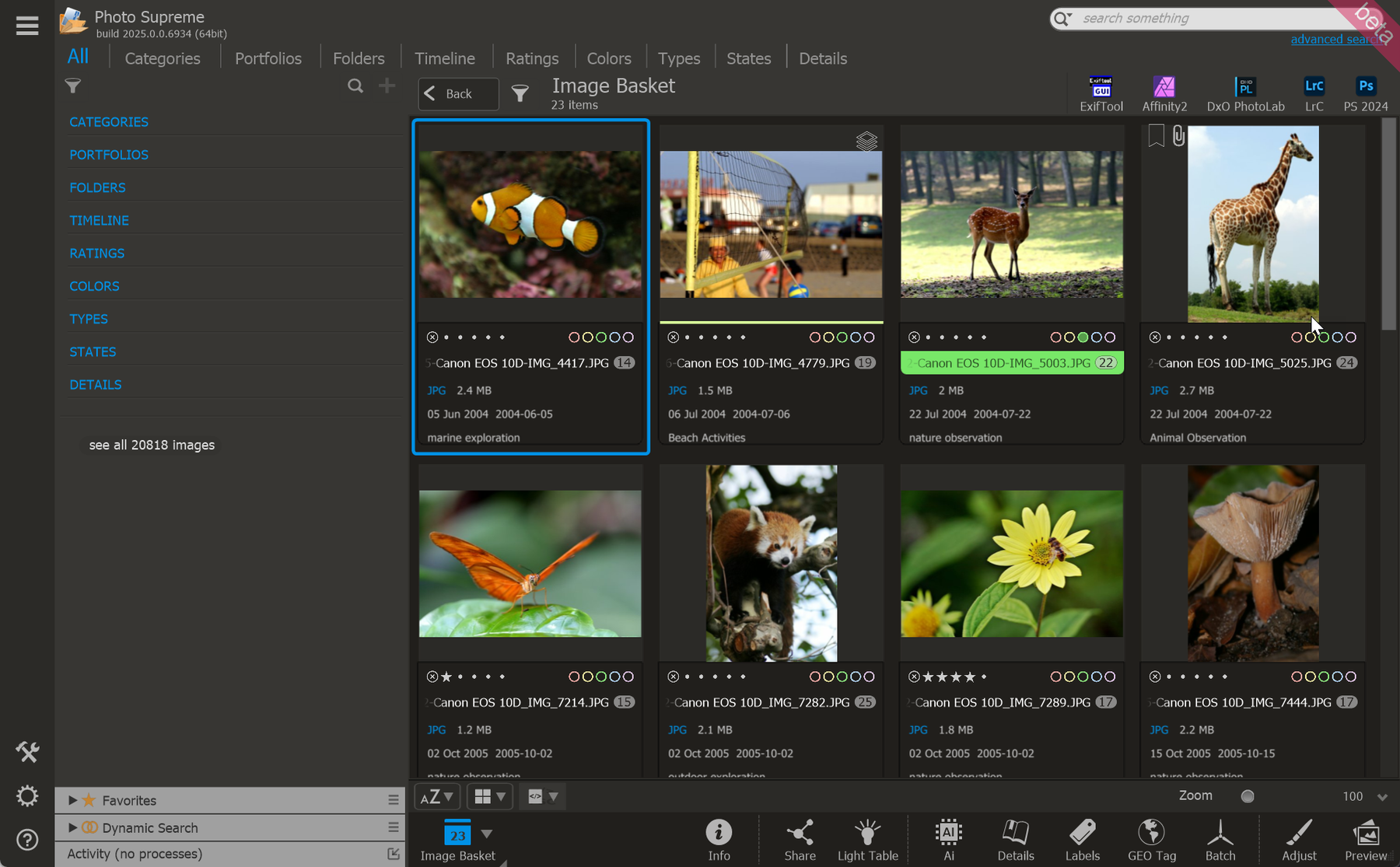
The Label Assignment Panel (LAP) opens on the right side of the screen. In the provided screenshot, you can see that no Catalog Labels have been assigned to this image yet. Open the section “VISION AI LABELS”.
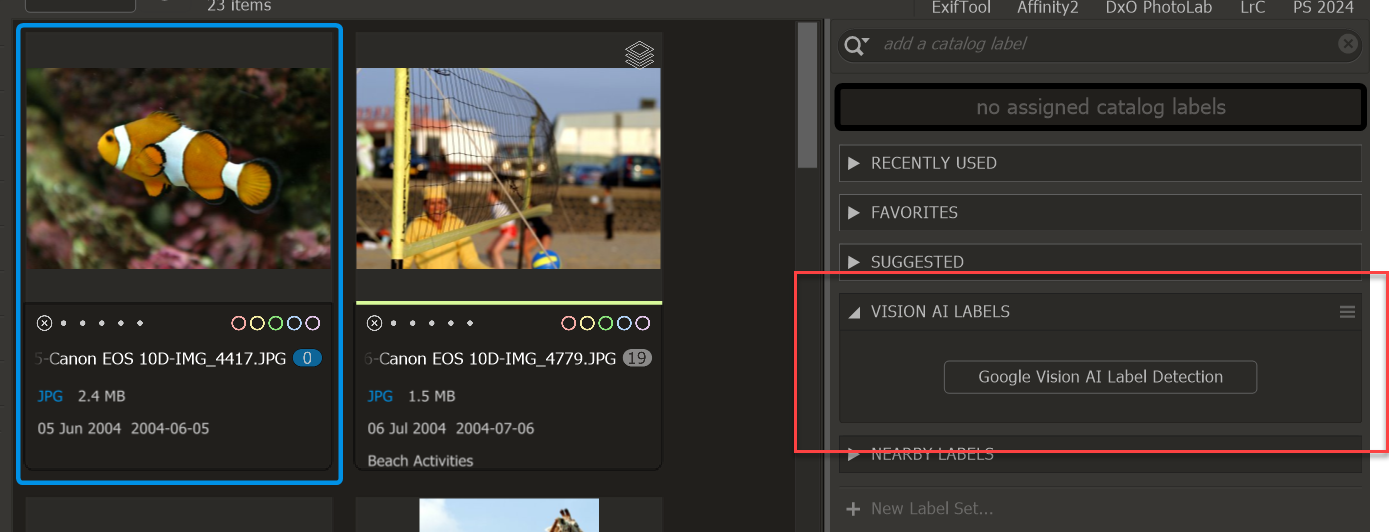
There, click the "Google Vision AI Label Detection" button. This action prompts Google Vision to analyze the image and generate suggested labels.
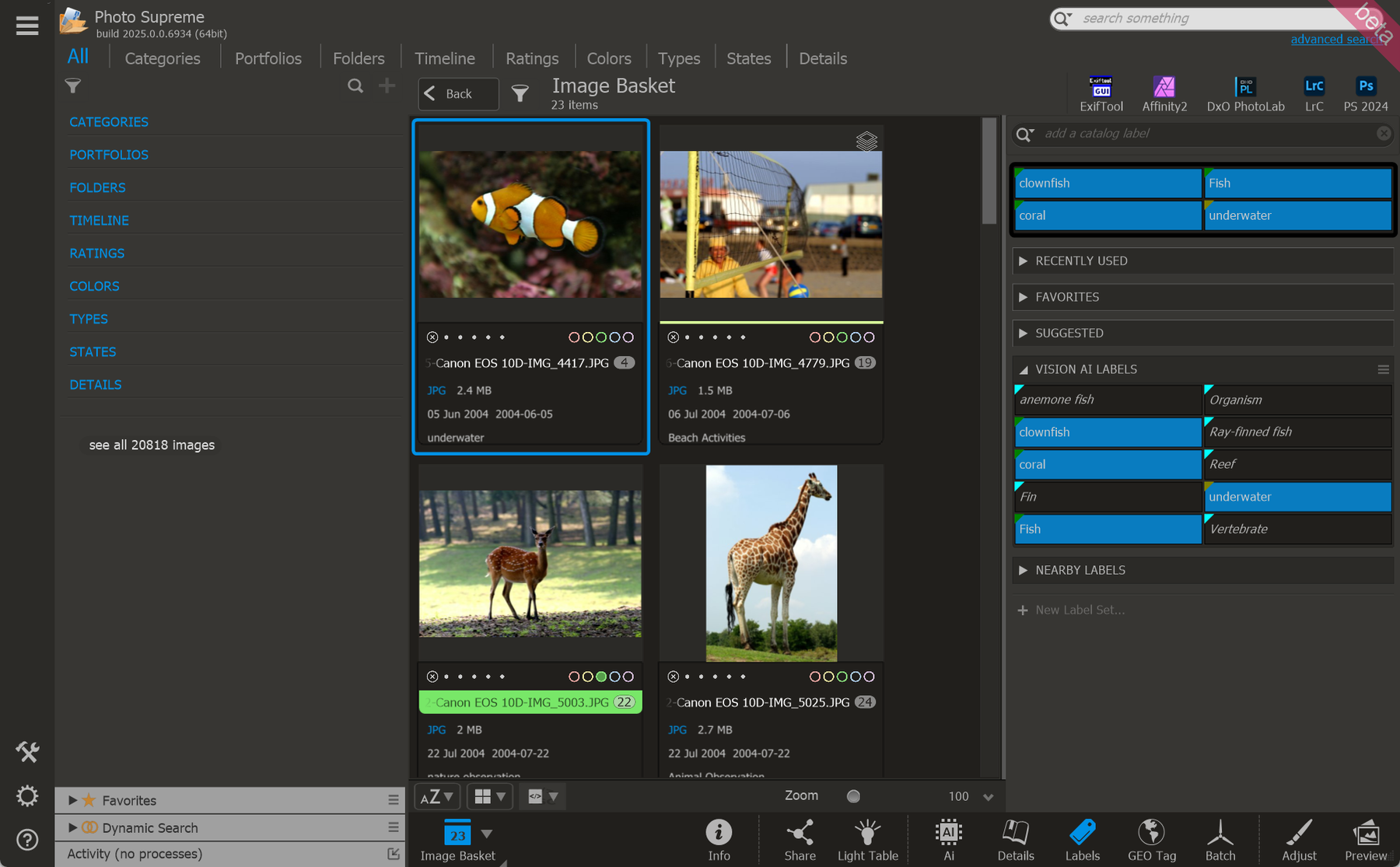
Google Vision provides suggestions such as anemone fish, organism, clownfish, coral, reef, and more. Labels like clownfish, coral, underwater, and fish are highlighted, indicating that Photo Supreme has already assigned these Catalog Labels to the image as part of its existing catalog structure. If, after reviewing, all the suggestions seem accurate and you want to assign them all, you can easily do so by clicking the menu button and selecting "Assign all Labels."
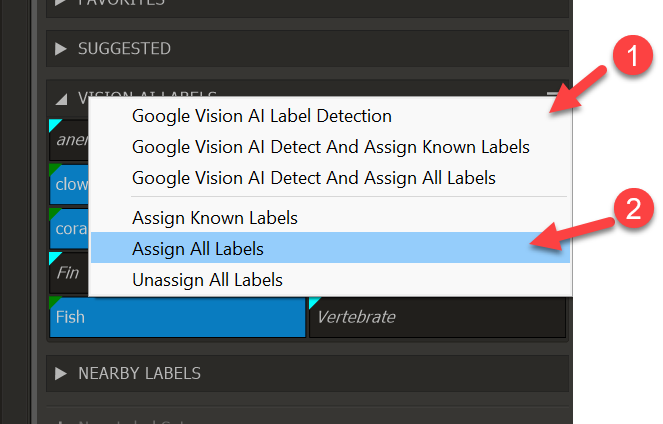
If only a few of the suggestions are relevant, you can selectively assign the desired catalog labels by checking the boxes next to each one.
AI Object Recognition
Object recognition is a computer vision technique for identifying objects in images or videos. When humans look at a photograph or watch a video, we can readily spot people, objects, scenes, and visual details. With Google Vision, you can use this technology for your images.
To do Object Recognition, you open the image and then select Google Vision AI Recognize Objects from the Areas menu.
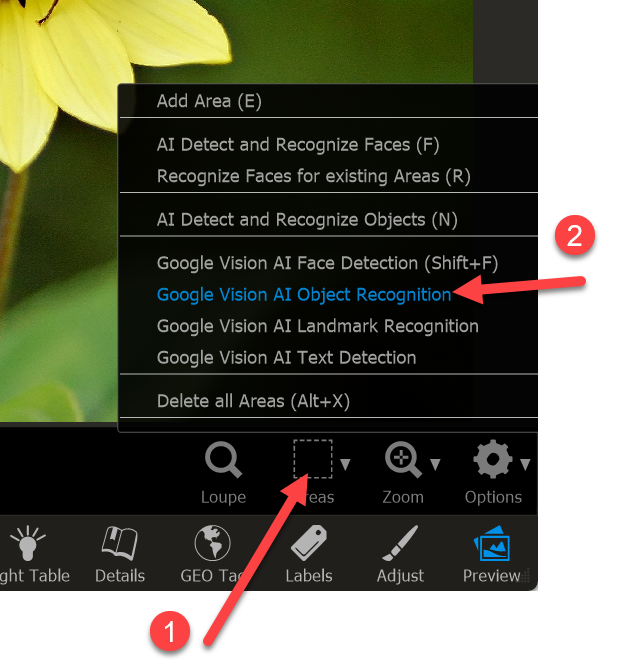
Here is what Google Vision suggests:
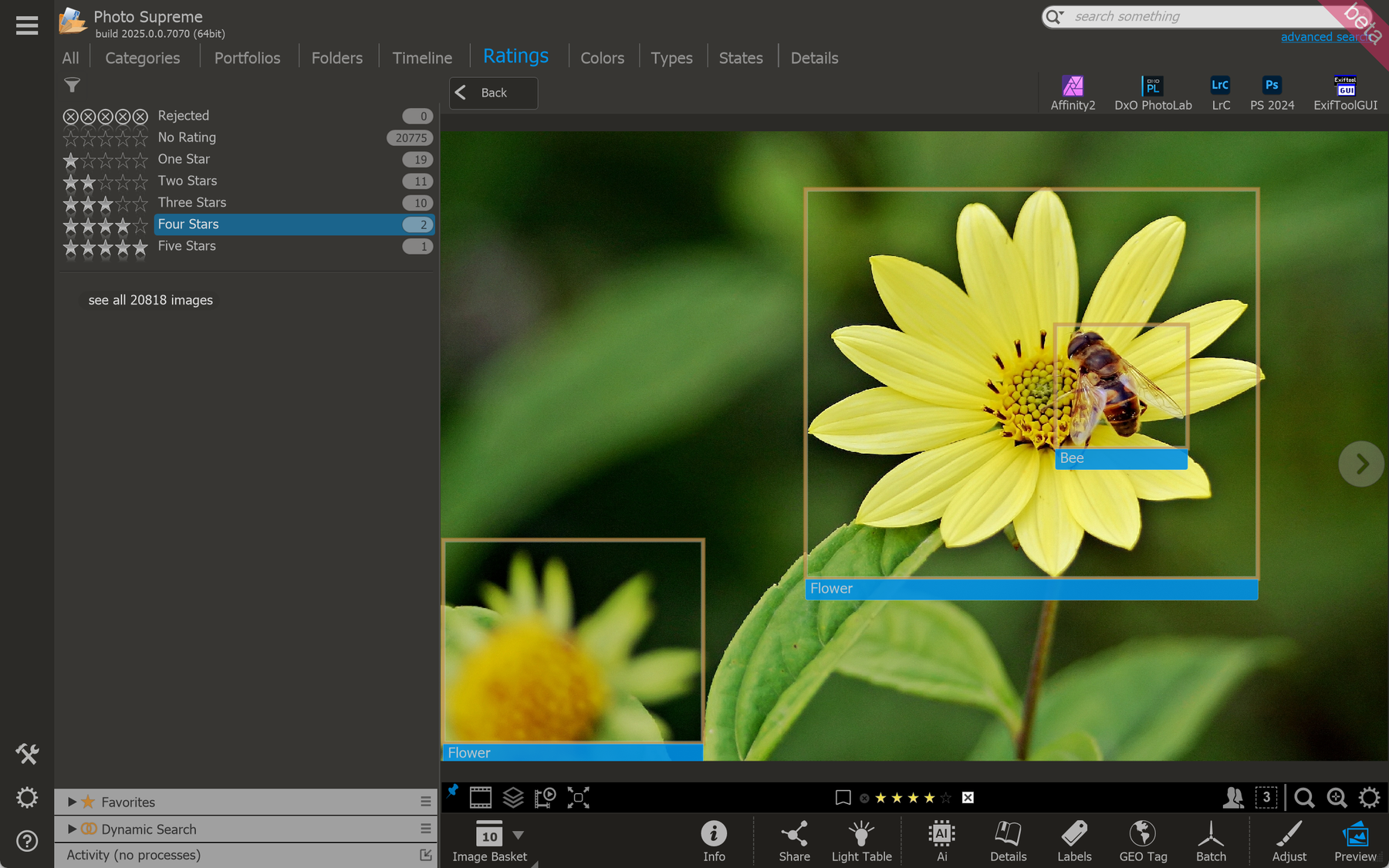
Areas are created for the identified objects: flower, and bee. These identified objects are categorized under the Objects Category in the Catalog Structure and are assigned to the image.
AI Landmark Detection
A landmark is a well-known or easy-to-spot feature in a place, like a building, statue, mountain, or river, that helps people recognize or find their way around that area. Landmarks can also have cultural or historical importance.
With Google Vision, you can use this technology to identify landmarks in your images. To do this, open your image and select "Google Vision Landmark Recognition" from the Areas menu.
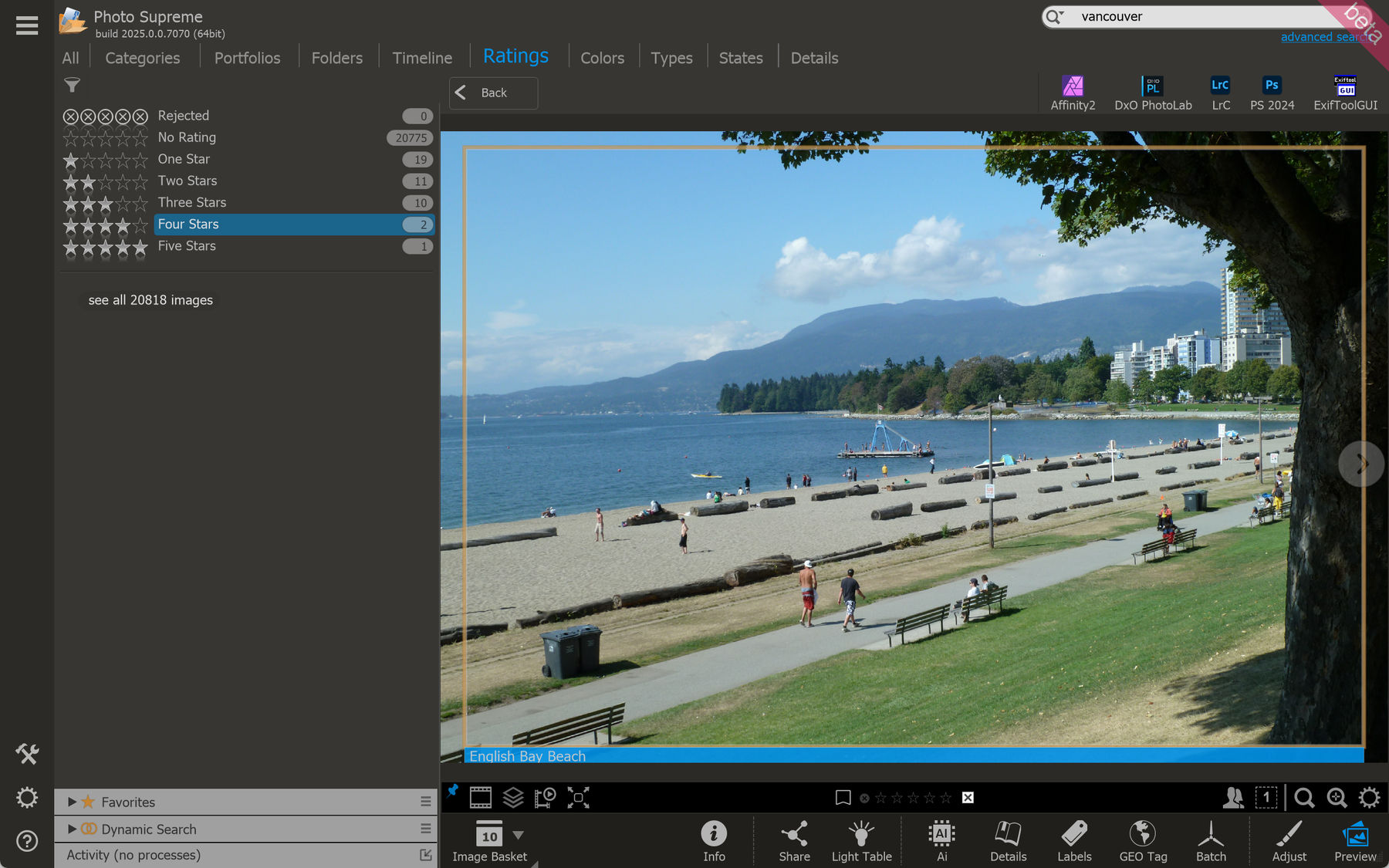
In this photo, the landmark was recognized as "English Bay" (in Vancouver). The identified landmark is automatically placed under the Objects Category in the Catalog and the label is added to the image.