Photo Supreme Quick Start
CATALOG
As a Digital Asset Management system, Photo Supreme maintains a Catalog that holds all the data it manages and stores. The left side of the application features the Catalog Tree, which presents the Catalog and serves as the access point to the information managed by Photo Supreme.
You can use the Catalog Bar, located at the top and displaying options like “All,” “Categories,” “Portfolios,” and more, to select the section of the catalog you wish to open in the Catalog Tree.
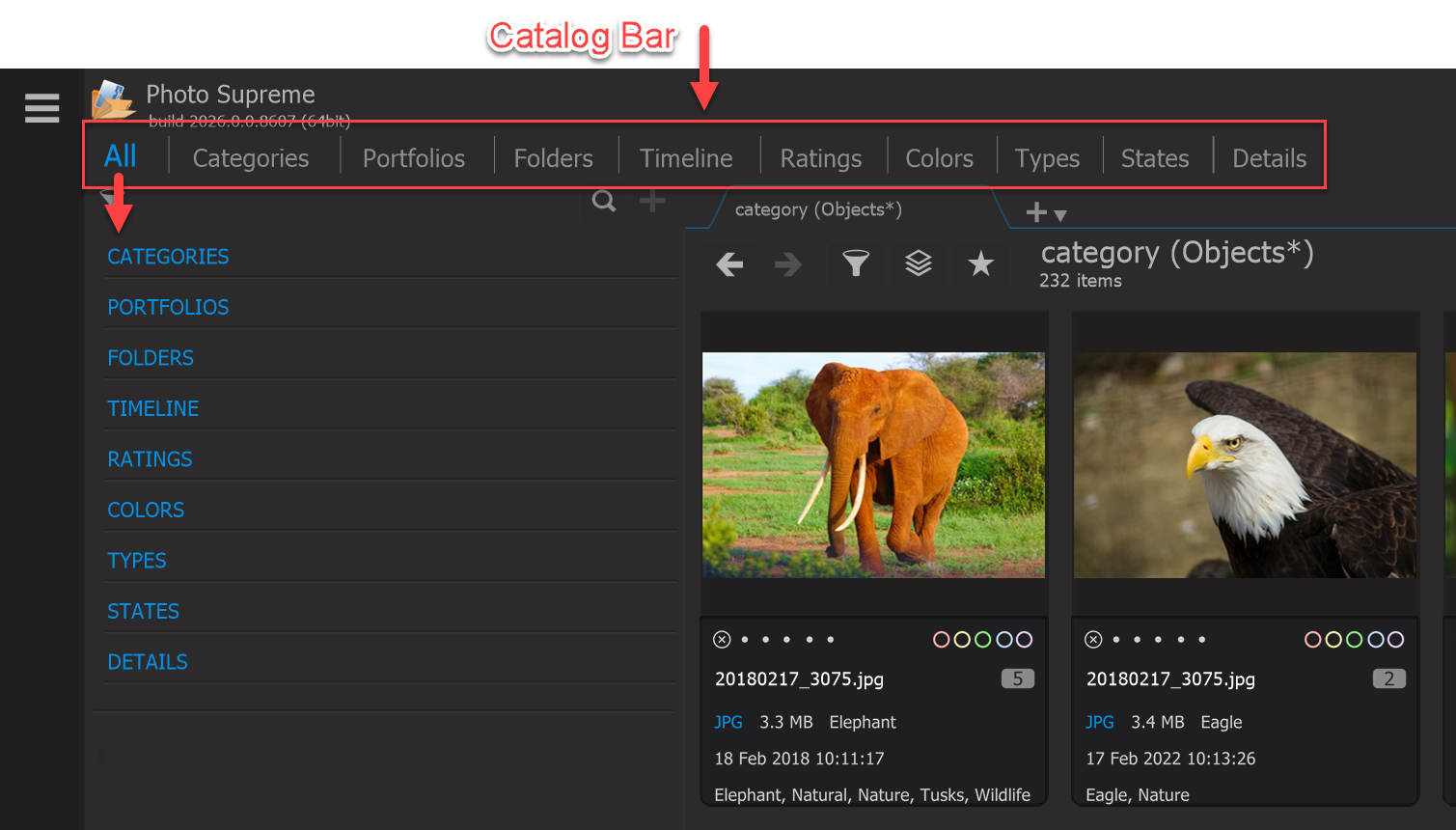
The Catalog Sections are:
All | This provides a central view of the various Catalog Sections all in one place. In the “All” section, you can expand different nodes from multiple sections. |
|---|---|
Categories | Once you begin cataloging, you'll start adding tags (Catalog Labels) to your images, which can be organized into Categories. In this section, you can explore the hierarchical structure of catalog labels and browse through all the images assigned to the various labels. The top level is referred to as "Categories," while all lower levels are called "catalog labels." Categories serve as the primary divisions for your catalog labels, such as People, Objects, or Styles. Each catalog label within a Category can be further subdivided into one or more sub-catalog labels, and those can be divided into additional labels, and so on. TIP: Click the counter icons to view a hierarchical list of a Category or any lower-level Catalog Labels. |
Portfolios | Portfolios provide an organizational structure that allows you to create selections of images known as Collections. Collections consist of a set of images that you want to keep together and can be further divided into sub-collections. These Collections are stored within a Portfolio Album. In real life, you might have several photo books, with each book containing chapters of photos. For example, a photo book documenting a world trip would have a chapter for each country you visited, with each chapter showcasing the photos from that country. In Photo Supreme terminology, the photo book represents a Portfolio Album, while the chapters in that book are the Collections. Each Collection is where you gather your photos. The Portfolios section allows you to access your Portfolio Albums and navigate their hierarchical organization. Organizing images into portfolios enables you to create a structured grouping of images that you want to keep together. While this may sound like catalog labels, the key difference is that portfolios allow you to make selections. For instance, you might have a catalog label called "Holiday 2024," but you could also create a Portfolio Collection for it that only includes your best images from that trip. This way, when a friend visits, you can showcase your "best of" collection. Additionally, you can create portfolios for your online image archives, which typically represent a subset of your complete collection. Some examples include a portfolio for your website images or a portfolio for your client projects organized by year. TIP: click the counter icons to get a hierarchical result of a Portfolio or lower-level collection |
Folders | As images are added to your catalog, Photo Supreme records their physical locations on your storage drives and retains this information in the catalog database. This feature allows you to browse the folder structure of a specific drive, even if that drive is not currently connected to your computer. Accessing the Folders section provides you with the folder structure as it exists in the catalog. By using this section, you can mimic the file system. The folders are displayed hierarchically, allowing you to expand or collapse folder nodes to view subfolders (if they exist). When you select a folder, the images contained within it will be loaded into the Collection Viewer and displayed as thumbnails. TIP: click the counter icons to get a hierarchical result of a Folder or lower-level subfolder |
Timeline | In the Timeline section, you can browse your Catalog based on the dates of your photos. This feature offers a drill-down structure that allows you to navigate from year to month and then to the specific day of the month. |
Ratings | In Photo Supreme, every image can be assigned a rating. This rating is a score that you give to each image, which can be 0, 1, 2, 3, 4, 5, or marked as “rejected.” Typically, a “1 star” rating signifies a lower quality image compared to a “5 star” rating, while a “rejected” rating indicates that the image is not worth keeping. In this section, you can browse your catalog according to these ratings. |
Colors | In addition to ratings, you can assign a Color Label to each image. A Color Label serves as a marker that you can use to indicate a specific purpose. For example, you might use a red color label for images you want to delete and a green one for images you want to keep. It’s entirely up to you how you set this up, so try to create a color label system that helps you effectively catalog your images. In this section, you can browse the catalog based on these color label assignments. Here are some examples of color labels you might use: Red: Ready for the trash bin Yellow: Your Pick Green: Customer Pick Blue: Ready to print Purple: Temporary tag Once you decide what each color represents in your workflow, you can define custom captions for each color. To do this, go to the application's Preferences, open the Catalog section, and then select "Color label names." |
Types | Files have specific file extensions, such as JPG, CR3, NEF, or HEIC. These file extensions indicate the format of the file. In this section, you can browse the catalog based on these file types or extensions. |
States | Photo Supreme maintains several states for your images. This section includes entries that display all images that are catalog labeled, bookmarked, rated, GEO tagged, and more. The Catalog States feature provides a quick overview of the organization status of your images in the catalog, making it a valuable time-saver. |
Details | Images contain metadata that includes a wealth of information. This metadata can be technical (such as the focal length used) as well as descriptive (like the appropriate caption for the image). In this section, you can explore the detailed metadata of your images. |
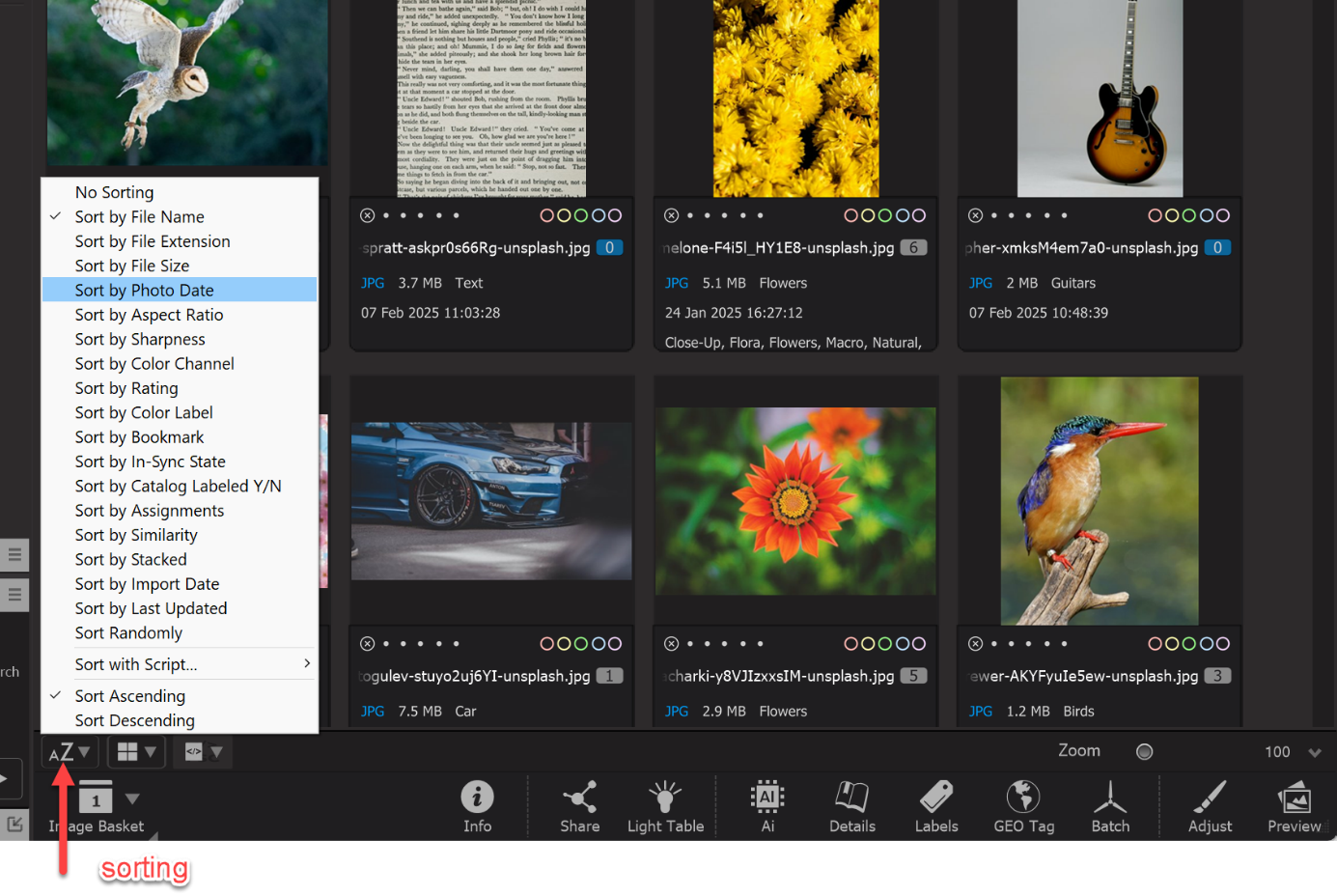
After choosing an item from one of the Catalog Sections, the results appear as thumbnails: small images representing the content. The area where these thumbnails are displayed is called the Collection Viewer. You can adjust the appearance of the thumbnails using the Settings Bar located beneath the Collection Viewer.

In the Settings Bar, you can adjust the zoom level of the thumbnails, choose to display additional information beneath each thumbnail (custom thumbnail info), and switch between different thumbnail styles, such as clean thumbnails, framed thumbnails, or a grid view. You can also modify the sort order of the thumbnails from this area.