
Photo Supreme Quick Start
Viewing images
In addition to viewing thumbnails, you can open an image viewer for most image formats in Photo Supreme. To do this, either double-click on a selected thumbnail or press the ENTER key on your keyboard. macOS users also have the option to press Cmd+O to open a selected thumbnail in the Viewer.
You can zoom in or out by using the scroll wheel on your mouse or the +/- keys on your keyboard. Pressing ENTER will switch to full-screen view, and you can exit full-screen mode by pressing either the ESC key or the Backspace key.
You can use the Z and A keys to quickly toggle between a 100% view and the "best fit" view. These shortcuts are designed to make it easy to browse through a set of images quickly, allowing you to keep your hands on the keyboard for more efficient navigation.
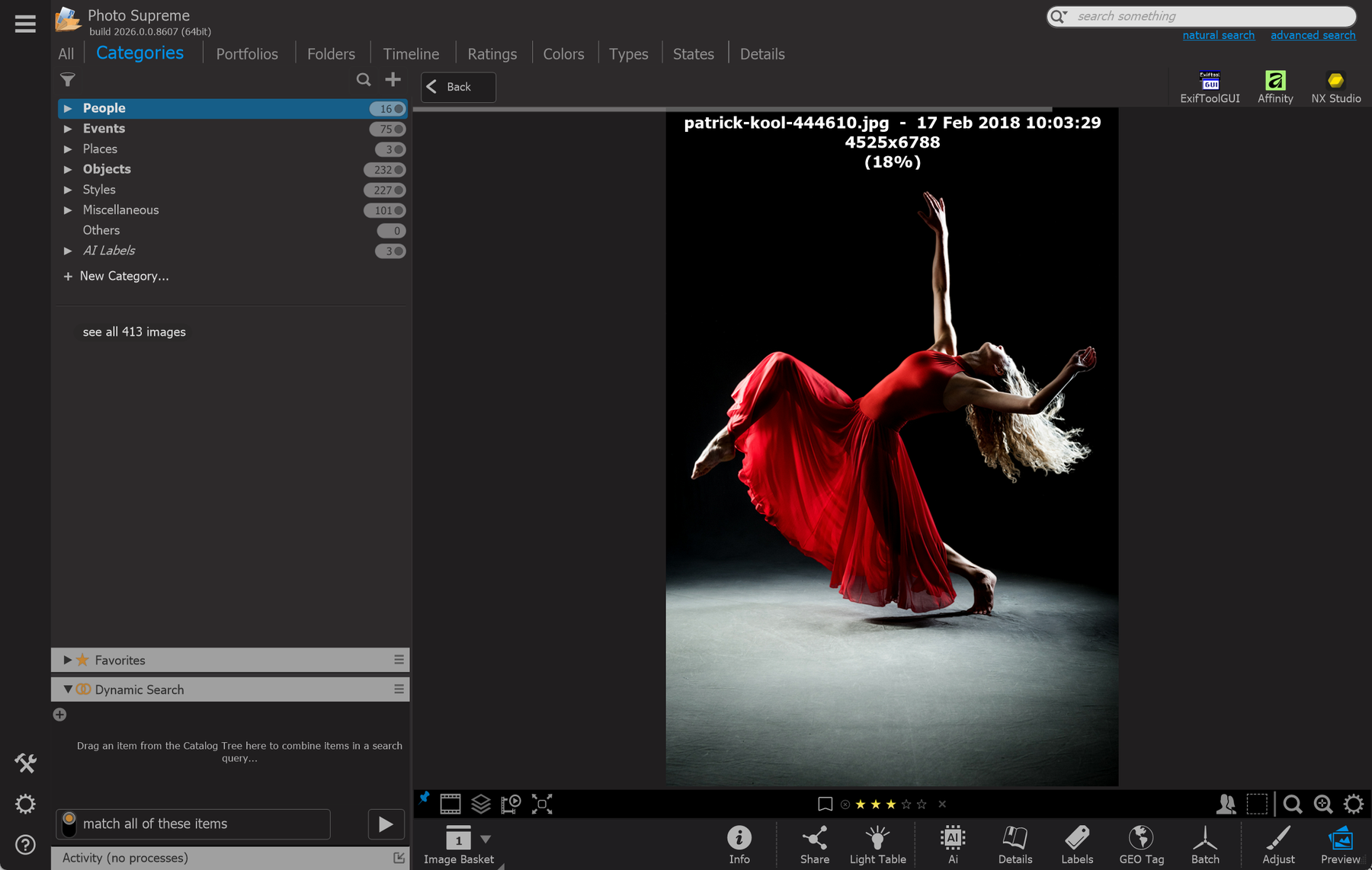
Tip: The Viewer uses its own options. Find the options button in the lower right corner of the Viewer.