
Searching with Photo Supreme
Advanced Search
The Advanced Search Panel offers an interface that enables you to construct searches using specific criteria, allowing you to create more complex search queries by combining various elements.
To access the Advanced Search Panel, click the link located below the Search Bar in the upper right corner, or use the keyboard shortcut Ctrl+F (Windows) or Cmd+F (macOS). Within the panel, you can add search fields, select dates, and specify states, as well as determine how these criteria should be combined using OR or AND.
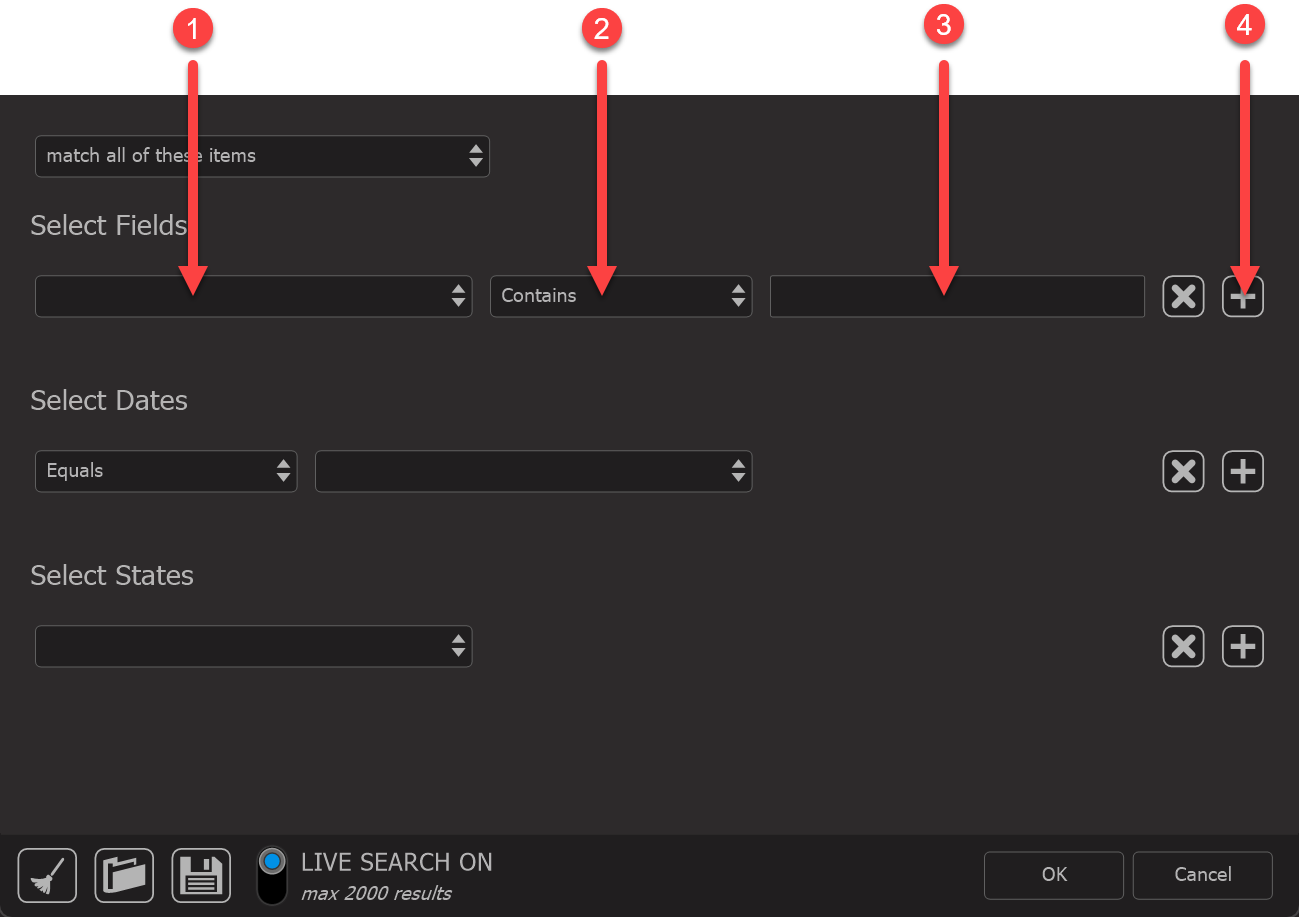
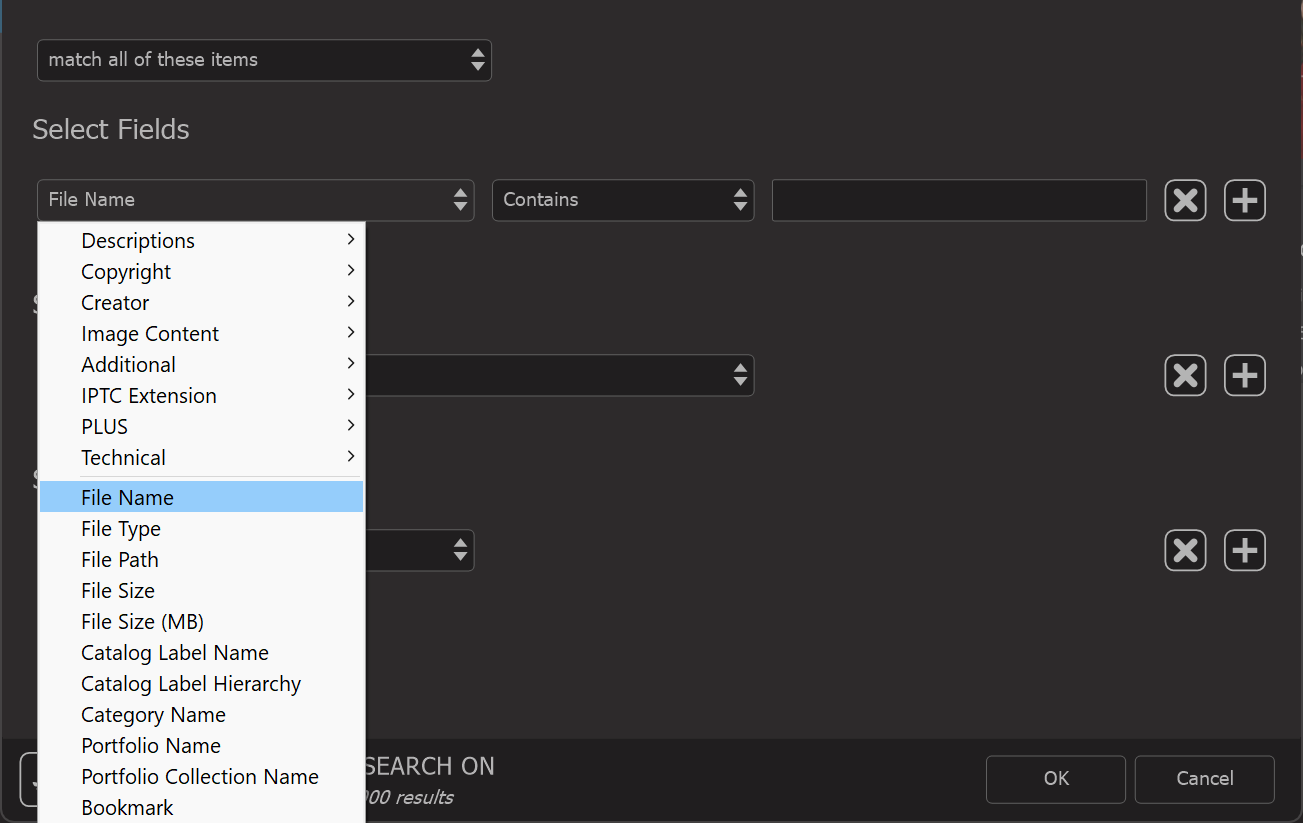
1. Click the dropdown menu in the Search Field and select the field you wish to use as a condition. In this example, choose "File Name".
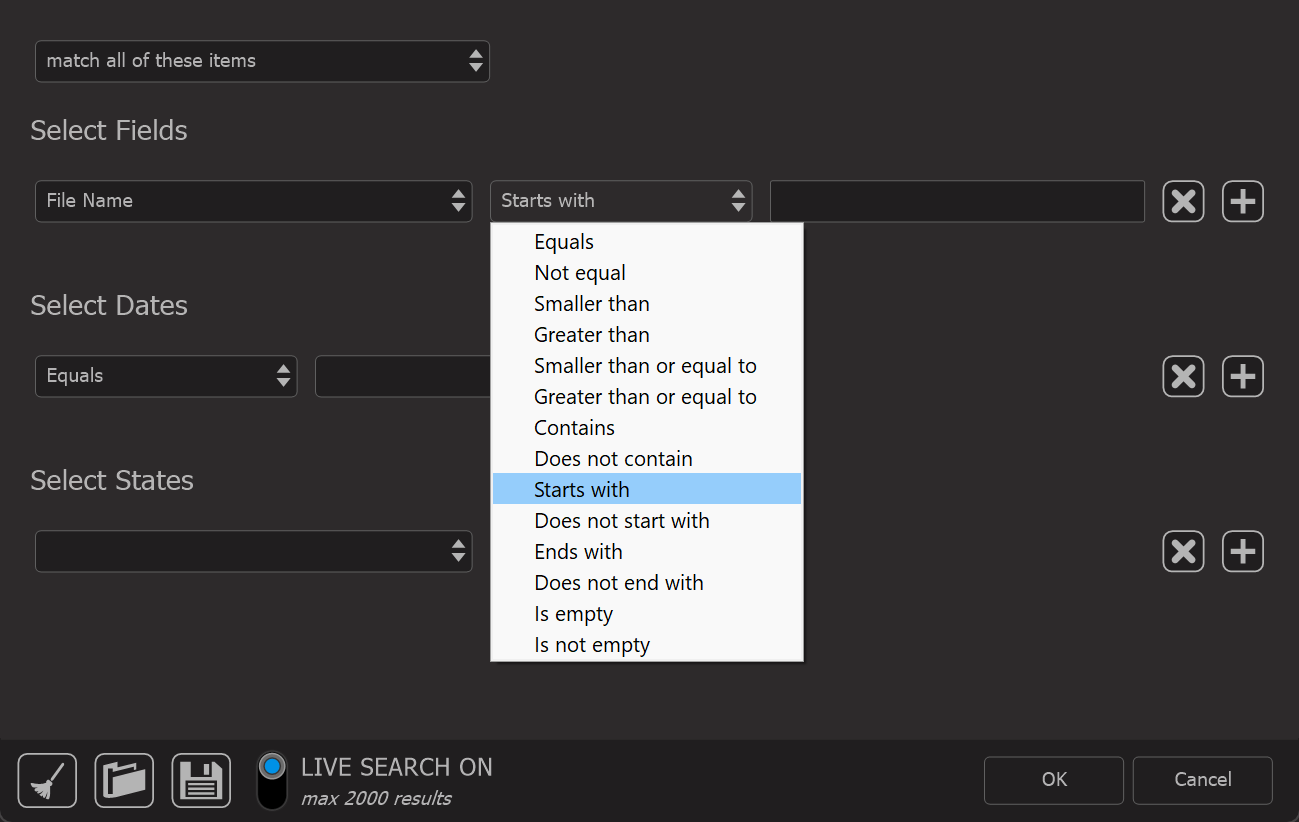
2. Next, choose how you want to search this field, such as "starts with", "contains" etc.
3. Enter the search term. In the example below you get all assets where the file name contains EOS. 
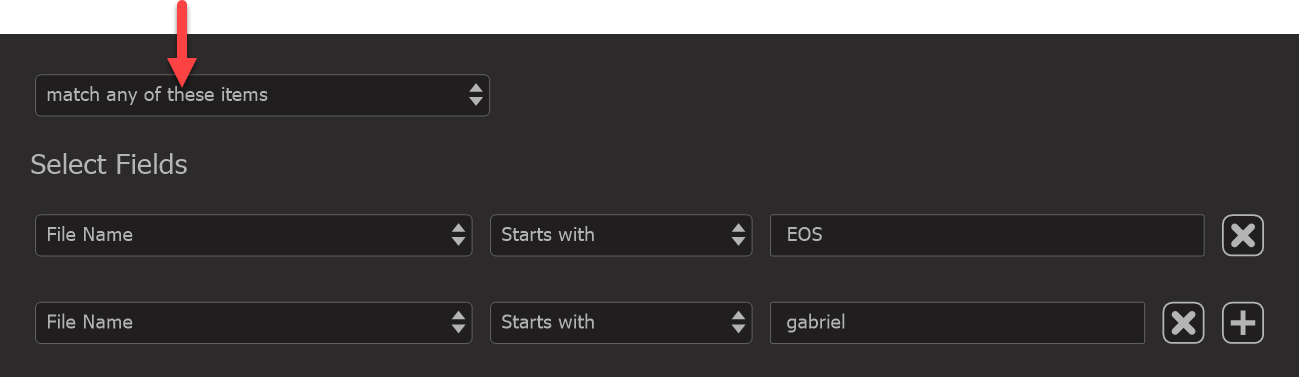
You can use special words called logical operators to help refine your search. If you want to search for multiple terms, use AND or OR (make sure they are in uppercase).
For example, if you're looking for files starting with "EOS" in the name, as well as files starting with "gabriel", type: EOS OR gabriel.

Another way to do this is by setting the matching rule to "any of these items" and adding two separate search conditions, one for File Name Contains EOS and another for File Name Contains 2025.
4. Optionally click the + button to add more conditions.
Aggregate Fields
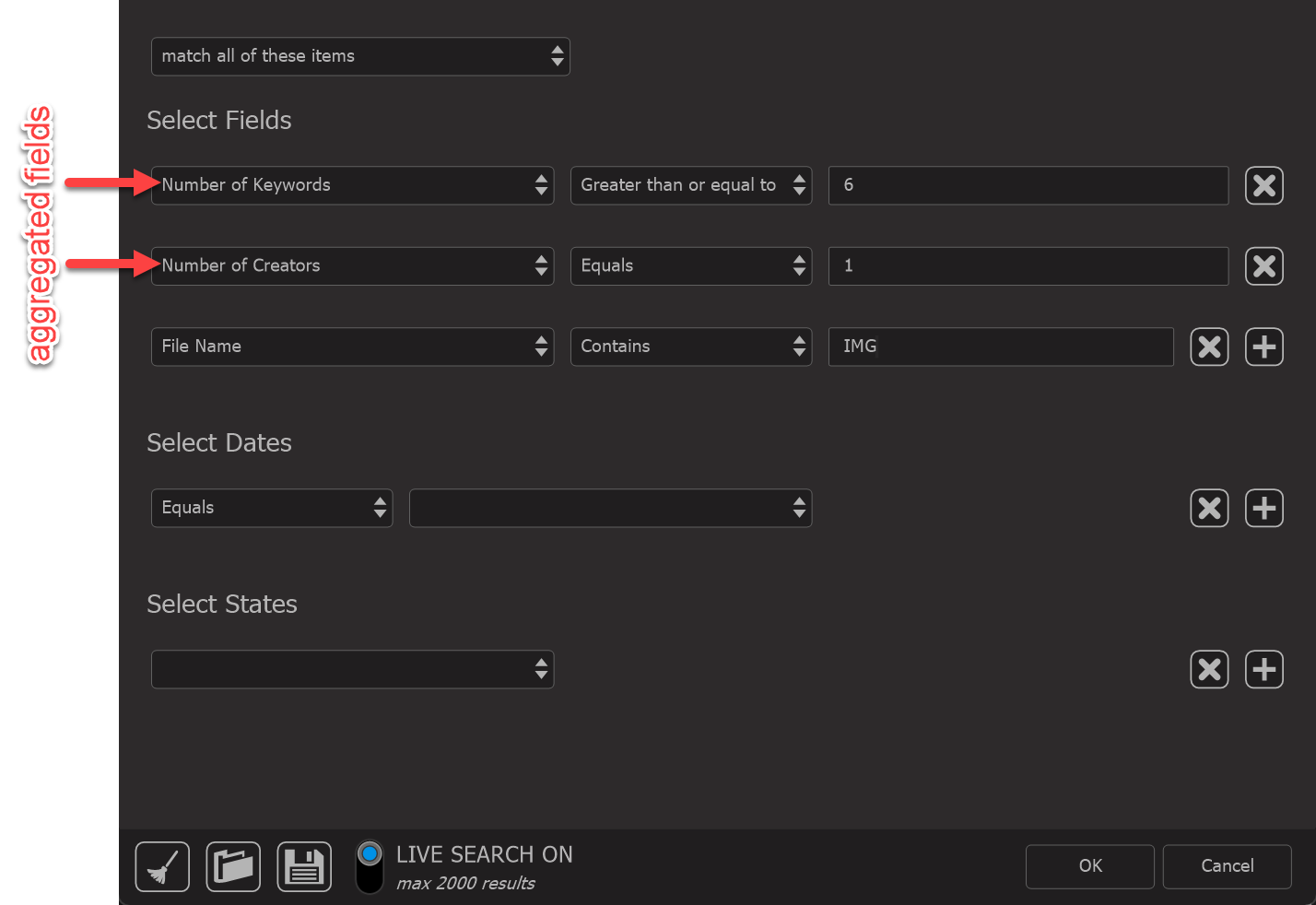
Some metadata fields can contain more than one value. For example, an image might have several keywords, or it might list more than one creator. These fields are not limited to just a single entry.
In Advanced Search, you can search based on how many values are stored in such a field. For instance, you might look for images that have exactly one creator, or more than five keywords. This type of search uses what is called an aggregate field, meaning that Photo Supreme evaluates the field by counting the total number of values it contains rather than checking the individual values themselves.
Live Searches
By default, Photo Supreme uses Live Search, which shows results as you type. This makes it easier to quickly narrow down your search. To keep things running smoothly, Live Search only shows up to 2,000 results. If your search finds more than that, just click the OK button in the Advanced Search Panel to see everything.
If you prefer not to use Live Search, you can turn it off by flipping the switch at the bottom of the Advanced Search Panel.

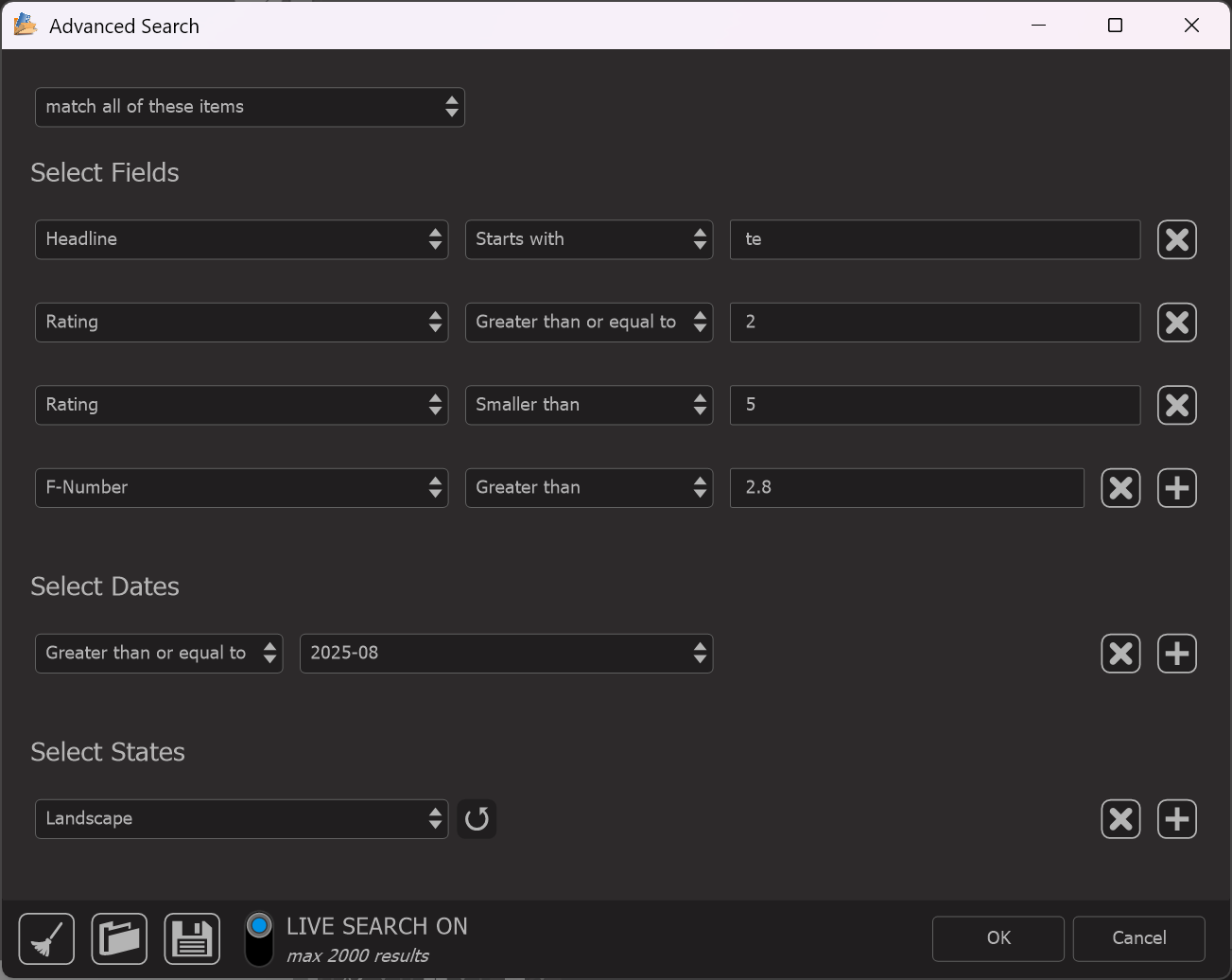
Here's a screenshot showing a more advanced search to demonstrate what's possible. In this example, the search looks for images in the Catalog that meet the following conditions:
- The Headline starts with "te."
- The Rating is between 2 and 5 (including 2, excluding 5).
- The F-Number is greater than 2.8.
- The photos taken in August 2025 or later.
- The orientation is Landscape.
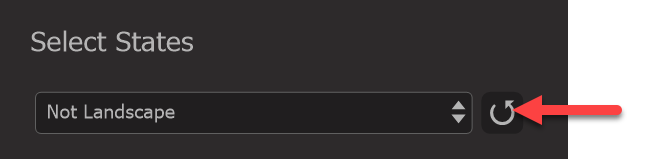
Note that each selected “State” includes an invert option. Clicking the invert button switches the state to its negative value. For example, Landscape becomes Not Landscape.
You can use the "save" and "load" buttons at the bottom of the Advanced Search Panel to make your searches more efficient. The "save" button allows you to save a search with all the specific criteria you've set, so you don't have to set it up again next time. Then, when you want to use that search again, simply click the "load" button, and it will quickly bring up all the same search settings for you to use again. This makes it easier to repeat searches without having to remember or manually enter all the details each time.