Searching with Photo Supreme
Catalog Explorer Searches
After reviewing the initial Quick Start manual, you should have a good understanding of the Catalog and its various sections.
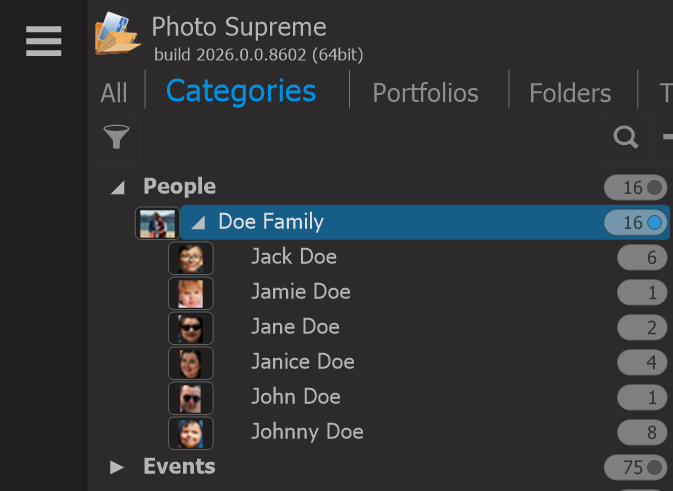
When you select an item in the Catalog Explorer, the results will be displayed as thumbnails, which is a fundamental search feature. However, by holding down the Ctrl key (Windows) or the Cmd key (macOS), you can select an additional catalog label to refine your results further.
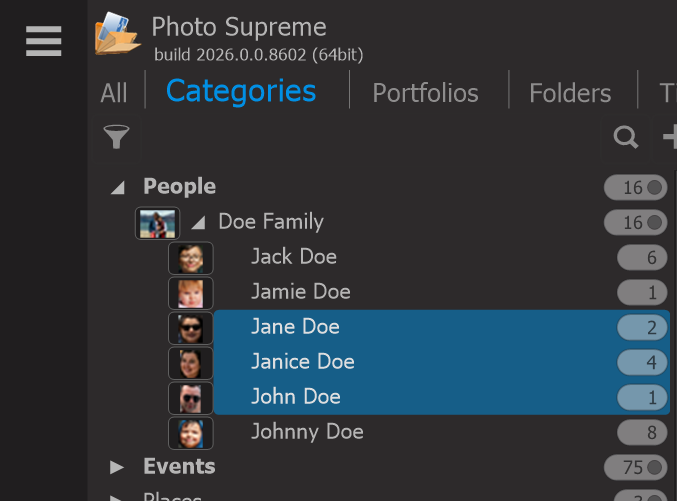
Each selected label will be combined in the search results. For example, selecting labels "Jane OR Janice OR John" will show results matching any of these labels.
You can further refine your search by starting with one item and then holding down Ctrl+Alt (Cmd+Opt on macOS) while selecting another item, which combines them using AND instead of OR. Additionally, you can toggle between Ctrl+Click (Cmd+Click on macOS) and Ctrl+Alt+Click (Cmd+Opt+Click) to adjust how selected items are grouped.
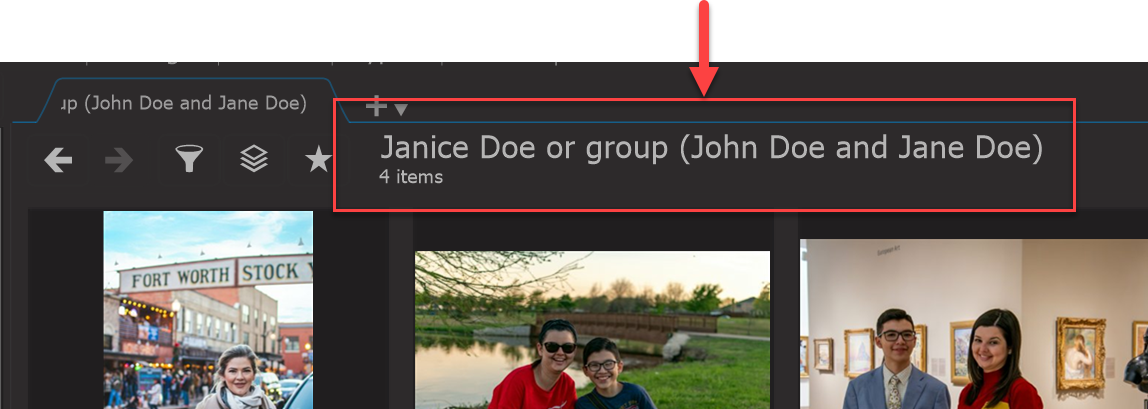
For example, if you want to search for (John AND Jane) OR Janice, you would follow these steps:
- Click on John.
- Hold down Ctrl+Alt+Click (Cmd+Opt+Click) on Jane.
- Then hold down Ctrl+Click (Cmd+Click) on Janice.