
Searching with Photo Supreme
The Search Bar
The Search Bar provides a straightforward yet powerful way to search, akin to using your favorite internet search engine. By entering search terms, it quickly delivers relevant results.
As you use Photo Supreme, it collects and stores information about your images in its database from the moment you import them. This includes essential details like file names and folder paths, as well as existing metadata such as Exif, IPTC, and XMP. You can further enhance this data within the application by adding catalog labels, updating image details, creating areas, and more. Consider this information a comprehensive repository that you can search through using the Search Bar.
When you conduct a search with the Search Bar, Photo Supreme queries the information in its database, which is organized into various sections known as search domains. By default, the search will scan all available data and return matching results.
Simple Searches
The Search Bar is in the upper right corner of the screen. Be careful not to confuse it with the search feature in the Catalog Explorer, which is found on the left side of the screen.
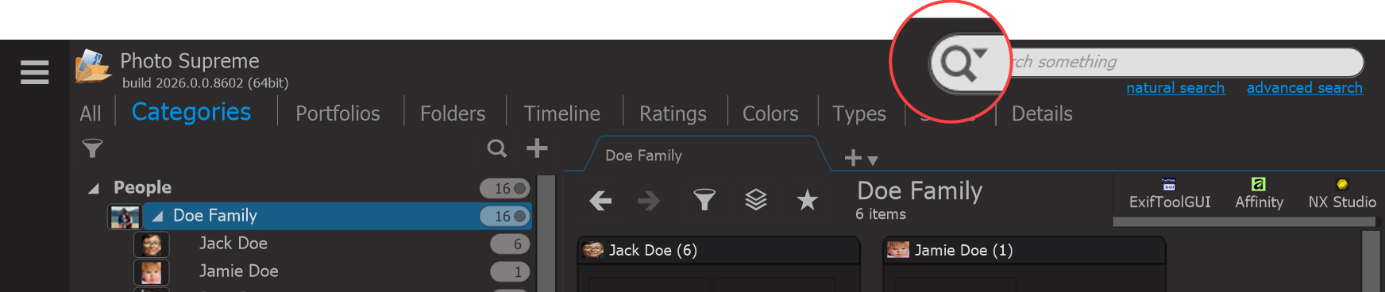
Using the Search Bar is like using your favorite online search engine: simply enter a search term and press Enter. Photo Supreme will then search through all available data and display all images that match the term.
The search finds matches in file names, metadata, folder names, and any other location where the term appears.
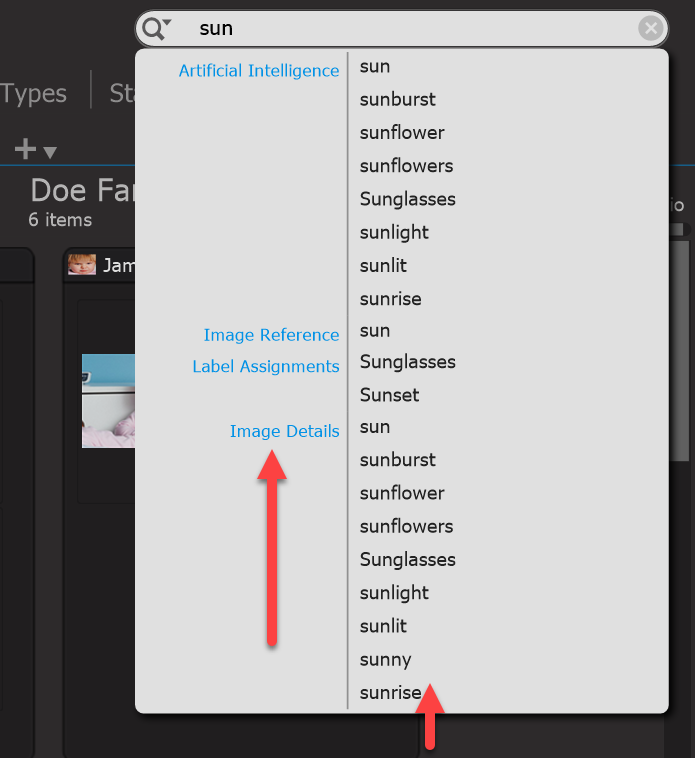
As you type a term into the Search Bar, Photo Supreme provides instant suggestions organized by the location of the matches. These groupings, known as search domains, represent different sections of the image data. For example, you might see suggestions from the search domains: "Image Reference", "Label Assignments" and "Image Details." Each domain indicates what matches were found for the search term. For instance, searching for "sun" may return matches like "Sunlight" and "sunflower" in different search domains.
Press Enter to perform a search and Photo Supreme will return images with matching data from any domain. Alternatively, you can click on a specific match in the dropdown to search only within that domain. For example, selecting "Label Assignments > Sunset" will return only images containing the term Sunset as an assigned Catalog Label.
For more information on searching within search domains, please refer to the Search Domains section later in this document.
Search Combinations
The previous section discussed how to perform simple searches using a single term. In addition to single-term searches, you can combine multiple terms to find images that match all specified criteria.
There are three types of term combinations you can use:
AND Searches In an AND search, all returned images must include every term specified in the search criteria. | In an AND search, each term is separated by the AND operator (case sensitive). Alternatively, you can also separate terms with spaces, and they will be treated as an AND search. | Example: jane AND john |
|---|---|---|
OR Searches In an OR search, all returned images must include one or more of the terms specified in the search criteria. | In an OR search, each term is separated by the OR operator (case sensitive). | Example: jane OR john |
NOT Searches In a NOT search, the returned images must meet the search conditions, excluding the specified terms that are to be left out. | Negative terms are separated by the NOT operator (case sensitive). | Example: jane NOT john |
There is no limit to the number of terms you can combine in your search query.
Bracket Searches
In the previous examples, you performed a combined search (e.g., jane AND john). You can also use parentheses to create search groups and combine them in more complex ways. By structuring your searches with brackets, you can formulate intricate queries that mimic natural language.
Here are some examples of bracketed searches:
(john AND jane) NOT (jamie OR johnny) | This returns all images featuring both John and Jane, excluding those that also include their children, Jamie and Johnny. |
|---|---|
(Johnny OR Janie) NOT (john OR jane) | This query returns all images featuring either Johnny or Janie but excludes any images that include either John or Jane. |
john AND (France OR England) | This query returns all images that include John and are also associated with either France or England. |
Here’s a more advanced example with nested brackets:
Vacation AND (((john OR jane) NOT (Janice OR Jamie OR johnny)) AND (France OR England) NOT (Paris OR London))
This query returns all images related to Vacation that include either John or Jane, but excludes any images featuring Janice, Jamie or Johnny. Additionally, it specifies that the images must be associated with either France or England, while also excluding any images that contain Paris or London.
Search Phrases
As mentioned earlier, you can use the AND operator (case sensitive) to combine search terms. Alternatively, using a space as a separator achieves the same result; for example, searching for Alex Dean is equivalent to Alex AND Dean.
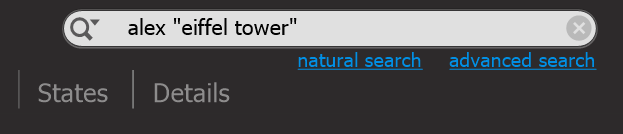
However, if you want to search for a specific phrase that contains spaces, like "Eiffel Tower", you don't want to retrieve images that include Eiffel AND Tower. Instead, you want to find images specifically of the Eiffel Tower.
To search for exact phrases, enclose the phrase in double quotes.
Natural Searches
Natural searching makes it easier and faster to find what you’re looking for by letting you describe your intent in plain, everyday language rather than requiring precise search syntax or filters. It lowers the learning curve, reduces errors in complex queries, and helps surface relevant results that might otherwise be missed. By translating natural language into accurate search criteria, natural searching also saves time, supports more flexible exploration, and allows you to focus on your content instead of how to phrase a query.
The system uses your configured AI service (OpenAI, Gemini, or a local Ollama model) to interpret your text and generate the appropriate search terms automatically.
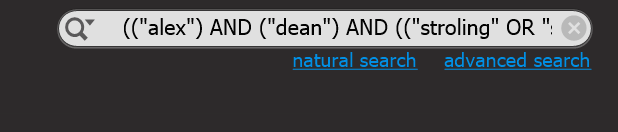
To start a natural search, click the link below the search box. This opens a text field where you can enter the text you want to search for.
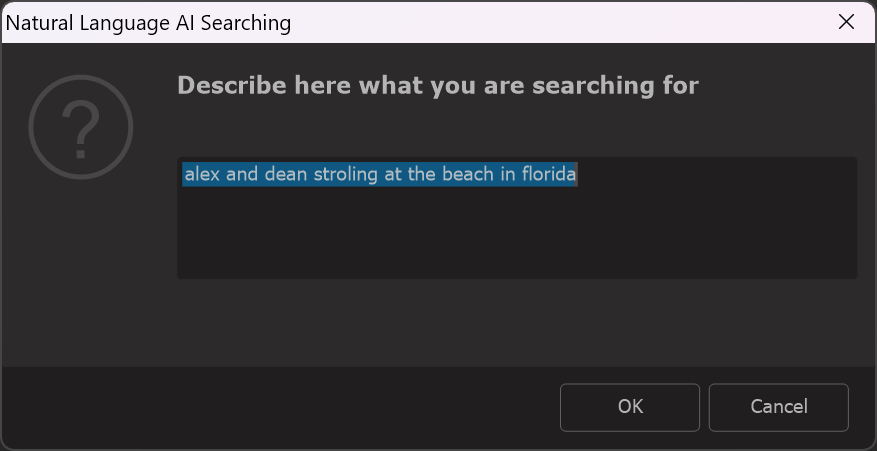
The AI service creates a valid Photo Supreme search query for you and automatically runs the search. In this example, it generates the following:
(("alex") AND ("dean") AND (("stroling" OR "strolling")) AND (("beach" OR "seashore" OR "shore")) AND ("florida"))
Regular Expression Searches
Regular Expressions are text-based search patterns that provide advanced search capabilities beyond simple term-based searches. While they may appear complex at first, they allow for more precise and flexible searches. To use Regular Expressions in the Search Bar, begin your search with the %regex: prefix.
Here is a link to a resource where you can learn more about Regular Expressions.
Inverted Searches
After entering your search text, press Enter on your keyboard or click a search suggestion from the dropdown to initiate the search.
If you need to find results that do not match the search condition, you can perform an inverted search. To do this, hold down the Alt key (on Windows) or the Opt key (on macOS) while pressing Enter or selecting a suggestion. This will start a search for results that exclude the entered search criteria.
Search Domains
With the Search Bar, you can perform searches targeting specific areas of your data. As previously mentioned, the searchable image data is divided into sections known as search domains. By default, entering a search term and pressing Enter will search across all available domains.
However, you can also narrow your search to a specific domain. For example, if you want to search for a file name, you will typically limit the search to the domain that contains file data. You can select a search term and domain combination from the suggestions in the dropdown menu of the Search Bar.
When you select a suggestion, the search results will display the abbreviated name of the search domain in the caption of the Collection Viewer, located above the thumbnails. For instance, if you select the term "alex" from the search domain "Image Details," the title in the Collection Viewer will reflect this selection.

These are the search domains available in Photo Supreme:
Image Reference | File properties of image files (file name, folder name) | CATITEM |
|---|---|---|
Category | Data for categories where an image is part of (through catalog label assignments); category name, description. | CAT |
Label Assignments | Data for catalog labels that are assigned to images; label name, synonyms, descriptions. | PROP |
Image Details | Descriptive image data that belongs to an image; typically, all XMP. | XMP |
Label Set | Data for label sets where an image is part of (through catalog label assignments); set name. | GROUP |
Portfolio | Data for Portfolios that the image is part of; name. | MODEL |
Collection | Data for Portfolio Collections that the image is part of; name; description. | COLL |
Folder | Data for folders where images are stored in; folder name; volume name. | PATH |
Medium | Data for volumes where the image is stored in; drive name, trivial name. | MEDIUM |
Label Relation | Data for catalog label relationships that images are part of (through catalog labels); part child rule, child parent rule. | REL |
Place Holder | Data for place holders that an image can be part of (through versioning); name. | PLACEHO |
Area | Data for areas that are defined for images. | AREA |
Classification | Data for automatically extracted classifications for images. | CLASS |
Using the Search Domains
Now that you understand what search domains are and how to use them, you can learn to utilize them more directly. While you can select search domains from the dropdown in the Search Bar, you can also specify them directly in your search query.
For example, if you want to find all images where the term "Vacation" appears in the Label Assignments search domain, you can enter:
vacation@PROP
Then press Enter. This will return all images where "vacation" matches any string in a catalog label's name, synonyms, or descriptions within the Label Assignments domain. The areas where the term can be matched are referred to as search properties.
To summarize:
Each image contains search data.
The search data is organized into search domains.
Each search domain includes various search properties.
In our example:
Entering "Vacation" in the Search Bar and pressing Enter will return all images where "Vacation" appears anywhere in the search data.
Entering "vacation@PROP" in the Search Bar and pressing Enter will return all images where "vacation" appears specifically in the Label Assignments search domain.
You can also specify which search property within the search domain should be searched.
Here are the search properties you can use in the Search Bar:
Image Reference | File Name | The file name of a catalog item | CATITEM.FileName |
|---|---|---|---|
Photo Date | The date of the photo in the catalog is stored as a localized string in the format dd mmmm, for example, 28 January. | CATITEM.PhotoDate | |
StackMarkers | A comma separated list of names for every assigned stack marker for that catalog item | CATITEM.StackMarkers | |
Category | Category Name | The name of a top-level Category in the catalog | CAT.CatName |
Label Assignments | Catalog Label Name | The name of a Catalog Label | PROP.PropName |
Description | The description of a Catalog Label | PROP.PropDescr | |
Synonym | The synonyms of a Catalog Label | PROP.PropSynonym | |
Image Details | <xmp property> | You can use every possible XMP property name as a search property in the Image Details domain. Most of the available XMP properties can be found in the XMP specifications. | XMP.photoshop:headline |
Label Set | Label Set Name | The name of a Label Set | GROUP.GroupName |
Portfolio | Portfolio Model Name | The name of a Portfolio | MODEL.ModelName |
Collection | Collection Name | The name of a Collection | COLL.CollName |
Description | The description of a Collection | COLL.CollDescr | |
Folder | Path Name | The name of a folder path | PATH.PathName |
Directory Name | The name of the directory for this path is the name of the lowest folder in the path name. For example, the Directory Name for the path C:\My Photos\Trips\Vacation is Vacation. | PATH.DirName | |
Medium Name | The name of the medium where a path is stored on (e.g. the drive’s Volume Name on macOS) | PATH.PathMediumName | |
Medium | Trivial Name | The trivial name of a volume | MEDIUM.Trivial |
Label Relation | Parent Rule | The parent rule between two catalog labels in a defined relationship | REL.Parent |
Child Rule | The child rule between two catalog labels in a defined relationship | REL.Child | |
Place Holder | Place Holder Name | The name of a version Placeholder | PLACEHO.PHName |
Area | Caption | The caption for an area | AREA.Caption |
For example, to find all images with the term "vacation" in the catalog label name within the Label Assignments search domain, you can enter:
vacation@PROP.PropName
You can also create combinations. For instance:
alex AND dean@PROP.PropName
This query will return all images where both "alex" and "dean" appear in the names of assigned catalog labels.