
Searching with Photo Supreme
Dynamic Search Panel
With the Dynamic Search Panel, you can perform advanced and precise searches by adding various search elements. Once you have configured your search criteria, you can execute the search with a click of the play button.
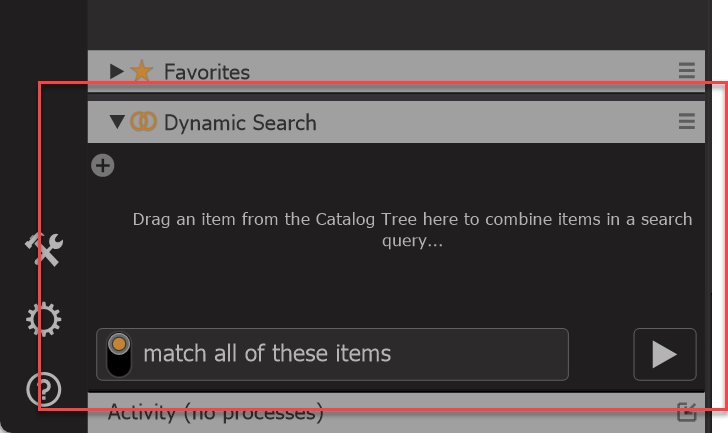
The Dynamic Search Panel is an expandable panel located below the Catalog Explorer on the left side of the screen. You can expand or collapse this panel by clicking its caption title. The purpose of the panel is to enable you to visually design your queries by adding various elements.
Adding items to the Dynamic Search Panel
You can add items to the Dynamic Search Panel, which represent elements of your catalog. These items might include Catalog Labels, Ratings, Color Labels, Date Items, File Folders, Portfolios, and more. You can create a wide range of combinations using these elements.
For example, if a Catalog Label named "Dean" is already in the Dynamic Search Panel, you can add another Catalog Label by dragging it to the panel. You can also drag one or more items from the Catalog Explorer to the panel in a single action. Alternatively, you can press the SPACEBAR to add selected items from the Catalog Explorer to the Dynamic Search Panel or use the + icon in the upper left corner of the panel to add items.
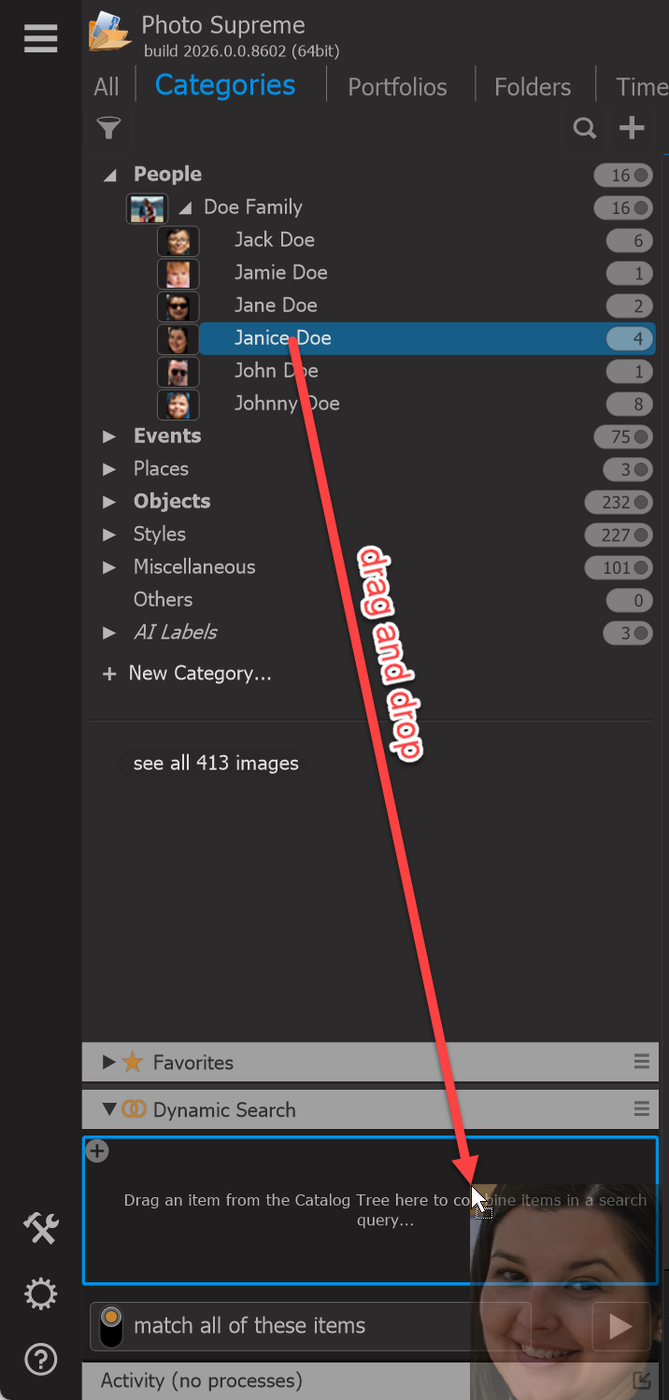
Run your first search query
The option in the lower left corner of the Dynamic Search Panel allows you to toggle the query between "match all of these items" (AND) and "match any of these items" (OR). This means you can choose whether all the items in the panel should be combined (AND) or considered separately (OR) in your search. This setting determines whether the search will include all the items or any one of them.
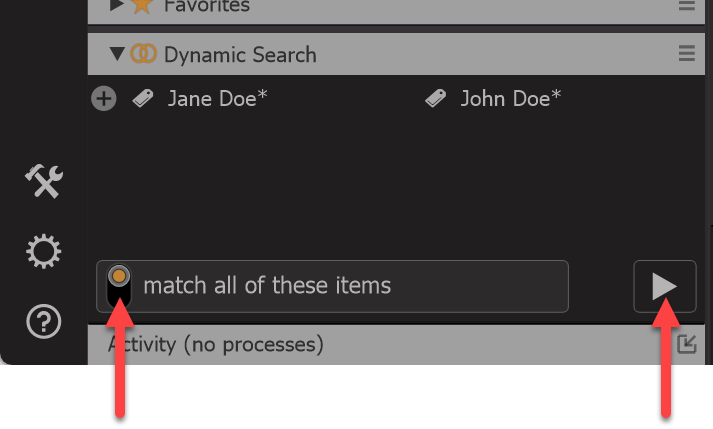
After selecting the join option, click the Run button to execute the query. For example, the Dynamic Search constructed above will return results that match both terms.
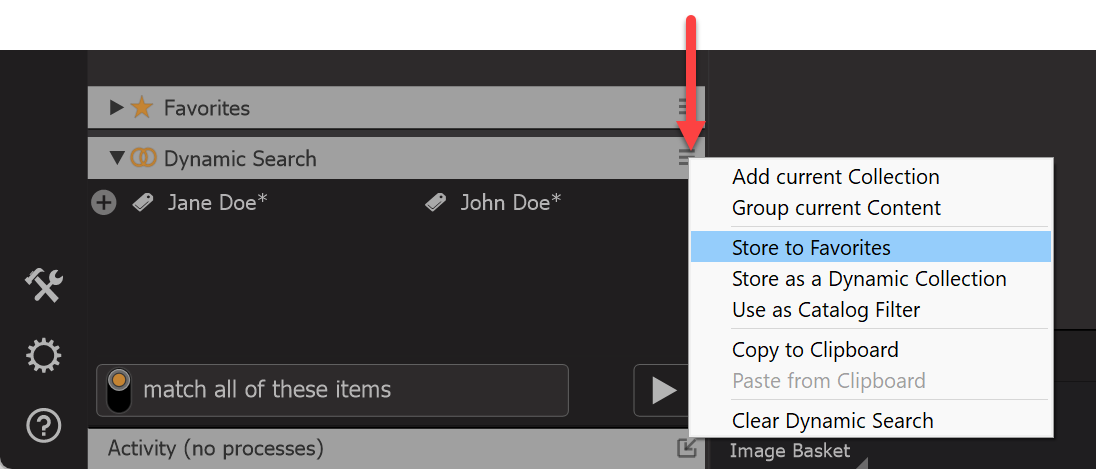
If you anticipate running the same query frequently, you can save it as a Favorite. To do this, click the Menu button in the Dynamic Search Panel and select "Store to Favorites". This will add the search combination as a Favorite in the Favorites Panel. The Favorite will be named after the combined items by default, but you can rename it by right-clicking the favorite item and selecting "Rename".
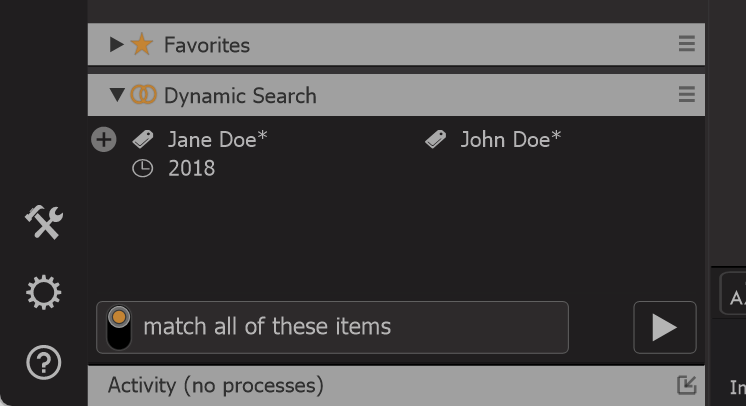
Here's another example of a query: to return all images of John AND Jane that were taken in 2018, you can add the "2018" item from the Timeline Section to the existing items in the Dynamic Search Panel. This allows you to combine search terms with specific time frames.
More advanced Dynamic Searches
Up to this point, the Dynamic Search Panel has been used to build simple queries like A AND B. However, if you want to create a more complex query, such as ((A OR B) AND C), for example, finding all images of (John OR Jane) in 2018, you can't simply add Alex, Dean, and 2018 and switch the join to OR. Doing so would result in (John OR Jane OR 2018), which isn't the desired outcome.
The solution is straightforward: first, build the query for what’s inside the brackets. In this case, start by dragging John and Jane into the Dynamic Search Panel and switch the join type to "match any of these items" (John OR Jane).
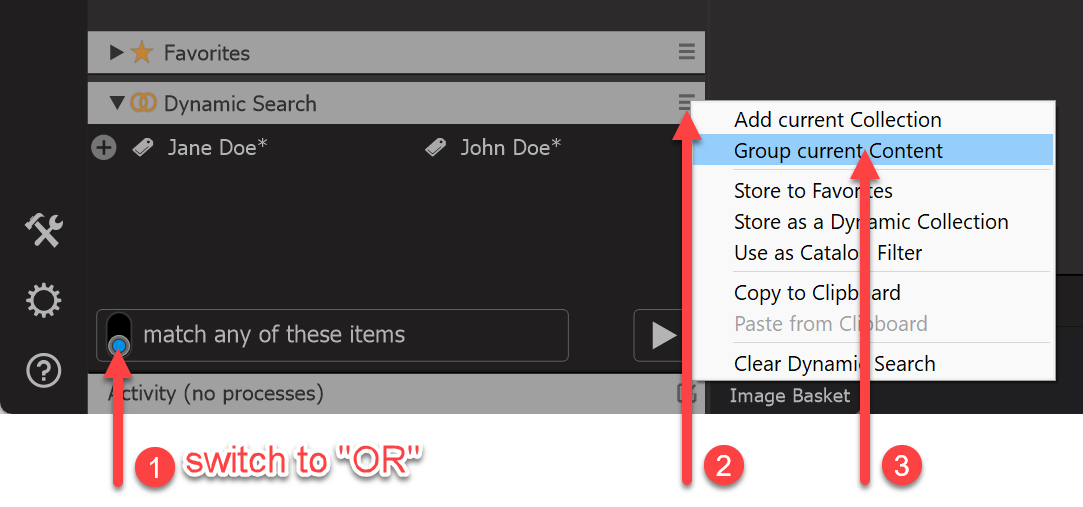
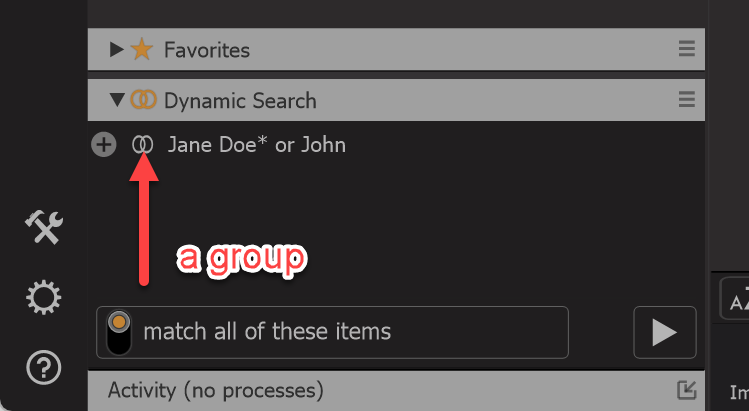
Next, click the Menu button and select the option to group the content together. This action will combine the selected items into a single group in the Dynamic Search Panel. After grouping, the panel will display just one entry that represents the merged content, making your query more organized and easier to manage.
Then, you can add the additional criteria (like 2018) outside the brackets.
Next, to add 2018 to your query, open the Timeline section and drag the 2018 item into the Dynamic Search Panel.
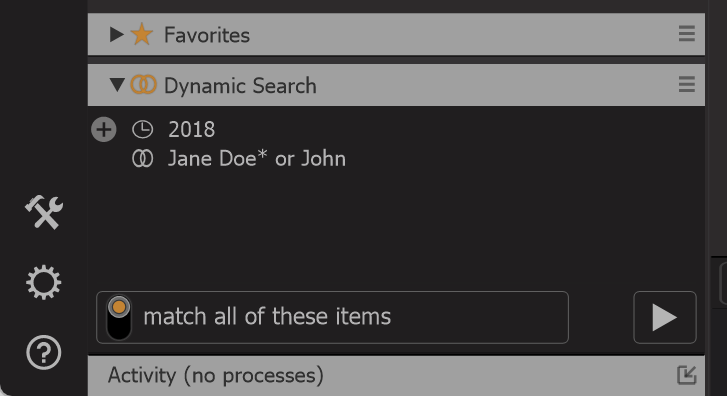
For this query, the join should be set to AND, so select "match all of these items." This will combine (John OR Jane) with 2018 using an AND condition.
This will complete the query, allowing you to search for images of (John OR Jane) in 2018. Click the Run button to execute the search.

Excluding items
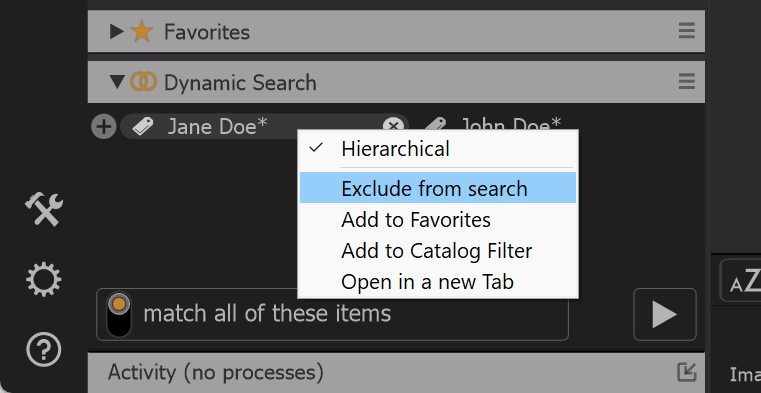
You can also exclude items from a search. For example, if you want to find all images of John that do not include Jane, follow these steps:
- Drag John into the Dynamic Search Panel.
- Drag Jane into the Dynamic Search Panel as well.
- Right-click on the Jane item and select “Exclude from Search.”
This will create a query for all images of John that exclude Jane.
The Jane item is then colored red to indicate that it is excluded from the search.
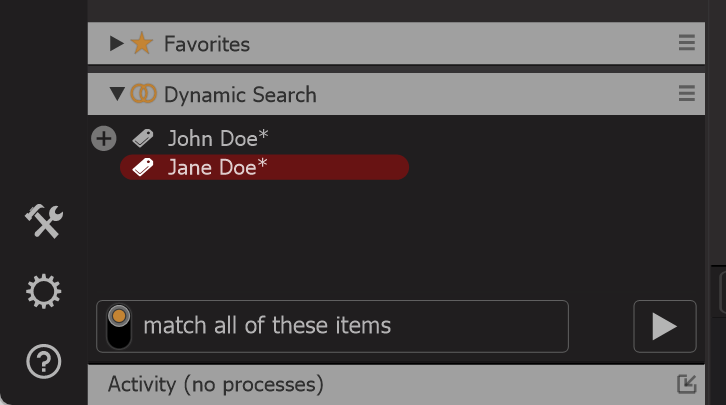
After setting up the exclusion, click the Run button to start the search.
As an alternative, you can also hold the Alt key while dragging the item (e.g., Jane) to the Dynamic Search Panel. This will instantly mark the item as excluded. Alternatively, you can press Alt + Spacebar to achieve the same effect.
