
Install Photo Supreme Server with PostgreSQL 18
Installing Photo Supreme Server
Now that PostgreSQL is installed and set up, you're ready to install Photo Supreme. If PostgreSQL was already installed before setting it up for Photo Supreme, double-check the previous steps to make sure your database is properly configured.
To install Photo Supreme, download it from our website. Double-click the setup file to start the installation. The process is simple, and you can follow the on-screen instructions. Once it’s done, you can launch the program.
Since it's your first time using Photo Supreme with PostgreSQL, it will prompt you to set up a new catalog. If you don’t see this prompt, try restarting Photo Supreme while holding down Ctrl+Alt+Win (Windows) or Ctrl+Opt+Cmd (macOS).
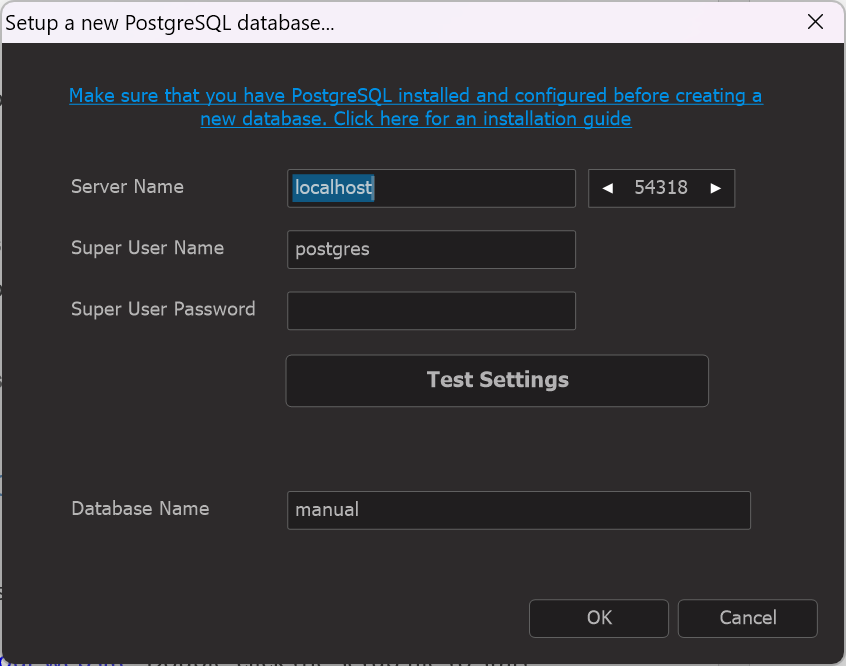
- Enter the Hostname or TCP/IP address of the server/computer that runs the database instance.
- Enter the PostgreSQL Super User password. This is the password that you have entered during the installation process. If you don’t know this password, then ask your database or network administrator. Without access from a super user, you cannot set up a database.
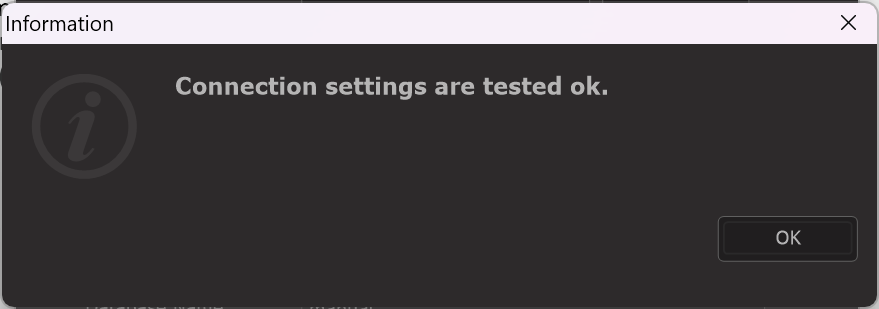
- Click “Test Settings” to verify that the software can establish a connection with the PostgreSQL database. To test the connection, PSU will try to connect to the default “postgres” database. The entered Super Username must have access to this default database to test the connection. If all is well, you will get this message.
- Optionally name your catalog. The default is “photosupreme” and if you’re planning to have just one catalog then it’s recommended to leave the name unchanged.
- Click OK and let Photo Supreme create your catalog. Photo Supreme creates two databases: the catalog database (using the name entered in step 4) and the thumbnail database, which uses the catalog database name with the _thumbs suffix, e.g., photosupreme and photosupreme_thumbs.
Once the database is created, you get this message:
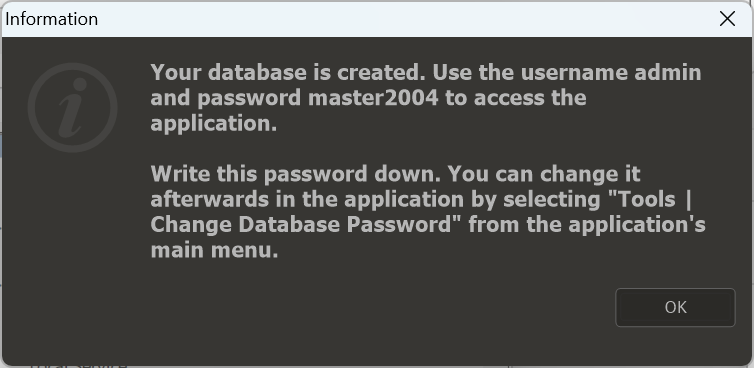
- Keep the admin password in your records. This is the application password needed to open Photo Supreme. This is not the database password, nor is it the PostgreSQL Super User password. Click OK to confirm the message.
- By default, a login dialog will be displayed. The default password (master2004) is pre-filled. You can click OK to continue and login.
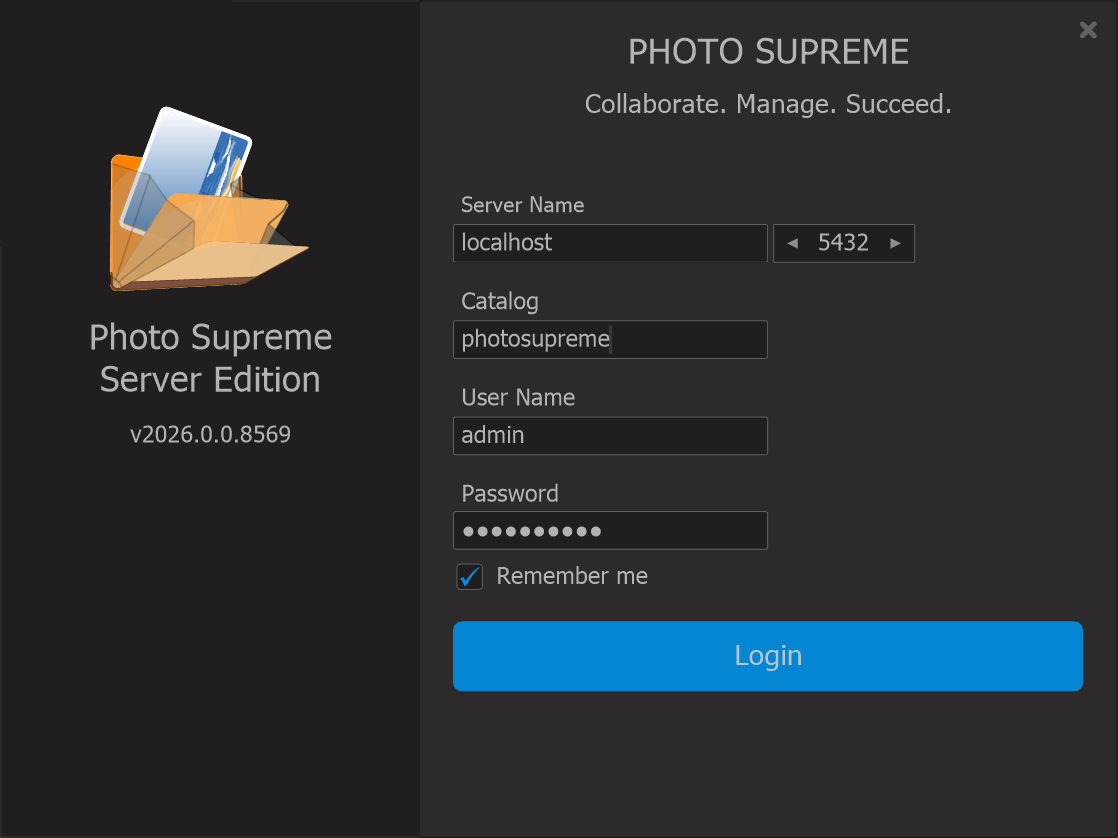
- Congratulations! You are now ready to use Photo Supreme with PostgreSQL.