
Install Photo Supreme Server with PostgreSQL 18
Performance Configuration
The default PostgreSQL settings are quite cautious and may not fully use the power of modern computer hardware. To boost performance, it's a good idea to make a few adjustments.
You'll need to edit a file called postgresql.conf, located in the Data Folder you chose during installation. Open it with any text editor; Notepad on Windows or TextEdit on macOS will work well.
Simply open your text editor, load the postgresql.conf file from the Data Folder, and make the necessary changes. Some recommendations will depend on your computer's hardware setup.
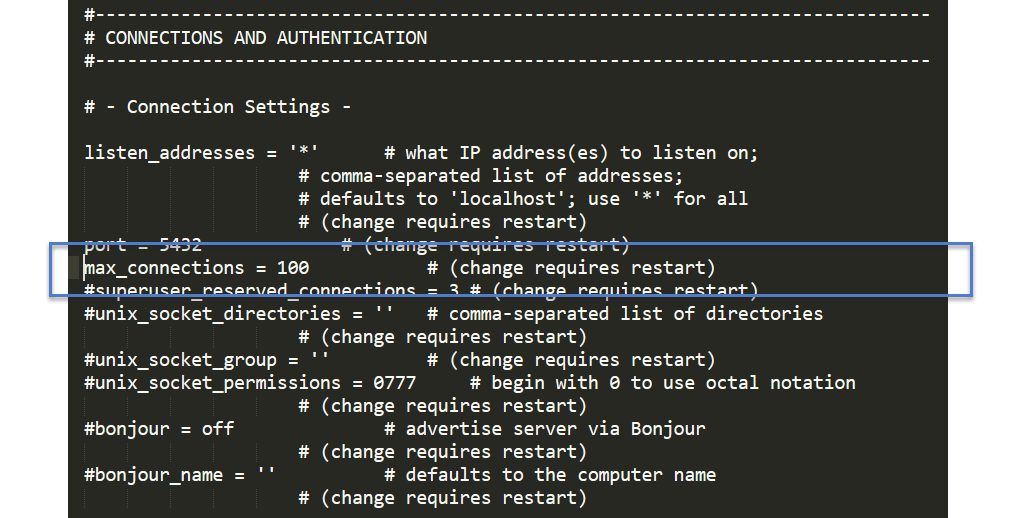
max_connections
Find the configuration setting for max_connections. Make sure that it is enabled (remove any leading # character before the name).
Set max_connections to a value about 100 times the number of concurrent Photo Supreme users that you plan to use this database, with a minimum of 200.
For example, if 5 users will use Photo Supreme concurrently then set it to a value of 500 or higher. If, for some reason, you run into the database error “Too many clients already” while using Photo Supreme then bump up this value.
shared_buffers
Find the configuration setting for shared_buffers. Make sure that it is enabled (remove any leading # character before the name).
Set shared_buffers to a value of about 25% of the internal memory of the server hardware. For example, if your server holds 8GB of internal memory then set it to a value of 2048MB.
max_parallel_workers
Find the configuration setting for max_parallel_workers. Make sure that it is enabled (remove any leading # character before the name).
Set max_parallel_workers to the number of CPU cores as available in the server hardware.
max_parallel_workers_per_gather
Find the configuration setting for max_parallel_workers_per_gather. Make sure that it is enabled (remove any leading # character before the name).
Set max_parallel_workers_per_gather to 2 if your server hardware has less than 8 CPU cores or 4 if it has more.
effective_cache_size
Find the configuration setting for effective_cache_size. Make sure that it is enabled (remove any leading # character before the name).
Set effective_cache_size to a value of about 50% of the internal memory of the server hardware. For example, if your server holds 8GB of internal memory then set it to a value of 4GB.
work_mem
Find the configuration setting for work_mem. Make sure that it is enabled (remove any leading # character before the name).
Set work_mem to 32MB. This setting is a per-operation setting so don’t push the limits.
maintenance_work_mem
Find the configuration setting for maintenance_work_mem. Make sure that it is enabled (remove any leading # character before the name).
Set maintenance_work_mem to 512MB.
cpu_tuple_cost
Find the configuration setting for cpu_tuple_cost. Make sure that it is enabled (remove any leading # character before the name).
Set cpu_tuple_cost to 0.03.
random_page_cost
Find the configuration setting for random_page_cost. Make sure that it is enabled (remove any leading # character before the name).
This setting helps PostgreSQL estimate the relative cost of reading non-sequential data pages. Set it according to the storage device that contains the PostgreSQL data files:
| PostgreSQL data storage | Recommended value |
|---|---|
| SSD | 1.5 |
| NVMe | 1.1 |
| Other storage | Keep the PostgreSQL default of 4. |
Base this choice on where the PostgreSQL data files are stored, which may be different from the drive containing PostgreSQL itself.
After making the changes, save your postgresql.conf file and restart the computer for the changes to go into effect.