
User Management in Photo Supreme Server
License Management
Photo Supreme Server Edition uses a “per concurrent user” licensing model. This means a separate license is required for each user logged in at the same time. Concurrent users are defined as users accessing the system simultaneously. For example, if your organization has 20 employees who need catalog access, but only 5 log in at once, you only need 5 licenses, even if all 20 are registered as Photo Supreme users.
Licenses are managed through a License Pool. Administrators can add licenses to this pool as needed. When a user logs in, the application assigns an available license from the pool. After the user closes the application, their license is released back into the pool and becomes available for another user to log in.
The Main Administrator License
To prevent the main administrator from being locked out when no licenses are available, one license is reserved exclusively for their use. This dedicated license is separate from the License Pool. The first license added is automatically assigned as the main administrator’s reserved license.
Loading Licenses
After obtaining one or more licenses, you can load them via the User Manager. Click the “Load User Licenses” button in the upper-right corner. You can either download the licenses directly from the Control Panel or manually download them, save them to your disk, and then load them into the User Manager.
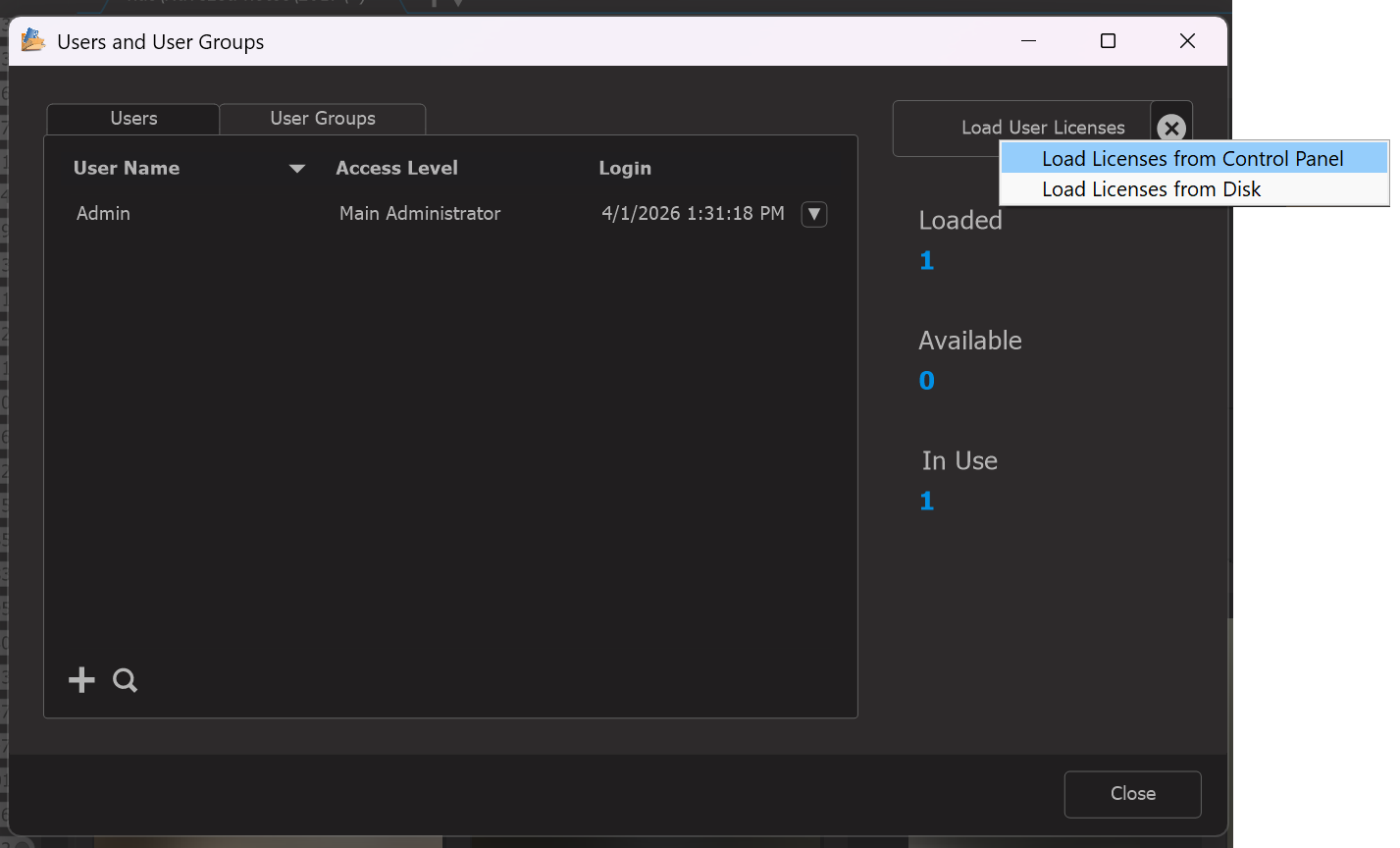
Note that there are two types of licenses: blue and orange.
- Blue licenses are full licenses and are used when a user logs into the desktop application.
- Orange licenses are visitor licenses, used when a user accesses Photo Supreme Online: the web-based catalog browsing feature, available via the integrated HTTP Server.
For every concurrent license you acquire, you automatically receive two visitor licenses.
The License Pool
The User Management dialog shows the total number of licenses in the Pool, along with the count of currently in use licenses and the number of available licenses.
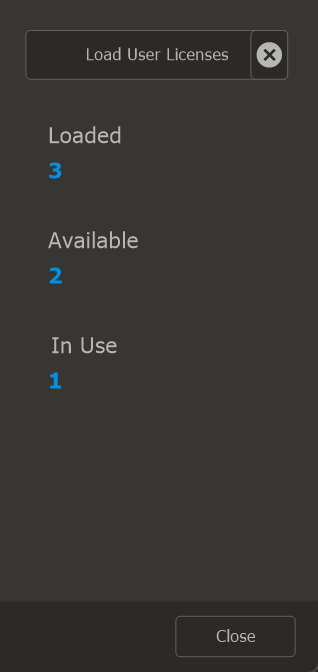
When an authorized user logs in, a license is assigned from the License Pool. You can monitor the license counts in the User Management dialog, but please note that the counts will update with a brief delay of approximately 30 seconds.