
Folder and File Management with Photo Supreme
Folder File Backups
In the digital world, our personal and professional lives are often stored as data: documents, photos, videos, projects, and other essential files. Losing these files due to accidental deletion, hardware failure, malware, or natural disasters can have significant consequences. This is where folder and file backups come into play.
A folder and file backup is a process of creating copies of your data: specific folders, or an entire directory structure, and storing these copies in a secure location. The primary goal of backups is to ensure you can recover your files if something goes wrong with the original data.
Why Are Backups Important?
- Data Protection:
- Files can be accidentally deleted or overwritten.
- Hardware failures, such as hard drive crashes, can render files inaccessible.
- Malware or ransomware can corrupt or lock your files.
- Business Continuity:
- For businesses, data loss can disrupt operations, lead to financial losses, or damage reputation.
- Having backups ensures that critical business data can be restored quickly.
- Peace of Mind:
- Knowing your files are safe reduces stress and worry about potential data loss.
Photo Supreme makes it simple to keep your files safe with the new Backup feature. You no longer need third-party tools, everything you need to back up your files is built right into the app. You can choose to manually back up specific photo folders whenever you want, giving you full control over which files are protected. Plus, for added convenience, you can set up automatic backups on a schedule that works for you, so your images are regularly backed up without you needing to do anything.
Manual folder backup
When you're setting up a backup for your files, the first step is to decide where you want to store your backup. It's essential to choose a location that ensures your data is safe even if something goes wrong with your primary storage. Here's a simple, step-by-step explanation to help you get started.
Backups are most effective when they are stored on a different physical drive than the one where your original files are located. Why is this important? If your current hard drive fails (due to age, damage, or other issues), your backup will still be safe because it is stored on a separate drive.
Here are some common options for your backup location:
- External Hard Drive: A USB-connected external drive is an excellent choice for backups. It's portable, easy to use, and relatively affordable.
- Network Drive (NAS): If you have a home or office network, you can use a Network Attached Storage (NAS) device to store your backups.
- Cloud Storage: Online services like Google Drive, Dropbox, or OneDrive allow you to save files remotely. While convenient, these usually require an internet connection and may have recurring costs.
If possible, avoid storing your backup on the same hard drive as your original files. If that drive fails, you could lose both your original files and the backup.
Backing up a folder in Photo Supreme is simple and can be done directly from the Catalog Tree on the left side of the screen. Here’s how you can do it step by step:
- Locate the Folder: In the Folders section of the Catalog Tree, find the folder you want to back up.
- Right-Click on the Folder: Use your mouse to right-click on the folder you want to include in the backup.
- Select Backup Option: From the menu that appears, choose Backup Folder -> Backup Folder Now.
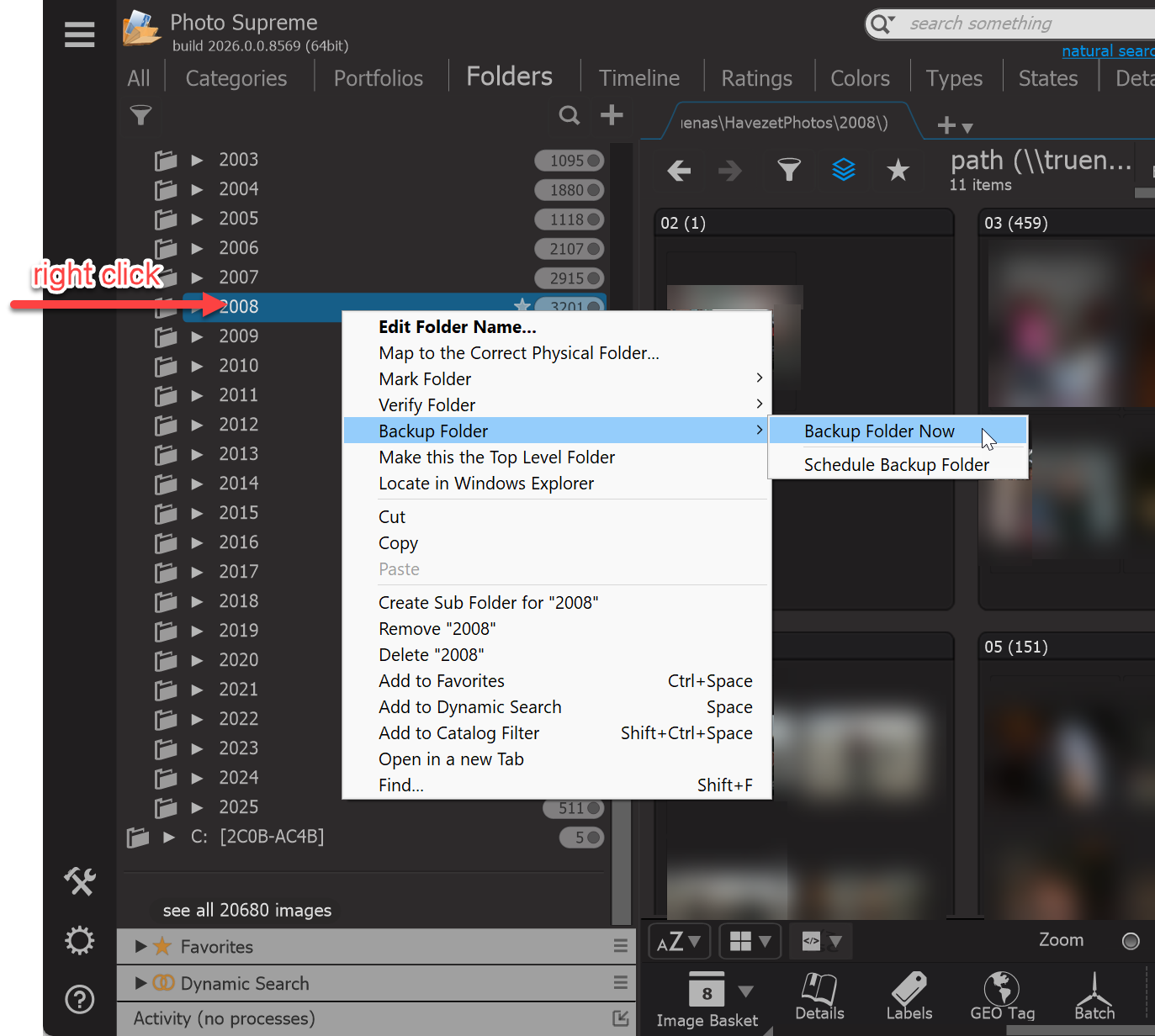
After starting the backup process, you'll need to select the folder where your files will be saved.
Here’s an important thing to keep in mind:
- The folder you choose as the backup location will become an exact copy (or "mirror") of the original folder you're backing up.
- This means:
- Any files in the backup folder that don’t exist in the original folder will be deleted.
- Files in the backup folder that are also in the original folder will be overwritten if they are different.
IMPORTANT TIP: Make sure the backup folder you select doesn’t contain any files that are important to you, as they might be removed or replaced during the backup process. Always use a dedicated folder for backups to avoid accidental data loss.
When you're ready to back up your files, click OK to begin the process.
Here’s what happens next:
- First-Time Backup: If this is your first backup, Photo Supreme will copy all files (not just photos) from the selected folder to your backup folder.
- Subsequent Backups: If the backup folder already contains a previous backup, Photo Supreme will only back up files that need to be updated. Files that are already identical in the backup folder will be skipped, saving time and storage space.
How Does Photo Supreme Decide Which Files to Back Up? A file will be backed up if:
- It’s Missing: The file doesn’t already exist in the backup folder.
- It’s Updated: The file’s creation date or last modified timestamp has changed since the last backup.
- It’s Different: The file in the backup folder is not an exact binary match with the original file.
This smart process ensures that only necessary files are copied, keeping your backup up to date without duplicating identical files.
IMPORTANT: After a file is copied from the original folder to the backup folder, Photo Supreme performs a binary comparison to confirm that the backup file is an exact, error-free copy of the original. This extra step adds to the reliability and accuracy of your backup, even though it might make the process slightly slower compared to a simple file copy. The added peace of mind is worth the extra time, as you can be confident your files are safely backed up without corruption or errors.
Schedule Folder Backup
You've now learned how to manually backup a folder. In addition to manual backups, you can also schedule this process to run periodically. To do this, right-click on the folder you want to schedule the backup for, then select Backup Folder -> Schedule Backup Folder from the context menu.
This action opens the Scheduler, where you can set the details and interval for the backup process to run automatically.
You can set up a schedule to back up your folder automatically, such as once a week. This ensures your files are regularly backed up without needing to do it manually. When deciding how often to run the backup, think about how often your files change. If your files are updated or added frequently, consider setting a shorter interval, like daily or every few days.
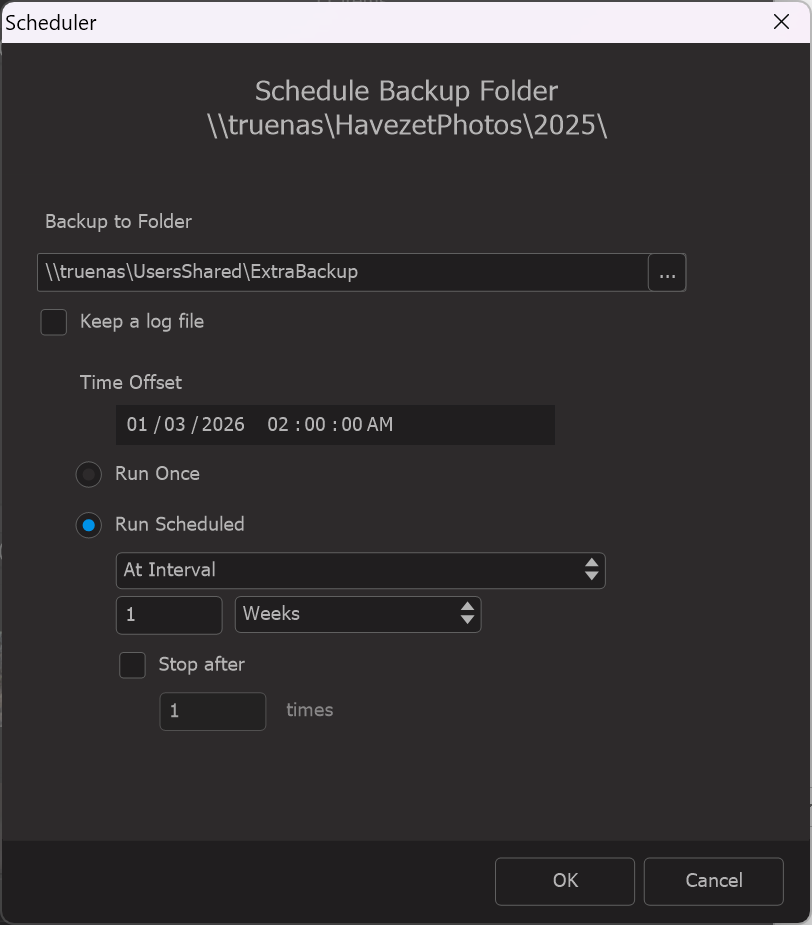
To cancel a scheduled backup process, right-click on the folder again and select Backup Folder -> Schedule Backup Folder. This option will display a checkmark if a schedule is currently set, indicating that you can proceed to remove it.