Folder and File Management with Photo Supreme
Marking Folders
With Photo Supreme, you can assign color labels to folders. This allows you to indicate a specific status for each folder, such as "Work Planned," "Pending," or "Work in Progress". By using color labels, you can quickly identify the status of a folder at a glance.
There are nine different colors available for marking your folders. To assign a color label, click on the folder icon of any folder in the FOLDERS section. This will open a popup displaying the various markers you can apply to that folder.
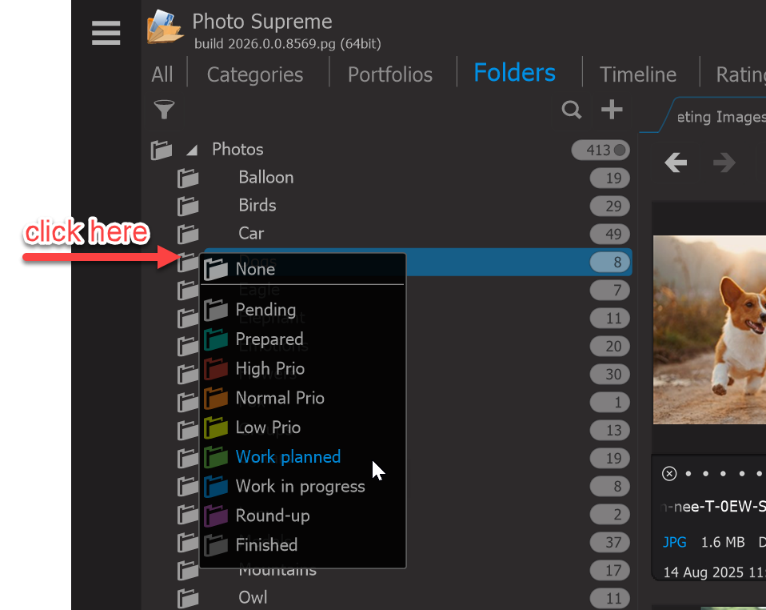
You can customize the names of the colors in the Preferences under the Catalog Section by selecting Folder State Definitions.
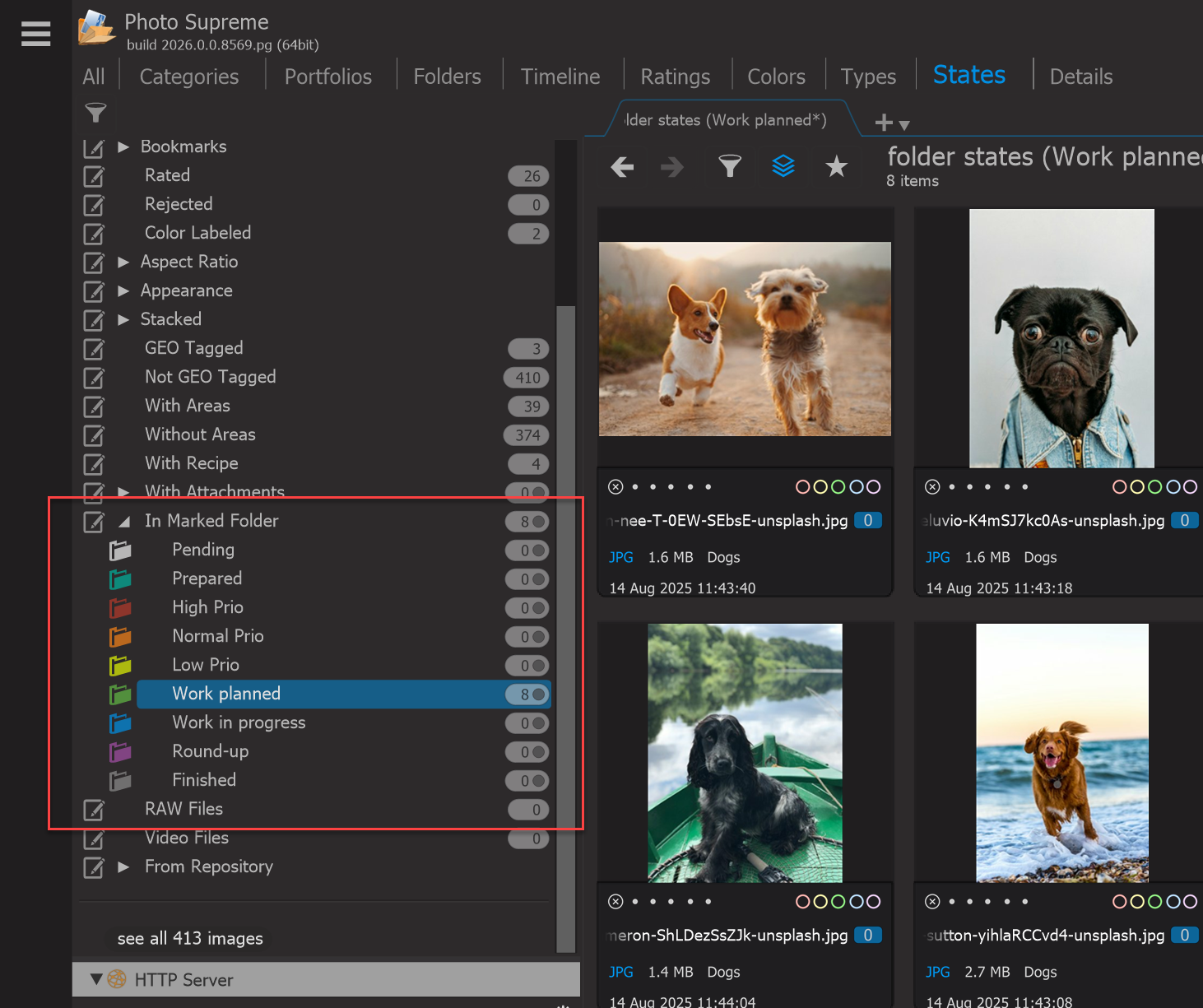
After marking a folder, you can easily locate all images within that marked folder from the States section in the Catalog. Simply select "In Marked Folder", and the dropdown menu will let you choose a specific color state to display.
Tip: Click the counter icon to view a recursive display of the marked folder.