
Folder and File Management with Photo Supreme
Folder Operations
While working with the catalog in the FOLDERS section, you can perform physical folder operations directly on the file system. You can create, rename, delete, and move folders—all without leaving the application. Any folder operation executed within the Photo Supreme application will immediately update the database to reflect these changes.
Create a new Folder
Right-click on a folder and choose “Create Sub Folder for”.
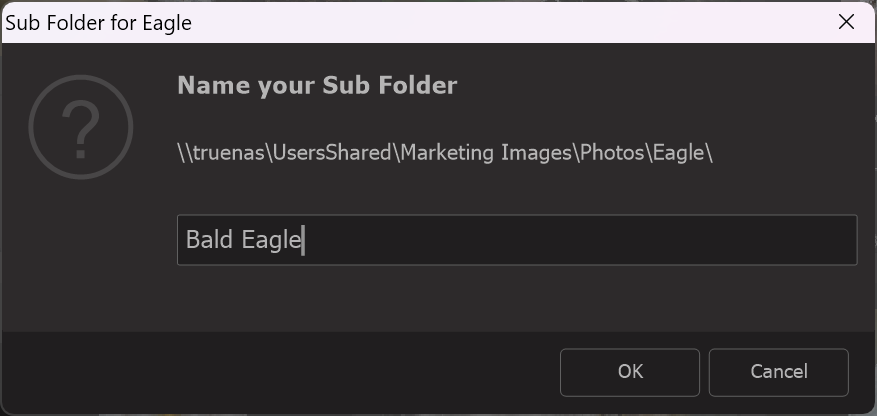
Then, enter the name for your new subfolder.
Note: After creating a new subfolder, it will initially appear at the bottom. It will only be displayed in alphabetical order once you close and then expand the parent folder.
Rename an existing folder
Right-click on the folder you wish to rename, then select “Edit Folder Name”. You can now change the folder's name, and it will also be updated on the disk.
Remove or delete a folder
It's important to distinguish between "Remove" and "Delete". Removing a folder will take it out of the catalog, while deleting a folder will remove it from the disk.
To remove a folder, right-click on it and select “Remove”.
To delete a folder from the disk, right-click on it and choose “Delete”.
Move a folder
You can move a folder by either dragging it to a new parent folder or by using the Cut & Paste feature. To cut a folder, right-click on it and select “Cut”. Then, choose the new parent folder, right-click on it, and select “Paste.”
Copying a folder
To copy a folder to a new location, right-click on the folder you want to copy and select “Copy”. Then, choose the destination parent folder, right-click on it, and select “Paste”.