
Folder and File Management with Photo Supreme
Folder Verification
As you work with files in Photo Supreme, your preferred photo retouching software, or any other application, it’s inevitable that new files or folders will appear in the file system that are not yet included in the catalog. Manually locating these can be quite tedious. The solution is straightforward: Folder Verification.
Verifying catalog folders helps identify changes that have occurred in the file system that are not synced with the catalog. Some examples include:
- A subfolder was deleted from the disk but still exists in the catalog.
- A subfolder is present on the disk but is missing from the catalog.
- An image has been deleted from the file system but remains in the catalog.
- An image found on the file system has not yet been added to the catalog.
- A file was edited outside of Photo Supreme.
You can specify the actions to take for each type of result, making it easy to manage changes made outside the scope of Photo Supreme.
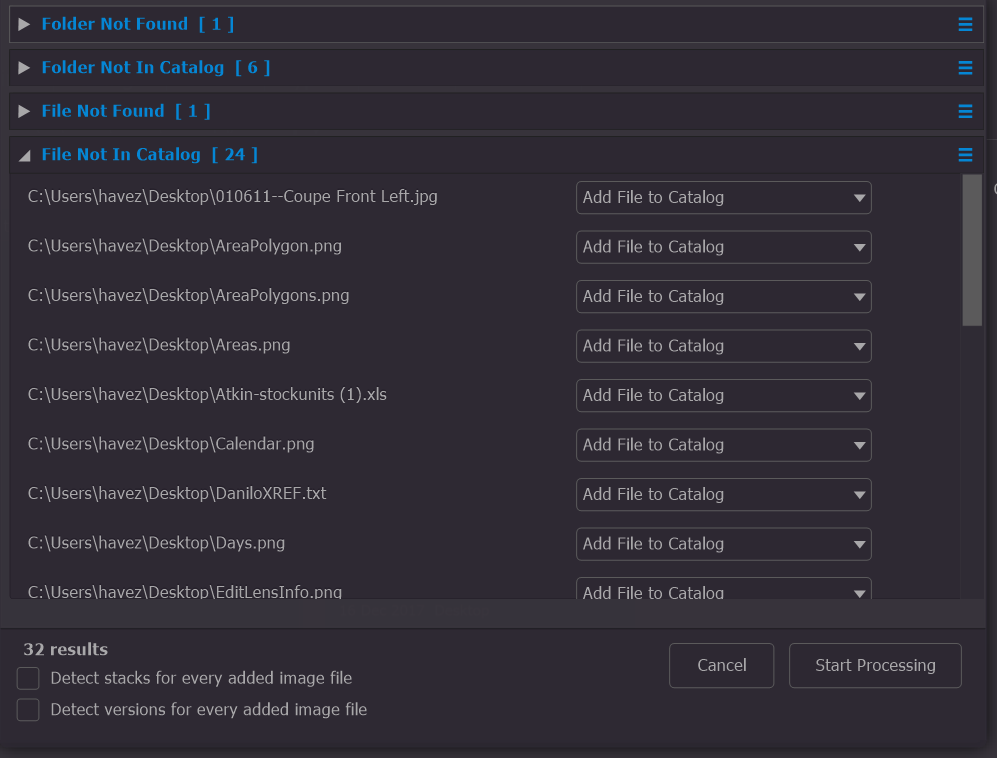
To initiate Folder Verification:
- Open the Folders section by clicking on that option in the Catalog Bar.
- Right-click on any folder in the Folders hierarchy.
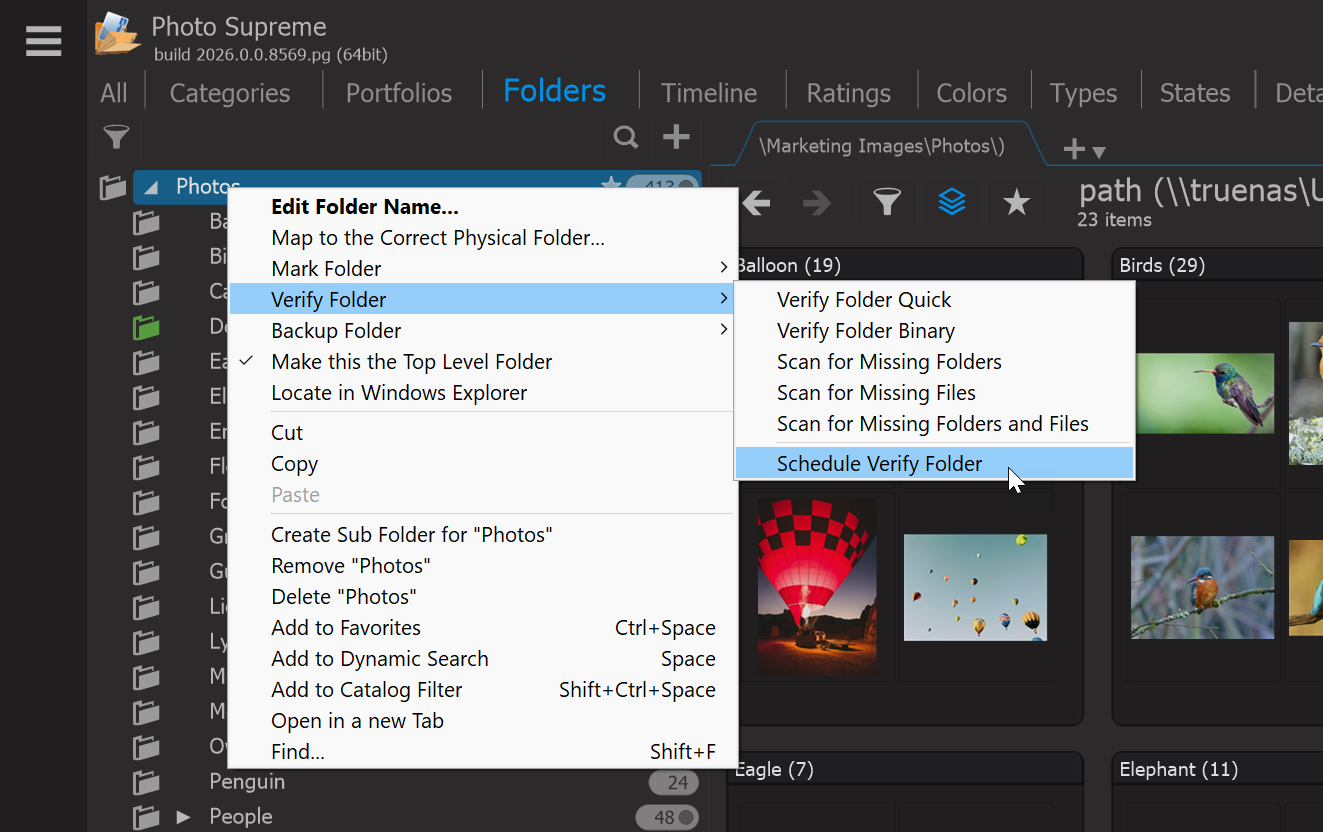
- Select the “Verify Folder” option from the context menu.
a. Verify Folder Quick – This option reports a file as changed when the file stamp or file size has changed. It will also report any missing files and folders.
b. Verify Folder Binary – This option reports a file as changed when its binary file signature has altered (e.g., if it has been rewritten with third-party software or if the file is corrupt). It will also report any missing files and folders.
c. Scan for Missing Folders – This scans the file system for folders that exist but are not in the catalog, and vice versa.
d. Scan for Missing Files – This scans the file system for files that exist but are not in the catalog, and vice versa.
e. Scan for Missing Folders and Files – This scans the file system for both folders and files that exist but are not in the catalog, and vice versa.
For the most comprehensive check, you can select Verify Folder Binary, which thoroughly checks for any changes in the binary file signature. However, in most cases, the Verify Folder Quick option is sufficient and operates much faster by only checking for changes in file timestamps or sizes.
This will start the folder verification process for the selected folder and all its subfolders. As the verification progresses, Photo Supreme will check for all files and folders within the specified folder(s) and confirm whether they still exist in the catalog or if there are entries in the catalog that are no longer present in the file system.
This process will initiate the folder verification for the chosen folder and its subfolders (if any).
Tip: Hold down the Ctrl key (Windows) or the Cmd key (Mac) while selecting the “Verify Folder” option to verify only the selected folder without including the subfolders.
As the process begins, Photo Supreme will scan all files in the selected folder(s) to check if they still exist in the catalog or if there are catalog entries that no longer correspond to files on the file system. For each file found, a signature is recorded in the database. If a signature from a previous run already exists, it will be compared to the current file, and any changes will be reported.
Schedule Folder Verification
You've now learned how to manually trigger Folder Verification to keep your file system and catalog synchronized, which is crucial when using different software or tools on your image files. In addition to manual verification, you can also schedule this process to run periodically. To do this, right-click on the folder you want to schedule verification for, then select Verify Folder -> Schedule Verify Folder from the context menu.
This action opens the Scheduler, where you can set the interval for the verification process to run automatically.
For instance, you can configure the schedule to run every 12 hours, ensuring that your catalog stays in sync with the file system at regular intervals.
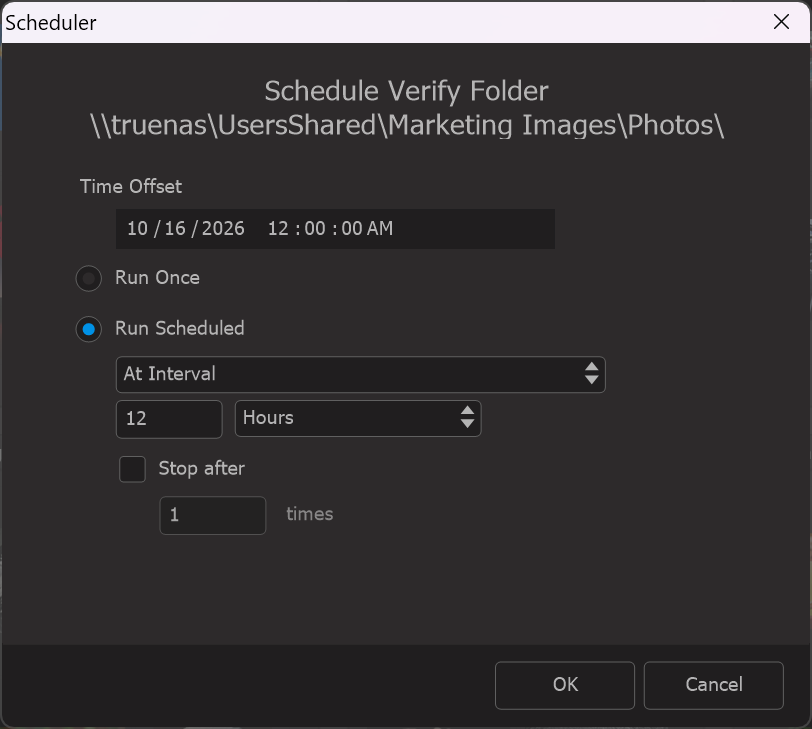
To cancel a scheduled verification process, right-click on the folder again and select Verify Folder -> Schedule Verify Folder. This option will display a checkmark if a schedule is currently set, indicating that you can proceed to remove it.