Cataloging with Photo Supreme
Getting started with Portfolios
Photo Supreme lets you organize your images using portfolios, a powerful system distinct from traditional cataloging. While cataloging helps manage metadata and labels, portfolios allow you to group related images into a flexible, virtual structure.
Unlike your computer’s folder system, which is limited to physical file locations, portfolios can include images from different folders across your storage devices. Importantly, adding an image to a portfolio doesn’t move or duplicate the file; it simply links to it. This means the same image can appear in multiple portfolios without taking up extra space.
You can create portfolios to suit any purpose, whether it’s organizing images for your website, grouping projects by year, or following your own custom logic. Portfolios give your collections structure and coherence.
Think of a portfolio as a cabinet, each containing several photo books: your collections.
Portfolios are built on two levels:
- Portfolios contain collections
- Collections can include images or sub-collections
There’s no limit to the number of portfolios, collections, or sub-collections you can create. Collections are where the actual images are stored.
For example:
- A portfolio called Projects might include collections for each month of 2025.
- A portfolio named Website could have collections like Models, Nature, and Architecture.
- Within Models, you might create sub-collections for Wendy, Simon, and Anna—each holding their respective images.
You’re free to organize collections however you like. Since collections are virtual, they can include images stored in different folders, without needing to move or copy files on your disk. You can also use the same image in multiple collections or portfolios without duplicating it on your drive.
Keep in mind: portfolios are best for specific goals or presentations. You don’t need to add every image to a portfolio—catalog labels are better suited for broad image management.
To explore your portfolios, go to "Portfolios" in the Catalog Sections at the top, or look for them in the ALL section.
Adding images to a Collection
To add images to your collection, begin by locating the images you want to include. Select one or more thumbnails, then right-click on a selected thumbnail and choose Operations -> Add to Portfolio Collection. From there, select the collection where you want to add the image.
Alternatively, you can use the Copy/Paste feature: select the thumbnails, press Ctrl+C (Windows) or Cmd+C (macOS) to copy the selection to the clipboard, then navigate to the desired portfolio collection and press Ctrl+V (Windows) or Cmd+V (macOS) to paste the images. You can also drag and drop thumbnails directly into the portfolio collection, such as from the ALL section.
Dynamic Collections
In addition to standard collections, where you manually add images, you can also create Dynamic Collections. A Dynamic Collection automatically fills itself with images based on search criteria or rules that you set.
Think of a Dynamic Collection as a smart filter:
For example, you could create a Dynamic Collection that always shows:
- All images taken in 2024
- All photos tagged with "Vacation" and rated 4 stars or higher
- Every image shot with a specific camera or lens
Once set up, the collection updates itself, any new image that meets the rules will automatically appear in the Dynamic Collection, without you having to add it manually.
This makes Dynamic Collections ideal for keeping track of frequently updated groups of images, like current projects, recent uploads, or images needing review.
You can use both types of collections together. For instance, you might use a Dynamic Collection to find your best-rated photos, then copy selected ones into a Standard Collection for a slideshow or client delivery.
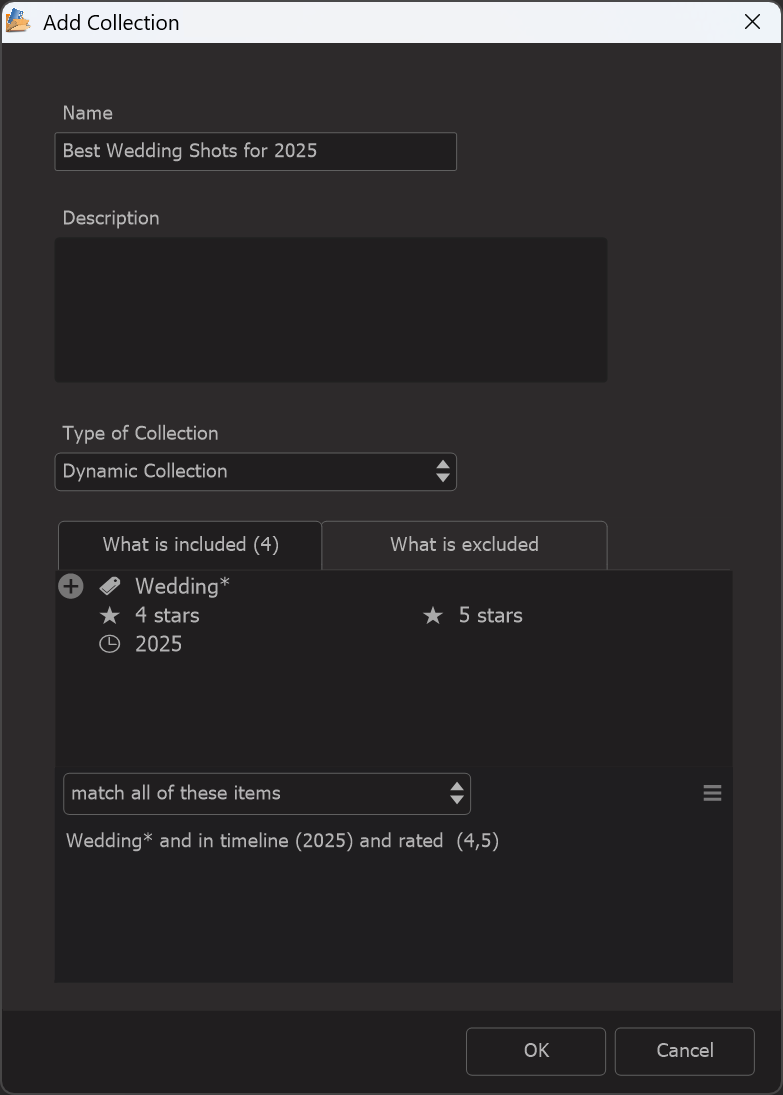
To create a new Dynamic Collection, start by clicking the + icon next to the portfolio or collection where you want to add it. This opens the Collection Settings dialog.
- Give your collection a name, something descriptive like “Wedding Favorites 2025.”
- In the “Type of Collection” field, choose Dynamic Collection.
Once you select this type, new options will appear where you can define the rules for which images should be included or excluded. You can build your criteria based on things like keywords, ratings, dates, or other metadata.
Example:
You could create a Dynamic Collection that automatically includes:
- All images tagged with “Wedding”
- Taken in the year 2025
- With a rating of 3 or 4 stars
This way, the collection always stays up to date: any new photo that matches these rules will be added automatically.