
Cataloging with Photo Supreme
Synchronizing
Metadata refers to the information that outlines the characteristics or properties of a document. It can be recorded in various locations, such as Exif, IPTC, and XMP within the file itself. Additionally, when using Photo Supreme, XMP can also be stored in the catalog. In the context of a Digital Asset Management (DAM) tool, it's important to adopt the principle that "the truth lies in the database".
Reading TIP: The DAM Book by Peter Krogh.
Since the accuracy of your data relies on the database, it's crucial to have the right tools to maintain synchronization between the various levels of metadata within the file and that stored in the Catalog. Photo Supreme offers some useful tools for this purpose. In a typical workflow where you exclusively use Photo Supreme to manage the file metadata, the process is straightforward; with the default preference settings, Photo Supreme will automatically keep the metadata in the Catalog aligned with that in the file. However, if you use different software products to modify metadata, maintaining the “truth” or “validity” of the data becomes significantly more challenging. Therefore, it’s advisable to limit the number of tools you use to modify your metadata.
In Photo Supreme, a marker on the thumbnail indicates whether a file is in sync or not. If a file is out of sync, this means that Photo Supreme suspects the metadata in the file may differ from what is recorded in the catalog. This status is represented by an orange dot on the thumbnail.
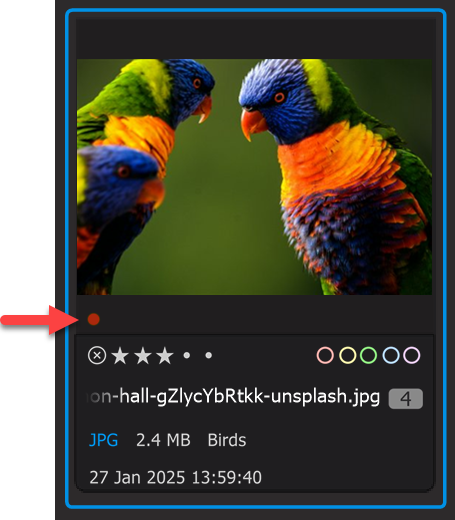
When this indicator is displayed, it signifies that Photo Supreme considers the file to be "out of sync". Additionally, in the States section, you can find an option that lists all files that are currently out of sync.
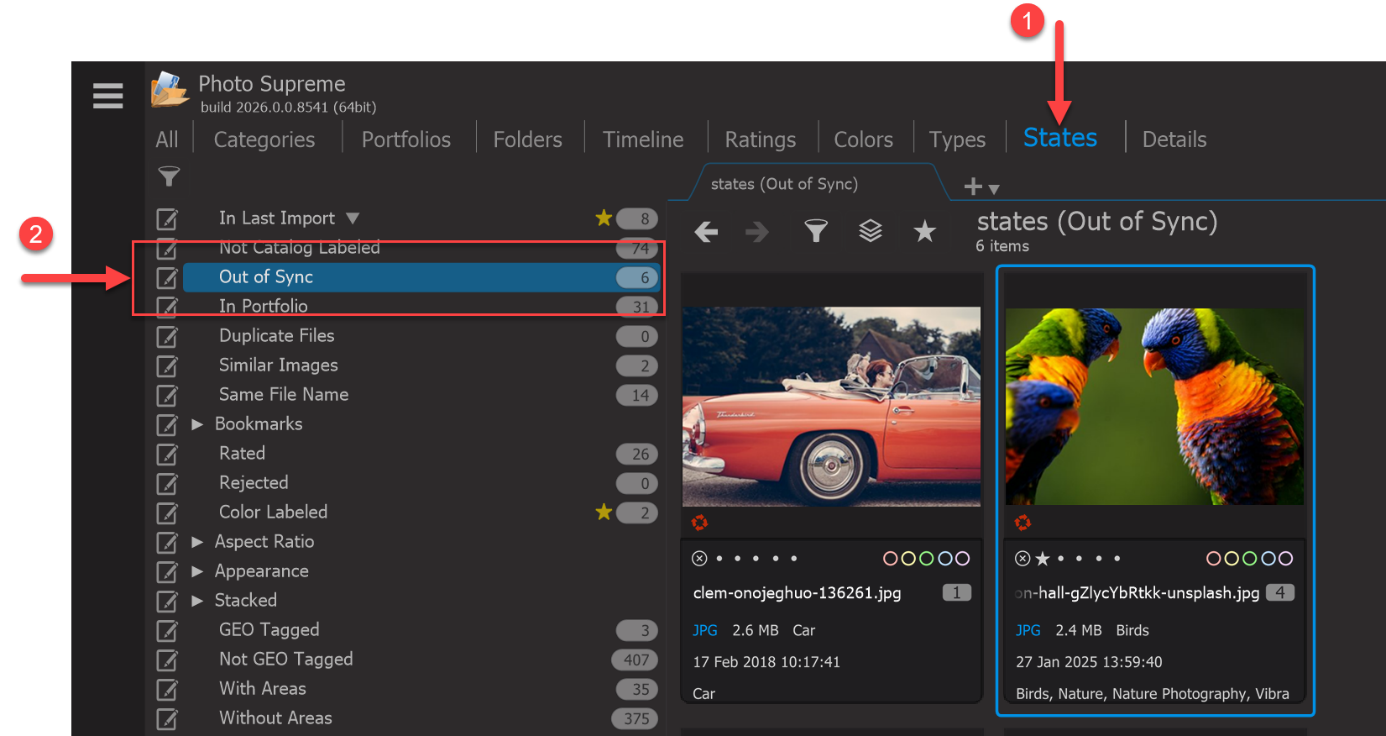
In this catalog, there are 6 six files marked as "Out of Sync." This indicates that the metadata needs to be either read from the file to update the metadata in the catalog or written from the catalog to replace the metadata in the file.
To address this, you can right-click on one or more selected thumbnails and choose either "Metadata → Read Metadata to File" or "Metadata → Read Metadata from File."