
Cataloging with Photo Supreme
Image Attachments
With Photo Supreme, you can link any file or website to your images, providing quick access to documents or resources relevant to that image. For example, you can attach a spreadsheet detailing sales for an image, connect a birth certificate document, or link to a website that features your image, ensuring you always have the necessary context. To add an attachment, simply hover over the thumbnail to reveal the paperclip icon, or use the keyboard shortcut A.
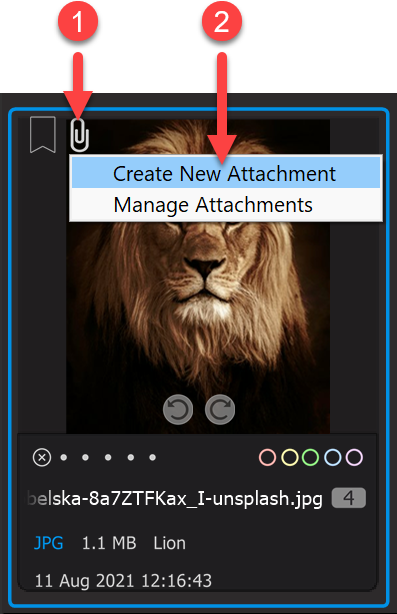
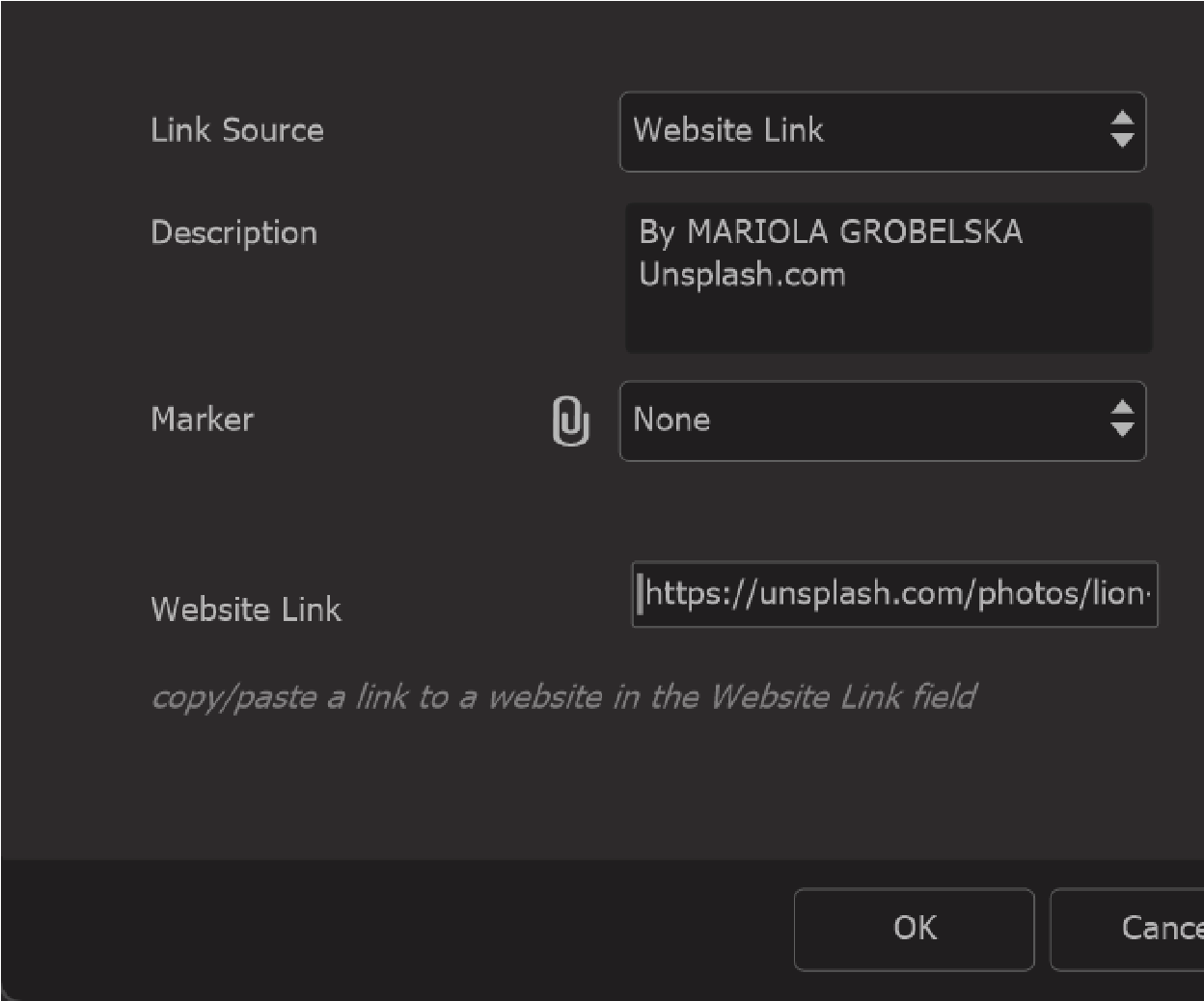
Once you add an attachment to an image, the paperclip icon on that thumbnail will remain activated.
You can assign a marker to each attachment, and the caption for each of these markers can be customized in the Preferences. By consistently using these markers, you can utilize them in search operations as well. The Attachment Markers are also accessible in the States section of the catalog, enabling you to quickly find all images that have an attachment with a specific marker, such as all images linked to a sales report.