
Maintaining Photo Supreme
Backup and Restore
Your catalog is stored in a database, and as you dedicate more time to building it, protecting that information becomes essential. The backup feature is designed to assist you in saving your database to a secure location.
Backup
Tip: If you’re using the Photo Supreme Server Edition, it’s advisable to utilize the backup feature of your database system. For PostgreSQL, you can use pgAdmin to back up the database. If you’re using SQL Server, the Microsoft SQL Server Management Studio software can be used to create the backup. |
|---|
Time Machine: If you're running Photo Supreme on macOS and using Time Machine for backups, be aware that a Time Machine backup may become corrupt if it's taken while Photo Supreme is active. Do not depend on Time Machine as your sole method for backing up your catalog. Instead, create a backup to a designated folder using Photo Supreme, and then include that target folder in your Time Machine backups. |
To back up your catalog, choose the backup option from the Catalog menu located in the Hamburger menu.
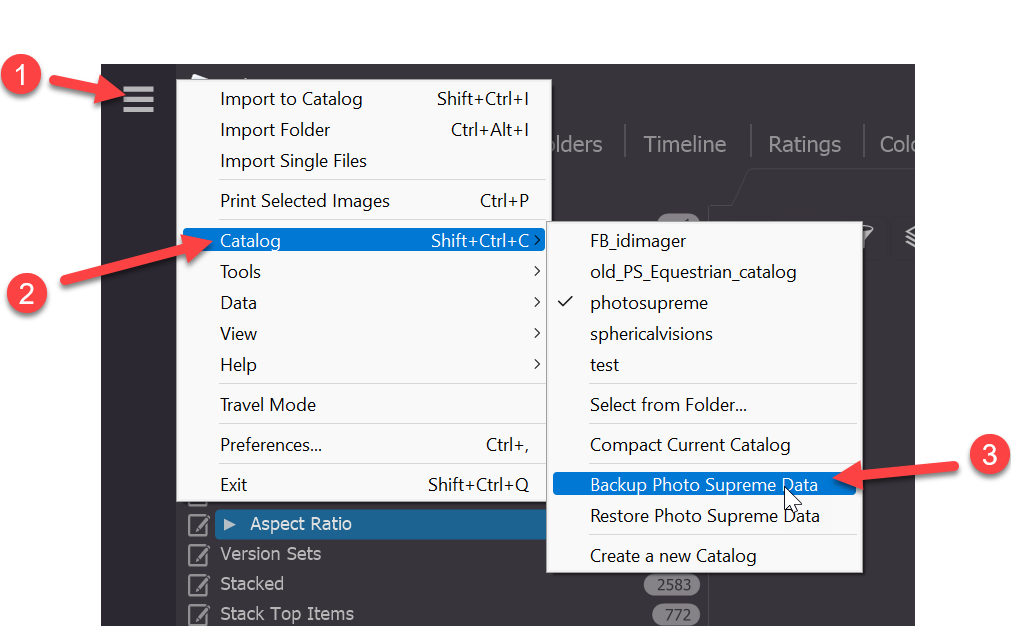
Next, you can choose the backup folder where you want to save the backup files.
IMPORTANT: It is strongly advised to store your catalog backup on a secondary hard drive, such as an external drive or an additional internal drive in your computer. Avoid backing up to a folder located on the same hard drive (or partition) as your catalog. Once the backup is complete, the backup folder will contain your catalog database, thumbnail database, and configuration files: essential information for using Photo Supreme.
Restore
Tip: If you're using Photo Supreme Server Edition, it’s advisable to utilize the restore feature of your database system. Always create a new Photo Supreme database before restoring a backup created with pgAdmin or SQL Server Management Studio.
For PostgreSQL, you can use pgAdmin to manage your backups. When creating a backup, stick with the default settings. When restoring a backup in pgAdmin, make sure to enable the "Clean before restore" option. Failing to do so will result in a restore failure.
For SQL Server, Microsoft SQL Server Management Studio is the tool you should use to restore a backup.
Restoring a backup means reverting the application to the state it was in at the time the backup was created. Consequently, all catalog changes made after that backup will be lost, highlighting the importance of creating backups regularly.
To restore a backup, select the appropriate option from the Catalog menu. You will then be prompted to specify the backup folder: the same folder where you previously created the backup. Once you've selected the folder, the restoration process will begin. At this stage, keep in mind that there is no turning back; both the catalog and application configuration will revert to the state stored in the backup folder.
Restoring a catalog when no backup is available
By default, Photo Supreme writes the ICS (IDimager Core schema) to the metadata of your files, providing an additional layer of backup that you can use for restoration if all other options fail, such as when no backup is available. This feature is enabled by default, and it is advisable to keep it active, as it serves as a valuable safeguard. You can configure the writing of ICS in the Preferences under Synchronize Settings -> Write Settings.
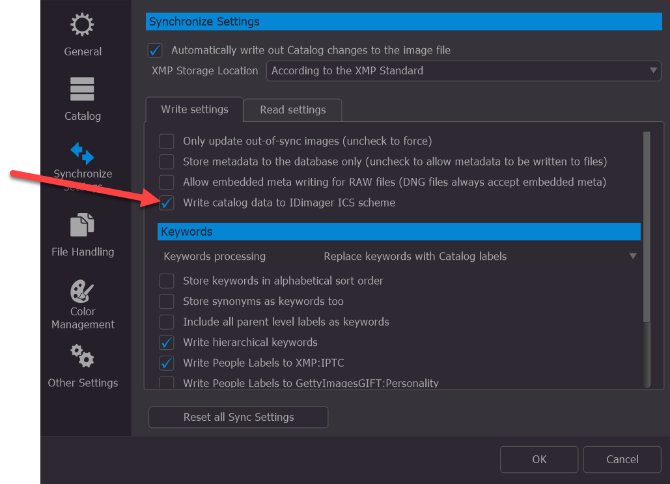
If your regular restore fails, then you can resort to restoring from the ICS schema.
- To restore from ICS, you start with a new Catalog. The new catalog is empty.
- First enable ICS reading. The ICS reading is disabled by default. Find the setting in the Preferences -> Synchronize Settings -> Read Settings. Enable that option in the new and empty catalog.
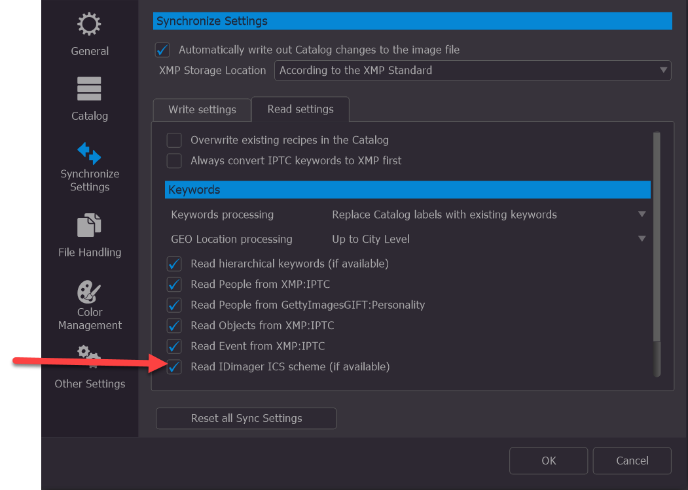
- Click OK to apply the changed preferences
- Now import from your image folder. Use the Hamburger menu -> Import from Folder for that.
- When the images have ICS in the metadata then this ICS will be used to reconstruct the relevant catalog info.
- IMPORTANT: Enabling ICS during the import process can slow down the overall speed of the import. After you have successfully reconstructed the Catalog using the ICS, it is advisable to disable ICS reading to optimize performance.