
Maintaining Photo Supreme
Command Line Startup Parameters
Photo Supreme can be started from the command line with different configuration parameters.
Windows
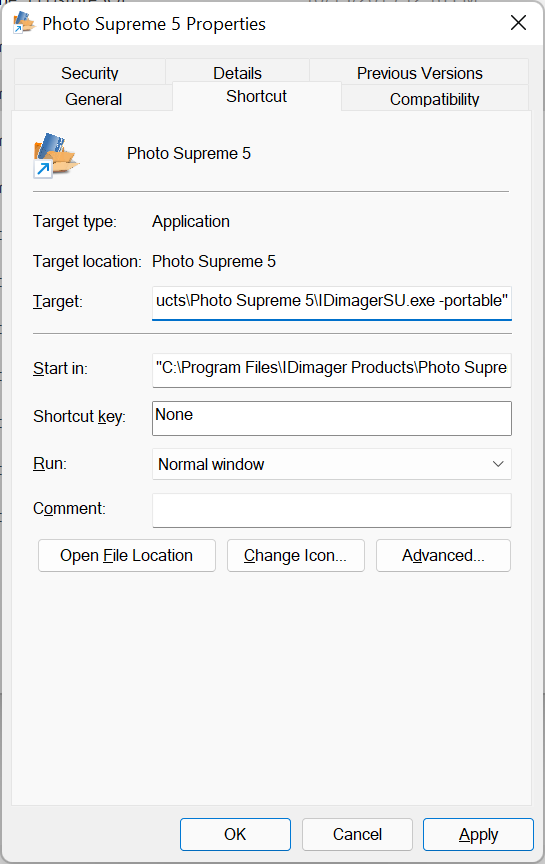
To add command line Parameters:
Right-click the Photo Supreme application icon in the Start menu. Then select Properties. In the properties, add the parameters after the executable name.
macOS
To add command line Parameters:
Create an application using the Apple Script Editor with the following AppleScript code:
do shell script "open -a '/Applications/Photo Supreme.app' --args <<parameters>>"
After the –args parameter, replace <<parameters>> with the needed parameters from the list below.
Test the script by clicking the Run button in the Apple Script Editor. Then use File -> Export and export as an application by setting the File Format to Application.
Parameters
The following parameters can be used:
-a <<folder>> | Photo Supreme will store all data files (e.g., options file, rename rules) in the local user's data folder (%localappdata% under Windows; the designated Library folder under macOS). With this startup parameter you can change the folder that should be used. Once you set this parameter, Photo Supreme will search for the data files in that folder. Example: C:\Program Files\IDimager Products\Photo Supreme\IDimagerSU.exe -a "d:\my data folder" |
|---|---|
-tmp <<folder>> | By default, temporary files are stored in the TEMP folder as defined in the Operating System. With this startup parameter you can change the folder that should be used as the TEMP folder. Example: C:\Program Files\IDimager Products\Photo Supreme\IDimagerSU.exe -tmp "d:\my temp folder" |
-L <<folder>> | By default, Photo Supreme expects the license file to be stored in the Windows or macOS user Application Data folder. With this startup parameter you can change the folder where Photo Supreme should search for the license file. Example: C:\Program Files\IDimager Products\Photo Supreme\IDimagerSU.exe -L "d:\my data folder\license" |
-portable | Use the -portable parameter to start Photo Supreme in a mode where it will not store any of its data on the computer but instead store its data on the medium (e.g., a USB memory stick) where Photo Supreme is ran from. This includes temporary data as well as registry key settings. Example: C:\Program Files\IDimager Products\Photo Supreme\IDimagerSU.exe -portable" |
-regdb <<filename>> | When this option is specified, Photo Supreme will not store any data to the registry but to a local database file instead. You can specify the name of the file that you want to use. Example: C:\Program Files\IDimager Products\Photo Supreme\IDimagerSU.exe -regdb "c:\myFiles\Photo Supreme\myregistry.iddb" |
-runscript <<filename>> | When this option is specified, Photo Supreme will run a script on startup. You can specify the file name of the script to start. Example: C:\Program Files\IDimager Products\Photo Supreme\IDimagerSU.exe -runscript "c:\myFiles\Photo Supreme\Scripts\startupscript.psc" |
-S <<database server instance name>> | Specify the name of the database instance you want to connect to. E.g localhost\SQLExpress |
-O <<port>> | Specify the port number of the database |
-D <<database name>> | Specify the name of the database within the server database instance. By default, this is photosupreme |
-U <<username>> | Specify the application username that should be used to login. By default, this is admin |
-P <<password>> | Specify the login password for the application username. By default, this is master2004 |
Example: C:\Program Files\IDimager Products\Photo Supreme\IDimagerSU.exe -S.\SQLExpress -D photosupreme -U admin -P master2004 | |
-AD | Use Active Directory authentication in the Server Edition for Windows. Also see the User Management manual for additional information |
-IDIMAGER_MAIN_PWD | (Server Edition Only) To use a different password for the idimager_main database user then you can use this command line parameter. First keep the default password, then start Photo Supreme and press Ctrl+Alt+Shift+X and enter the password that you’d like to use. That copies the encrypted password to the clipboard. Pass that here as a parameter. Example: C:\Program Files\IDimager Products\Photo Supreme\IDimagerSU.exe -IDIMAGER_MAIN_PWD 9F828E1957A45E49559D |
-UL <<lang>> | Start Photo Supreme with a pre-defined language. Use the 2 letter ISO language code, e.g. -ul fr to start Photo Supreme in French |
-httpserver | (Server Edition) After starting the application, also start the HTTP Server |