
Maintaining Photo Supreme
Multiple Catalogs
With Photo Supreme, you have the flexibility to manage your image archive using one or more catalogs. It’s generally recommended to use a single catalog, leveraging the available management features to create logical sections for better organization. However, there may be cases where separating your images into different catalogs is beneficial, such as when you want to distinguish between private and professional images.
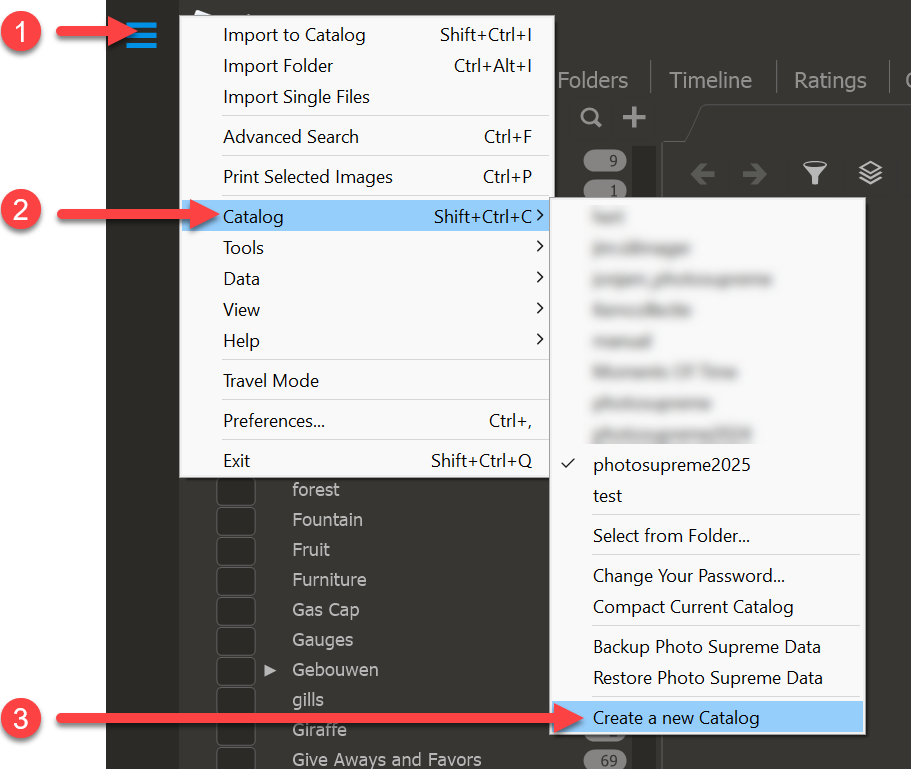
To create a new catalog, follow these steps:
- Open the Hamburger Menu.
- Navigate to the Catalog section.
- Select the option to Create a New Catalog.
This will allow you to set up a new catalog tailored to your specific needs, making it easier to manage your images effectively. This feature is specifically designed to facilitate the setup of databases for managing your image collections.
In the Server Edition of Photo Supreme, you can create a new database using the Database Creation Dialog. To access this dialog, hold down Ctrl+Alt+Win (Windows) or Ctrl+Opt+Cmd (macOS), then launch Photo Supreme while keeping these keys pressed. Once the dialog appears, you can release the keys.
For users of the Single User Edition, the process is slightly different. You can create a new catalog by following these steps:
- Enter a File Name: In the designated field, input the desired file name for your catalog file.
- Click Save: Once you've entered the file name, click the Save button. This action will create the new database for your catalog.
This allows you to manage your images effectively, whether you're working in a single-user environment or a server-based setup.
Switching Catalogs
When managing multiple catalogs in Photo Supreme, there are two primary methods for switching between them:
Method 1: Shortcut Method
- Keyboard Shortcut:
- For Windows: Press Ctrl+Shift+C
- For macOS: Press Cmd+Shift+C
This action will bring up a popup displaying the currently available catalogs. It includes catalogs from the default catalog folder as well as any catalogs located in the folder where the current database is stored (if it differs from the default).
Method 2: Hamburger Menu
- You can also switch catalogs via the Hamburger Menu by navigating to Catalog and selecting the desired catalog from there.
These methods make it easy to manage and switch between your various catalogs efficiently.