GEO Tagging with Photo Supreme
Finding images with or without GEO Tagging
You can directly access all images with or without GEO tag information in two ways.
Filter on GEO Tag
Every collection of images can be refined using the Filter Bar. For narrowing down images based on whether they are GEO tagged or not, the Filter Bar offers an option to filter by status. In this section, you can apply a filter for “GEO Tagged” or “Not GEO Tagged”. More details about advanced filtering options are covered in the Advanced Filtering manual.
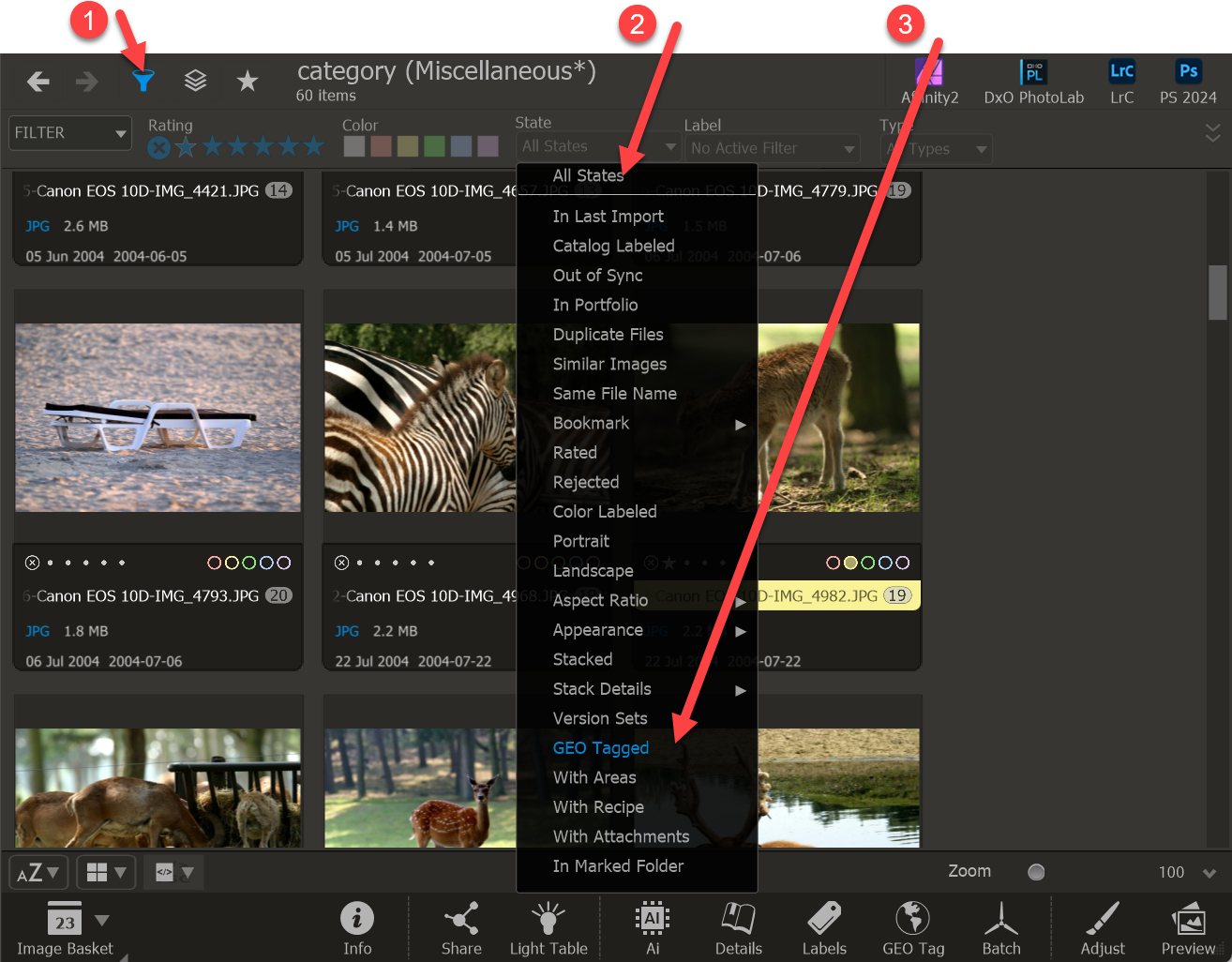
When selecting the state while holding down the Alt key on the keyboard, the filter will be inverted. For example, if you originally choose “GEO Tagged”, holding the Alt key will switch the selection to “Not GEO Tagged”.
All GEO Tagged images
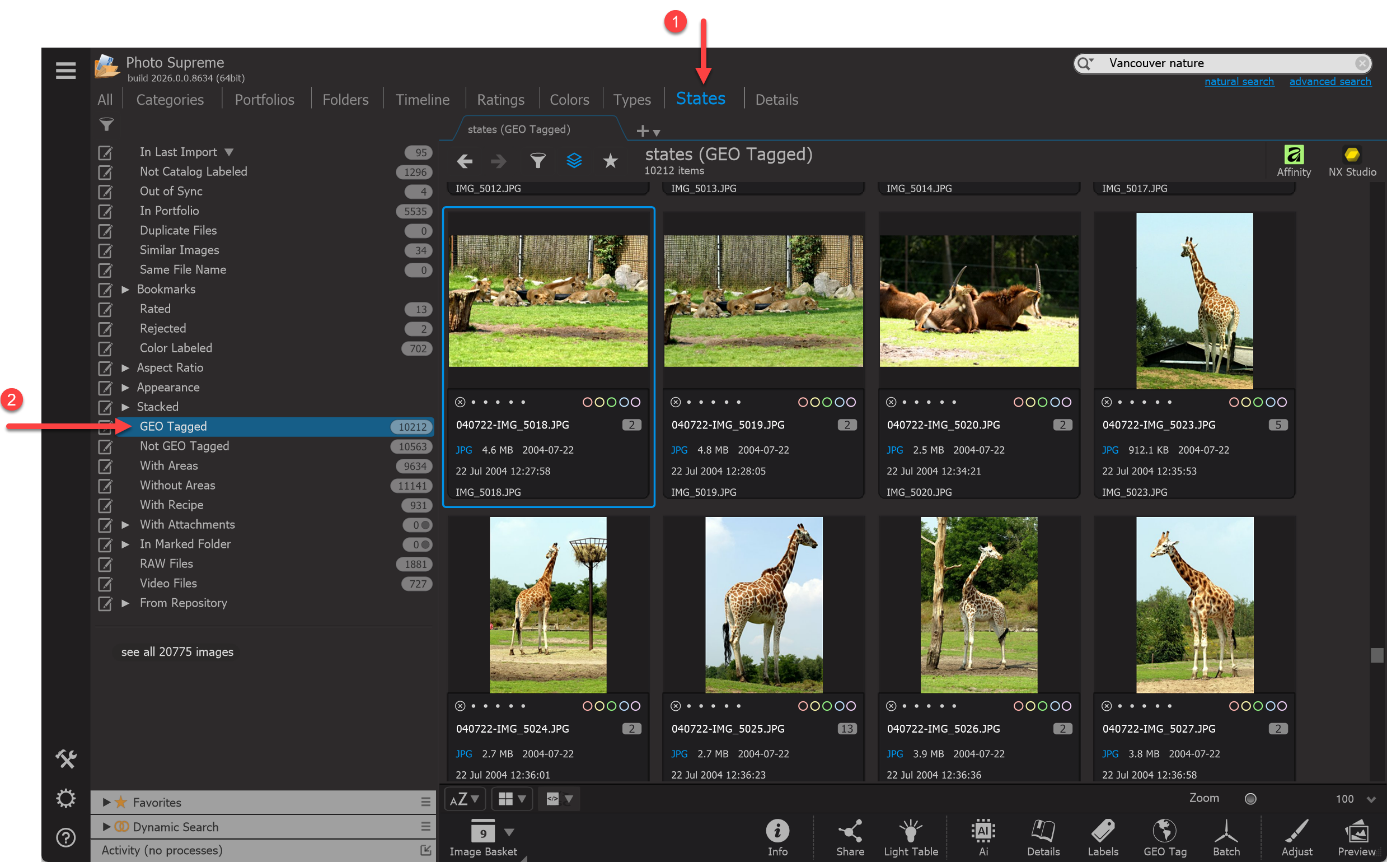
The fastest way to access all images with GEO tags is through the Catalog States. One of the available states allows you to view either GEO Tagged or Not GEO Tagged images. To open the Catalog States:
- Click on the States section in the Catalog Sections.
- Select the entry for GEO Tagged.